Select "Employee Settings", then "Employee Details". Select an employee from the left-hand side, then select "Reg. Allowances" under "Other Details".
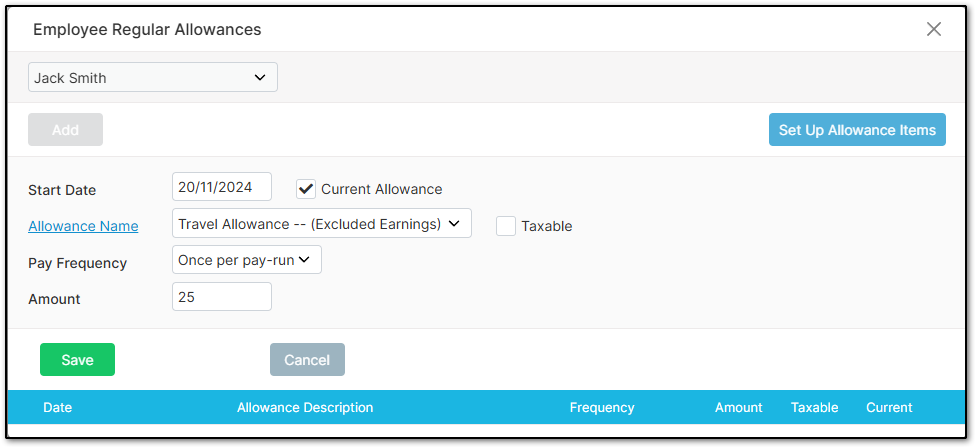
Ensure you have selected the correct employee, then select "Add".
Select the required allowance from the "Allowance Name" dropdown menu. If the allowance you would like is not accessible from this dropdown menu, select "Set Up Items" to view and enable preset allowances that you may consider using within your system.
Next, select the frequency, then add the amount.
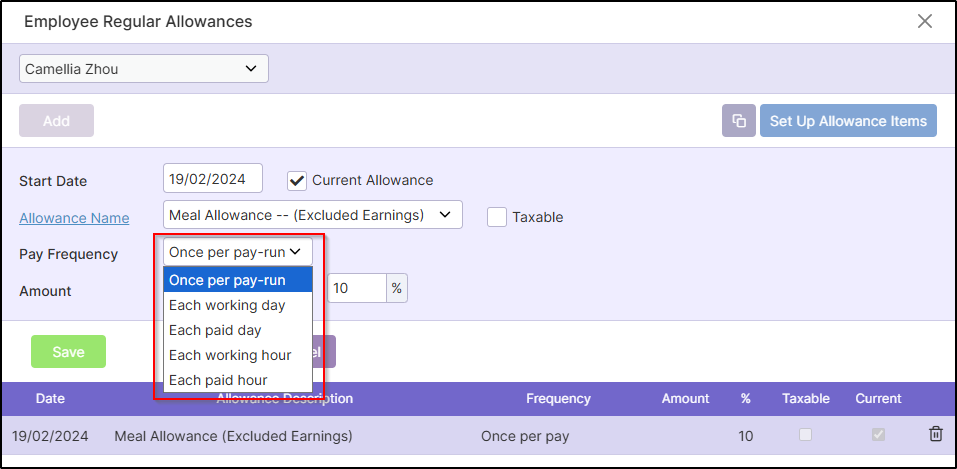
Frequency Options
1. Once per pay run: Allowance will be inputted automatically depending on the pay frequency the employee is paid (e.g. weekly, fortnightly).
2. Each working day: Allowance quantity will be inputted automatically depending only on the days the employee worked in that pay period, and will not include leave days.
3. Each paid day: Allowance quantity will be inputted automatically depending on the days the employee is paid for, which will include both working days and leave days.
4. Each working hour: Allowance quantity will be inputted automatically depending only on the hours the employee worked, and will not include leave hours.
5. Each paid hour: Allowance quantity will be inputted automatically depending on the hours the employee worked and had for leave.
Select "Save".
Advanced Options
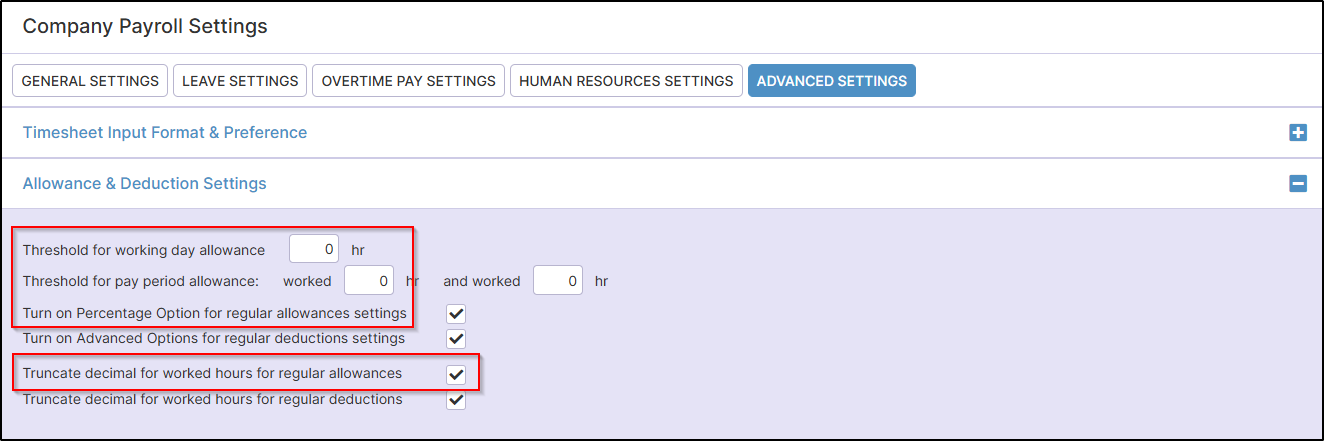
Beyond this, we have some advanced options you can enable from "Company Settings", "Payroll Settings", "Advanced Settings".
Under "Allowance & Deduction Settings", we have some additional options for regular allowances.
1. Threshold for working day allowance: The employee has to work more than a certain threshold of hours daily for their allowance to be inputted (e.g. the employee has to work more than 8 hours to receive their working day allowance).
2. Threshold for pay period allowance: The employee has to work more than a certain threshold of hours and days in the pay period for the allowance to be inputted (e.g. the employee has to work more than 40 hours per week across 5 days to be given their allowance).
3. Turn on Percentage Option for regular allowances settings: Allows you to enter, instead of a whole amount, a percentage of the gross earnings for that pay period.
4. Truncate decimal for worked hours for regular allowances: Makes the allowances always a whole number, as worked hours may be recorded in different intervals (e.g. 15 mins, 30 mins, 45 mins).
If there was an allowance to be paid based on 5.5 working hours, the allowance would only do 5 instead of 5.5.
Was this article helpful?
That’s Great!
Thank you for your feedback
Sorry! We couldn't be helpful
Thank you for your feedback
Feedback sent
We appreciate your effort and will try to fix the article