By default, when using Crystal Timesheets, the employee must click "Email for Manager Approval" for the leave request to be sent to their manager.
If you would prefer the leave request to be automatically emailed so the employee does not need to click a button, you can enable this using the steps below.
Please note: Only employers may enable or disable this function.
Enable Automatic Leave Request Emails
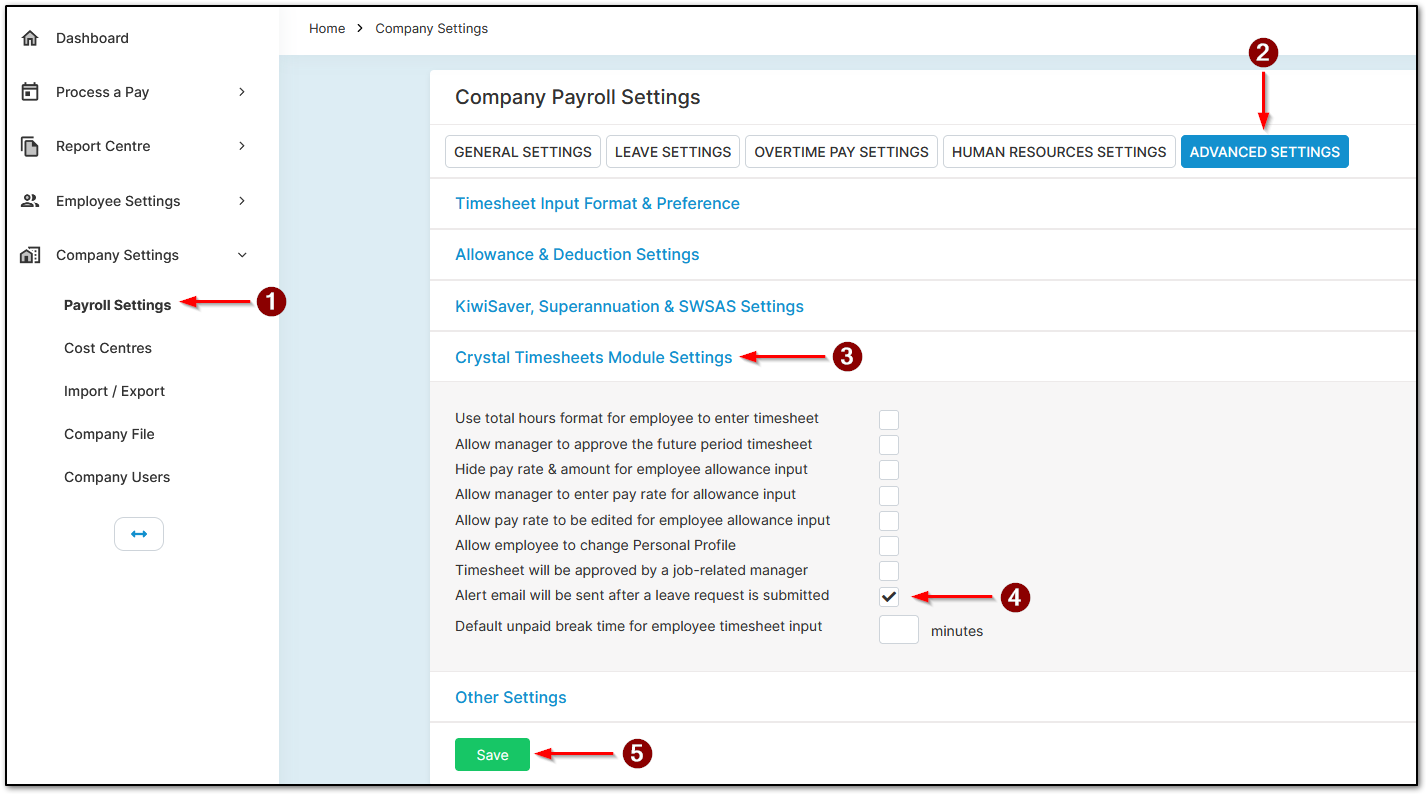
- Please head over to "Company Settings", then "Payroll Settings".
- Open "Advanced Settings".
- Under "Crystal Timesheet Module Settings",
- Enable "Alert email will be sent after a leave request is submitted".
- Select "Save".
Once this is turned on, you will also need to enable it for each manager.
Enable Email Alerts for Each Manager
- Please head over to "Company Settings", then "Company Users".
- Select "Manager".
- Select the manager from the left-hand side.
- Tick "Manager will receive an alert email after employee submitted a leave request".
- Select "Save".
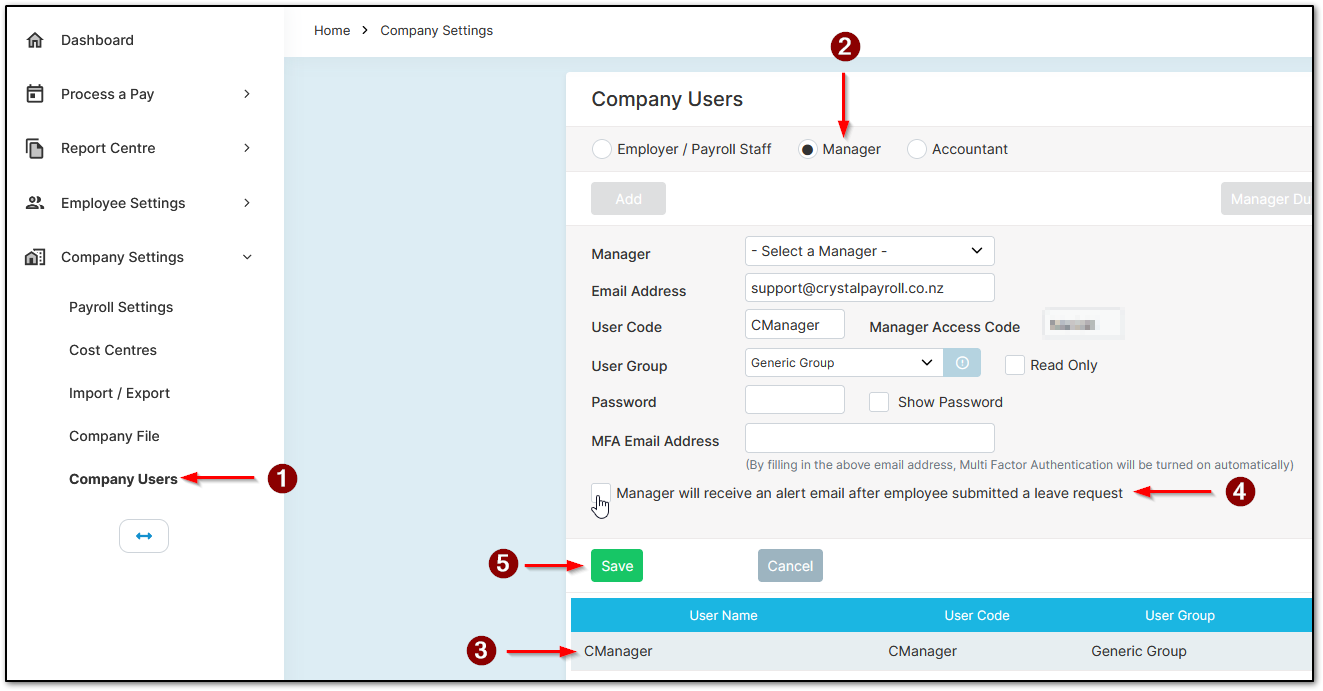
With this enabled for each manager, any time an employee submits a leave request through their Crystal Timesheets login, it will automatically be sent to the manager’s email for approval.
Please note: The Manager still has to click "Email Accept/Decline". This email is not automated. The Manager must remember to click "Email Accept/Decline".
Was this article helpful?
That’s Great!
Thank you for your feedback
Sorry! We couldn't be helpful
Thank you for your feedback
Feedback sent
We appreciate your effort and will try to fix the article