Regular Deductions
If you are specifically looking for WINZ repayments and Ministry of Justice deductions, please click on the link below.
Select "Employee Settings", then "Employee Details". Select an employee from the left-hand side and then select "Reg. Deductions" under "Other Details".
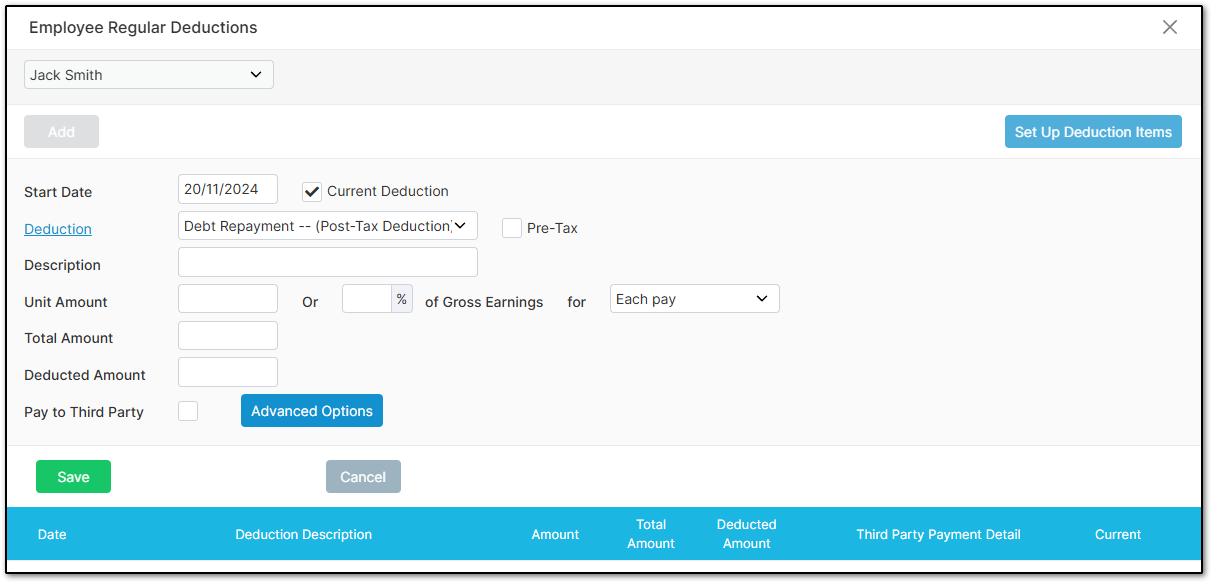
Ensure that you have selected the correct employee, then select "Add".
Select the required deduction from the "Deduction" dropdown menu. If the deduction you would like is not accessible from this dropdown menu, select "Set Up Items" to view and enable preset deductions that you may consider using within your system.
Enter a free-format description if required.
In the "Unit Amount", type the amount that will be deducted each pay period, for example, $5.
The "Total Amount" is the total amount of the deduction, including any amount already deducted, for example, $85.
The "Deducted Amount" is the amount that has already been deducted. If no deductions have been made, leave this field blank.
If the deduction is to be paid to a third party, tick the box. You will then need to enter the bank account number and references for payment to the third party.
When you are finished entering all relevant details, select "Save".
Reducing Balance Summary Deductions
You can load a reducing-balance deduction for employees who repay amounts each week until the balance reaches zero. You can also make the deduction a summary deduction, which allows you to enter multiple item amounts into the same deduction to create a cumulative total. This avoids setting up multiple deductions for similar items such as tools or uniforms.
Note: If the deduction is paid to a third party and requires a unique reference, this option will not work. You must set up separate deductions.
In your employee’s "Regular Deductions" menu, open your previously entered deduction.
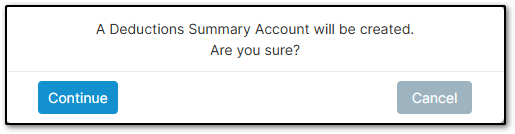
Select "Advanced Options", then "Summary Deduction". Select "Continue" to open the new menu.

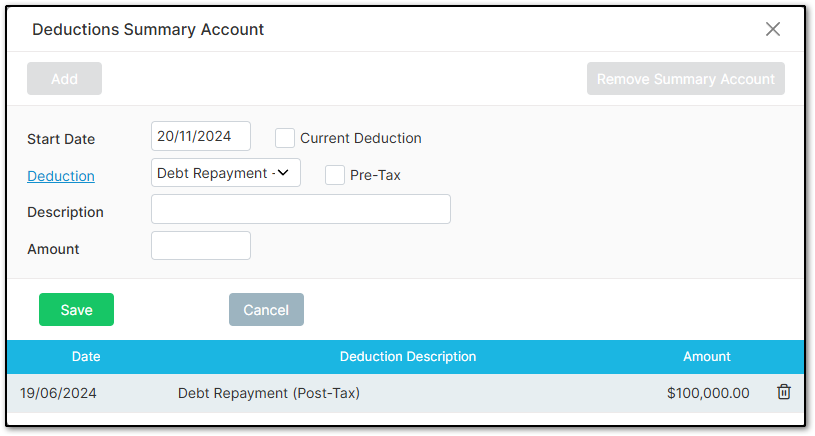
When you select "Add", you can enter a record for the amount owed along with a description. Select "Save". Entering each item will create the total owed amount from which the deduction (unit amount) will be taken each pay period. You can add or top up this deduction at any time. Once the deduction reaches zero, it will stop automatically.
"Pay by Company" Option
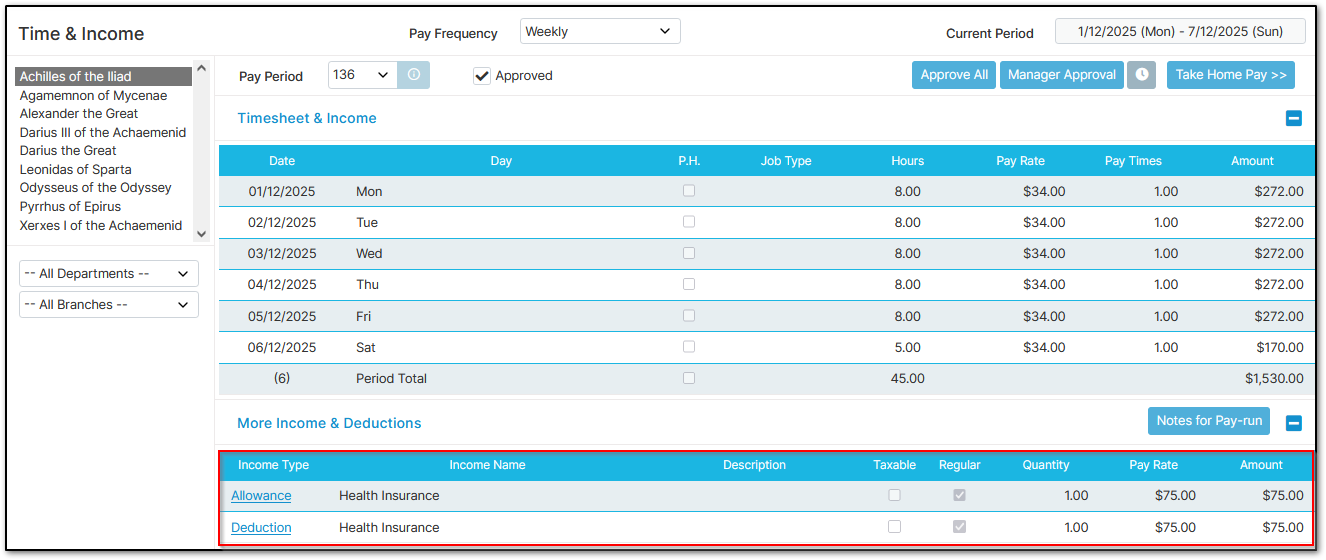
There is a tickbox called "Pay by Company". This is typically used for employee benefits such as health insurance when you want the benefit to appear on the payslip.
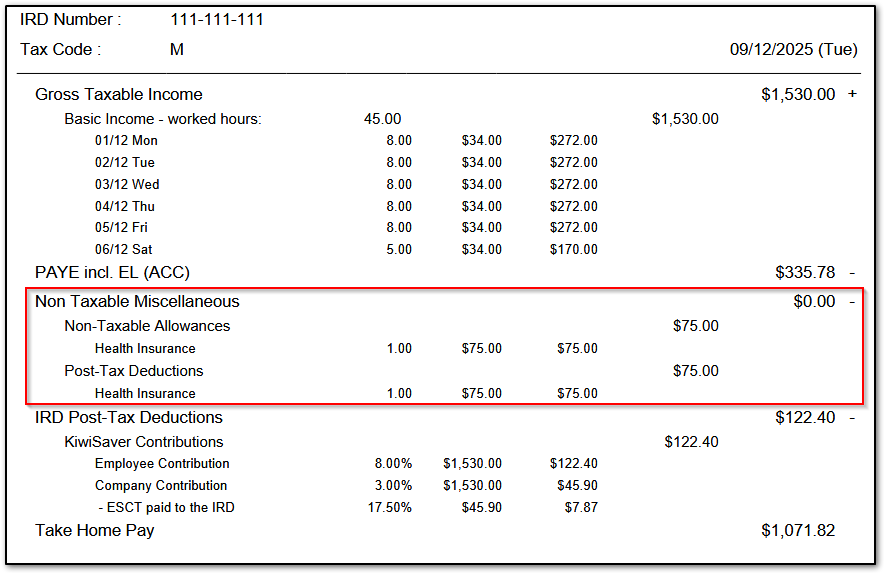
Although the item appears as a deduction, the company is actually covering the cost. Nothing is deducted from the employee’s pay.
This option should only be ticked when the item is genuinely being paid by the company on behalf of the employee. While these payments can be made outside of payroll, selecting this option allows the benefit to appear clearly on the payslip.
For example, if you pay for an employee’s private health insurance but want the benefit displayed on the payslip, "Pay by Company" is the correct option.
You could tick the box:
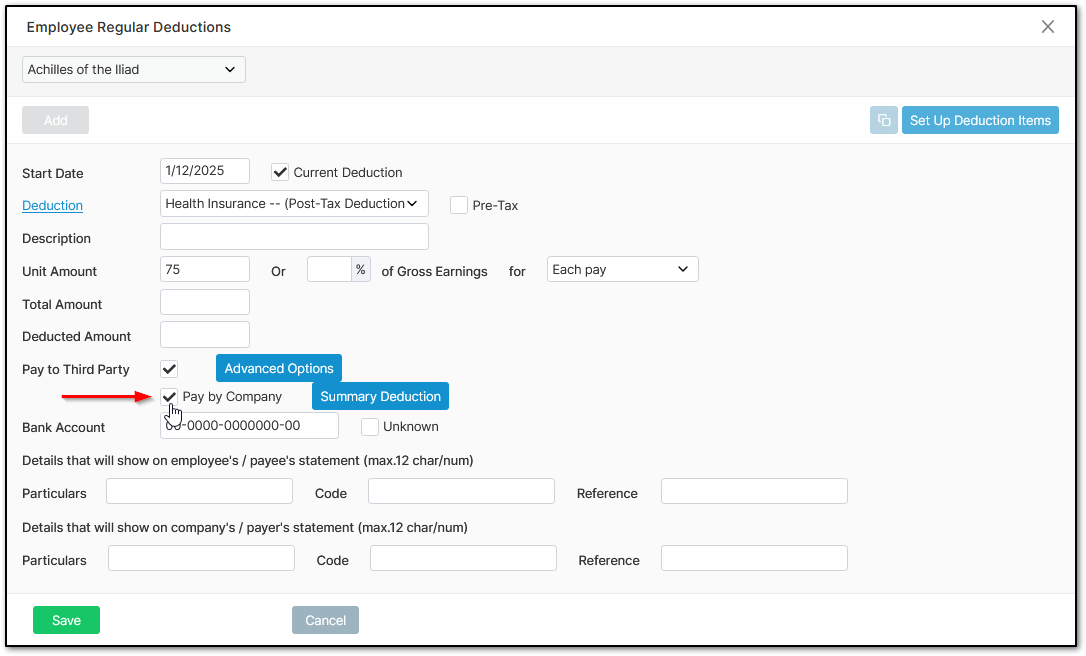
It would appear in Time & Income as both an allowance and a deduction:
On the payslip, the employee will see the benefit even though it does not affect their pay:
Was this article helpful?
That’s Great!
Thank you for your feedback
Sorry! We couldn't be helpful
Thank you for your feedback
Feedback sent
We appreciate your effort and will try to fix the article