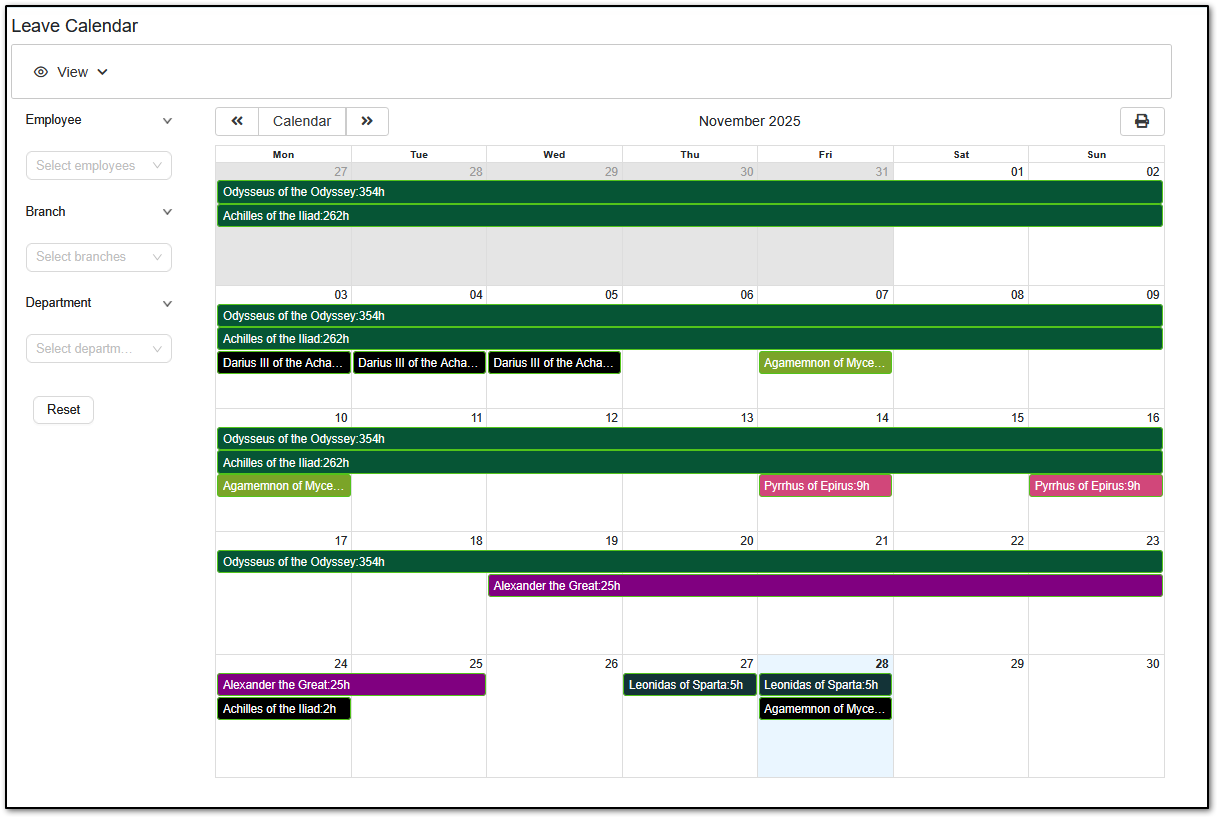
The Leave Calendar gives you an instant, at-a-glance view of all employee leave across your business, and can be viewed from both the Employer Login and Manager Login.
You can filter by:
- Employee
- Branch
- Department
You can also choose between:
- Monthly view
- Weekly view
You can click the "Print" icon in the top right-hand corner to download a PNG image of the Calendar, or Print off the Calendar (choose Print to PDF for a PDF version).
Accessing the Leave Calendar
Employer Login
To access the Leave Calendar from your Employer Login:
- Go to “Report Centre”.
- Select “Company Analysis”.
- Choose “Leave Calendar”.
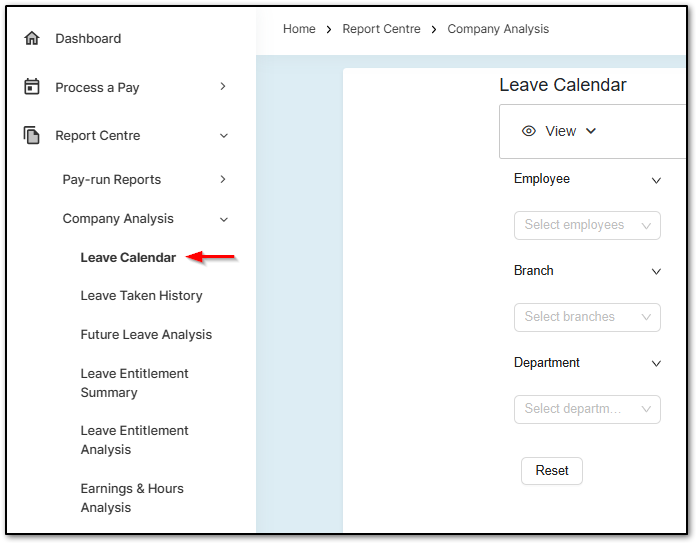
If you are set up as a Branch or Department administrator, don’t worry — the system will ensure you only see the areas you are permitted to manage.
Manager Login
Managers can access the Leave Calendar by heading to:
“Leave Calendar” under “Data Approval”.
Managers will only see employees they are authorised to manage.

Hiding the Leave Calendar
If you would like to restrict access for particular Company User Groups, you can easily disable the Leave Calendar.
To adjust access:
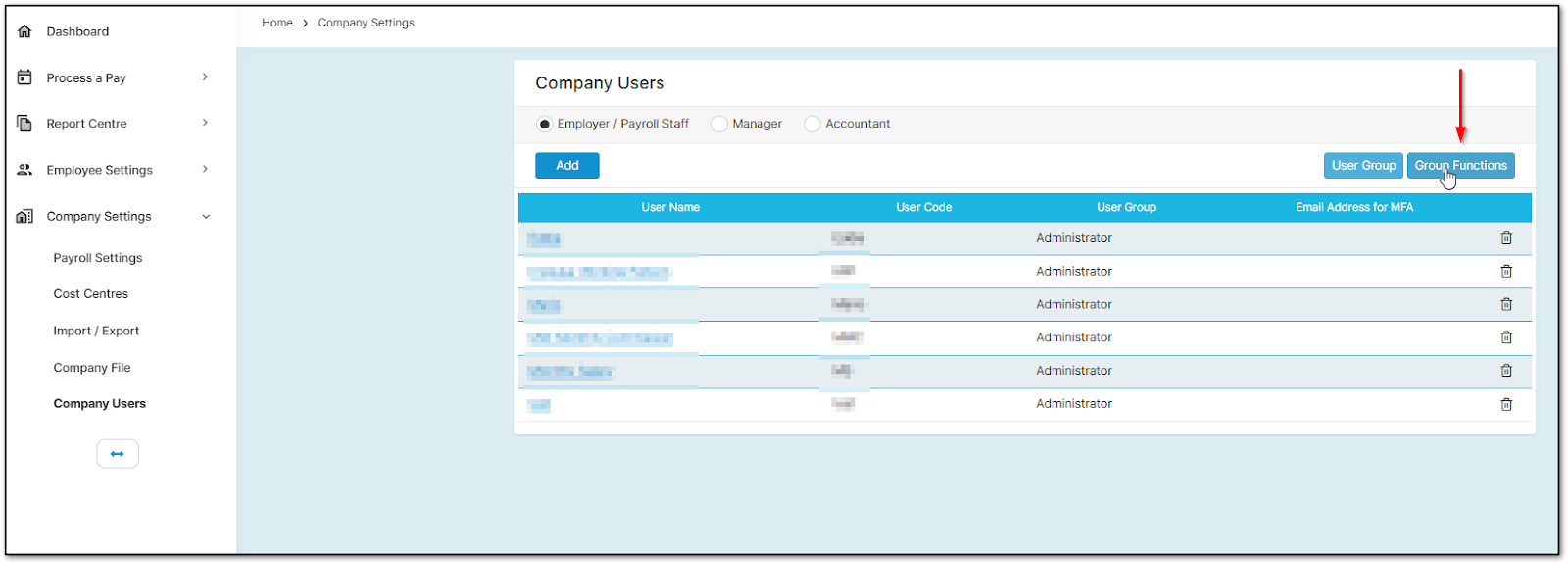
- Open “Company Settings”.
- Go to “Company Users”.
- Select “Group Functions” on the right-hand side.
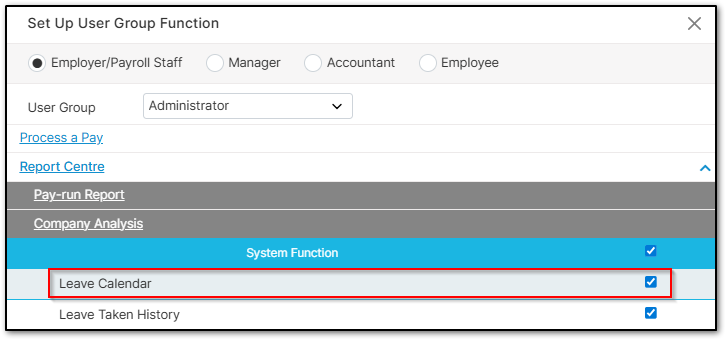
For Employer User Groups
Disable the option under Report Centre.
For Manager User Groups
Disable the option under Data Approval.
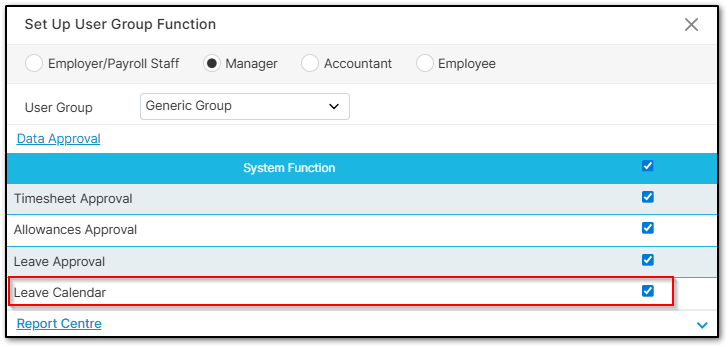
This gives you complete flexibility over how your business uses the feature.
Was this article helpful?
That’s Great!
Thank you for your feedback
Sorry! We couldn't be helpful
Thank you for your feedback
Feedback sent
We appreciate your effort and will try to fix the article