When processing WINZ repayments or Ministry of Justice deductions, these must be set up as a “Regular Deduction.”
The WINZ repayment and Ministry of Justice deduction item is set up to follow the "Protected Net Earnings" rule, ensuring that the deduction does not exceed 40% of their net earnings.
Step 1: Navigate to the Employee
Select "Employee Settings", then "Employee Details". Choose the employee from the left-hand side, then select "Reg Deductions" under "Other Details".
Ensure the correct employee is selected, then click "Set Up Deduction Items".
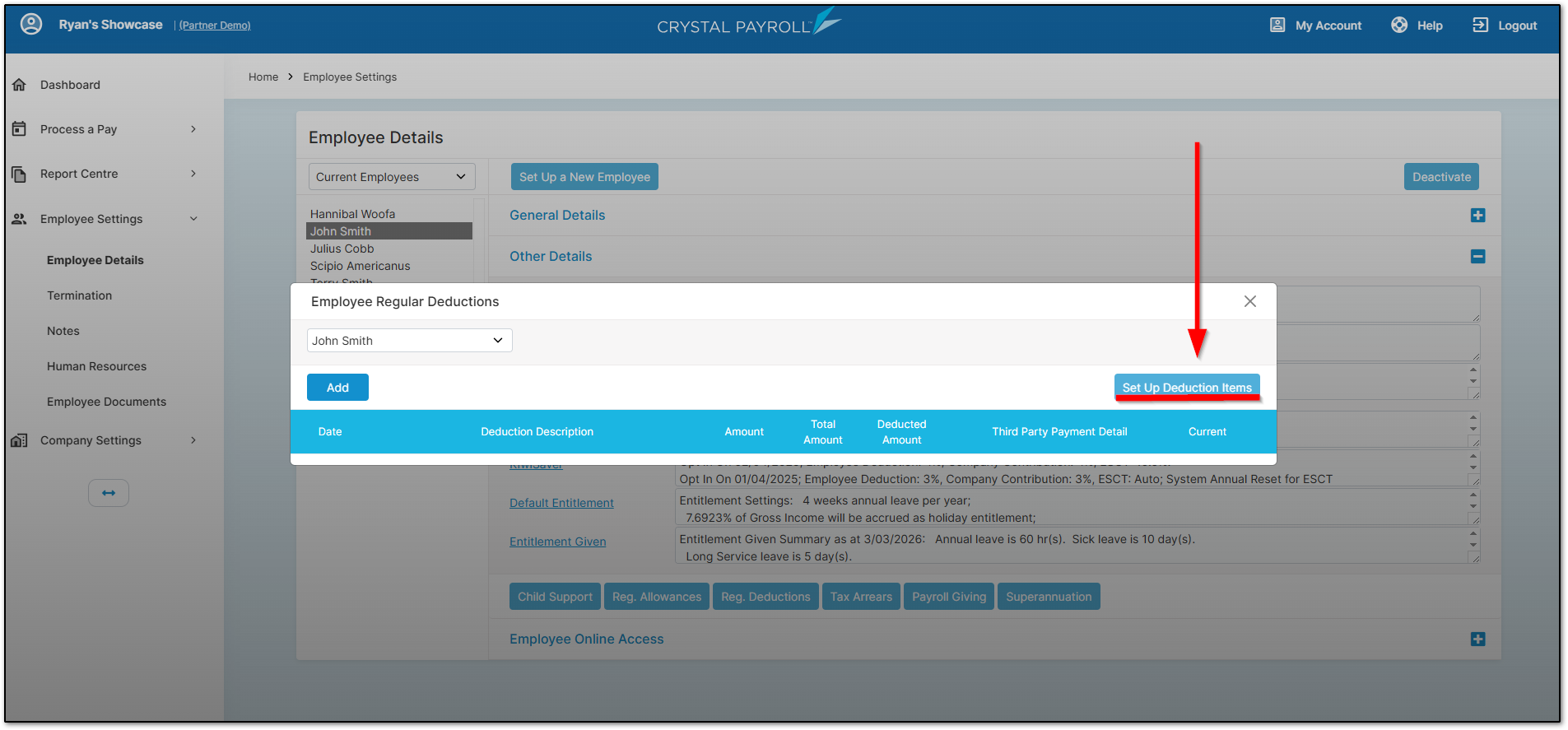
Step 2: Add the Deduction Item
Move the "WINZ Repayment" or "Ministry of Justice" item to the right-hand side.
To do this, click the item on the left, then click the arrow pointing to the right.
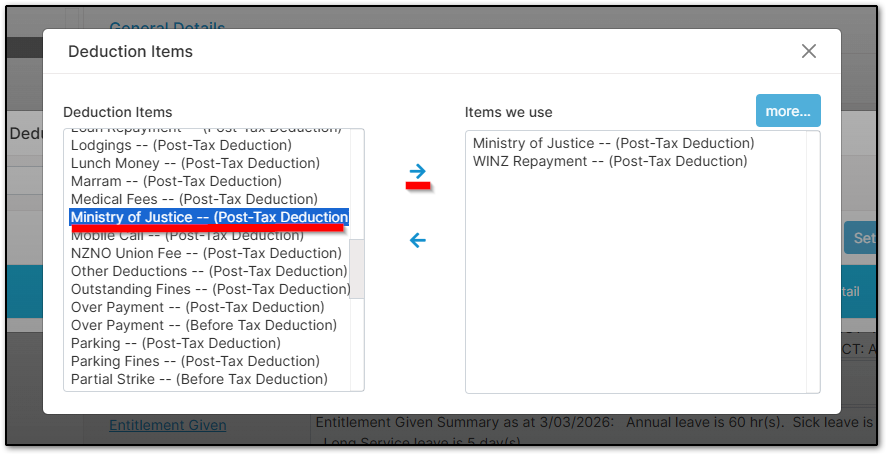
Close the page, then click the "Add" button on the original page.
This will take you to the page where you can configure the WINZ repayment or Ministry of Justice deduction item.
Step 3: Configure the Deduction
Ensure the "Start Date" is set correctly and select the appropriate deduction item.
Also ensure that the "Pay to Third Party" option is enabled.
Enter the relevant fields to match the details provided in the letter.
Once you select either "WINZ Repayment" or "Ministry of Justice", the bank account will automatically populate.
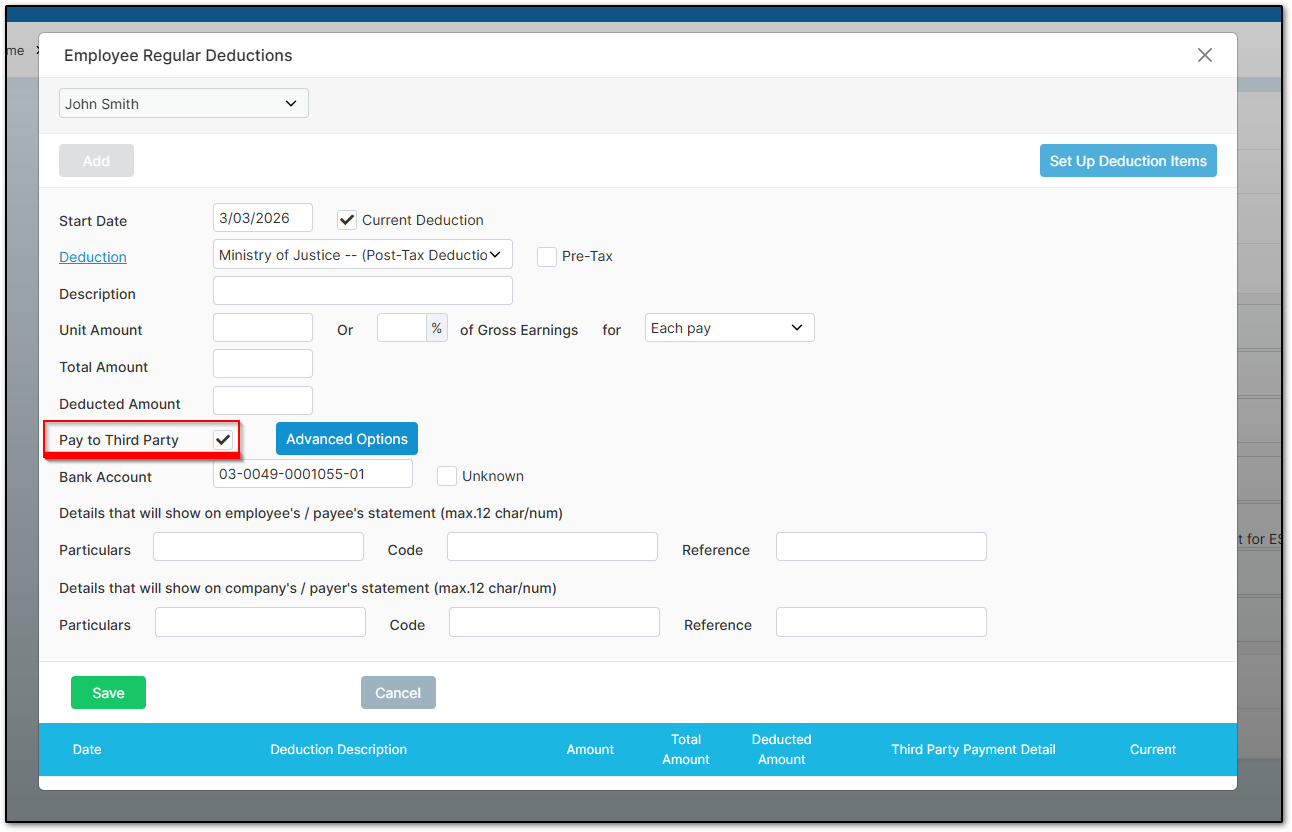
When you have finished entering all relevant details, select "Save".
Final Step
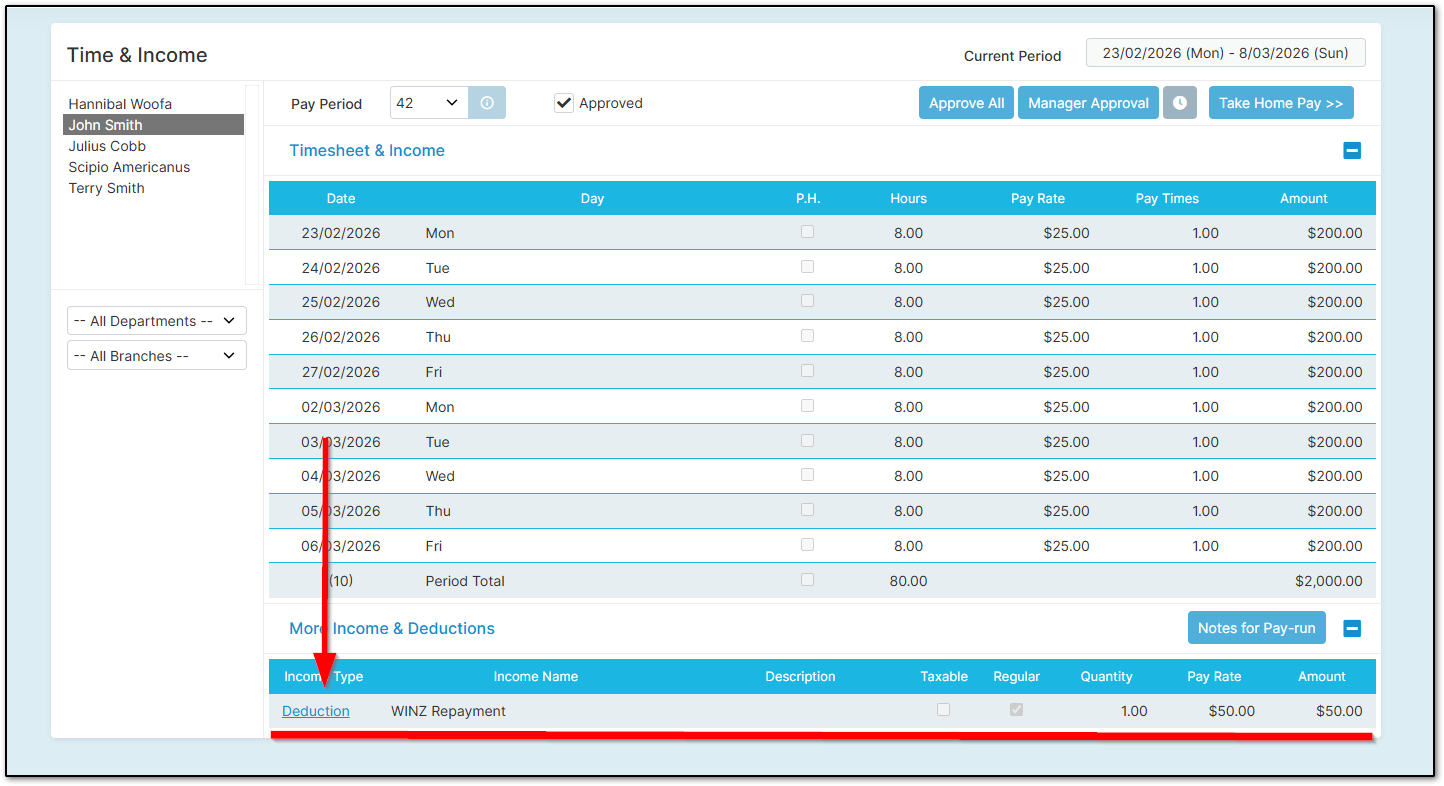
Once actioned successfully, after approving the "Time & Income" page, the "WINZ Repayment" or "Ministry of Justice" item will appear at the bottom of the screen.
Was this article helpful?
That’s Great!
Thank you for your feedback
Sorry! We couldn't be helpful
Thank you for your feedback
Feedback sent
We appreciate your effort and will try to fix the article