You can manually set up employees and manually set up new pay rates in the system. However, if you are Microsoft Excel-savvy, you can instead use our CSV templates to import new employees and update pay rates from a CSV instead. This saves a lot of time for accounts with many employees, such as recruitment-industry employers for new employees, or employers in the healthcare or ECE industries who often need to handle bulk pay rises.
Contents
Importing New Employees
Importing New Pay Rates
Importing New Employees
First, download the file here: Crystal Payroll New Employee Template for Customers.
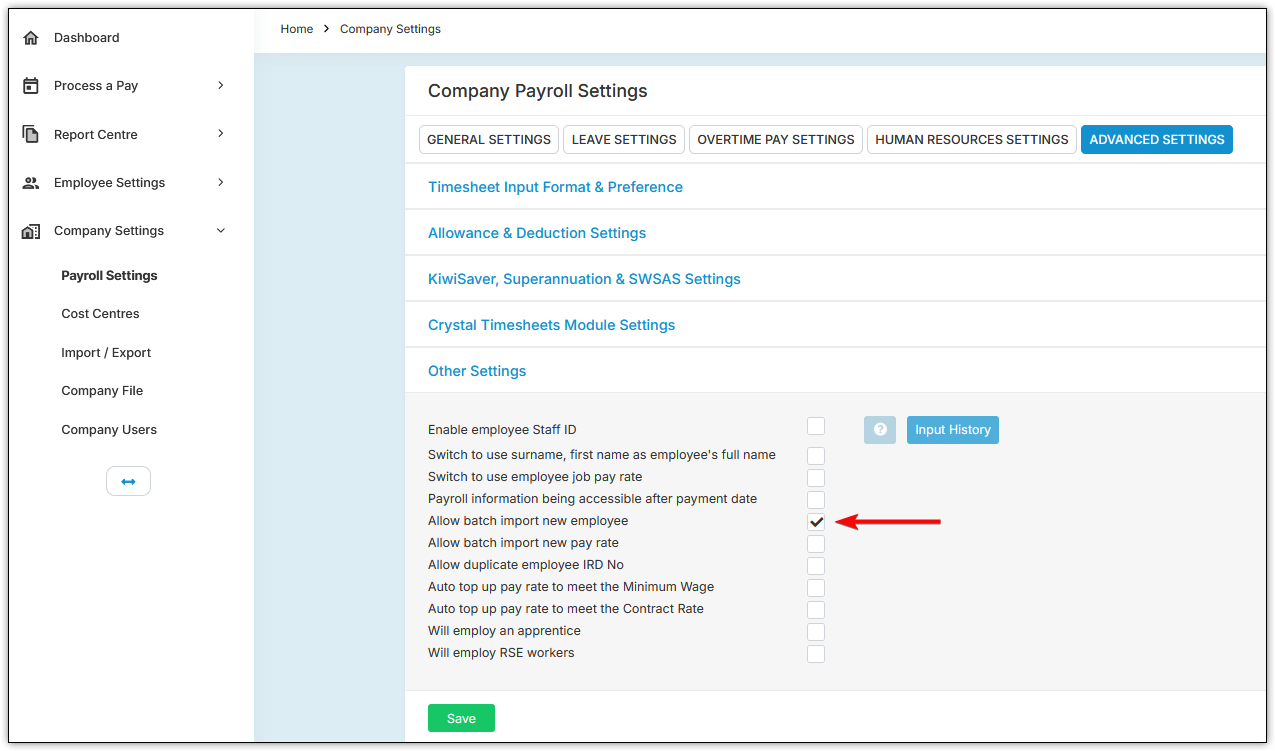
Next, head over to "Company Settings", and then "Payroll Settings".
Open "Advanced Settings".
Open "Other Settings".
Tick "Allow batch import new employee".
Hit "Save".
From there, follow the instructions on the CSV template.
Carefully check all employee details and ensure you have followed the instructions exactly (for example, avoid commas in the address and "%" in the KiwiSaver contributions).
Once you have prepared the CSV template, you can upload the file.
To upload the file, head over to "Employee Settings", and then "Employee Details".
Select "Upload New Employee" along the top of the page.
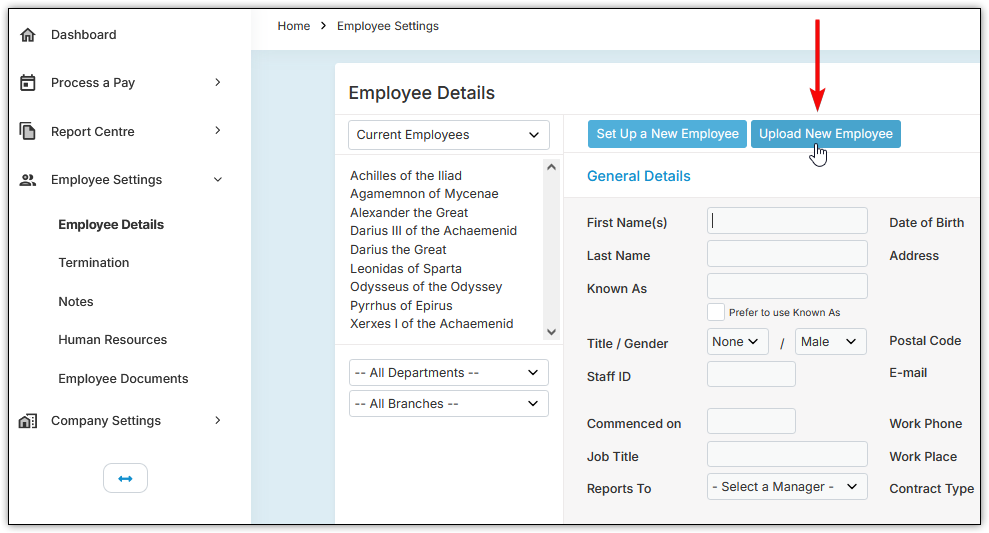
The system will let you know if there are any obvious errors, but errors can still slip through. Make sure all data is correct before importing. If it imports successfully, you will see the new employees on the left-hand side.
Importing New Pay Rates
First, download the file here: Crystal Payroll Employee Pay Rise Template for Customers.
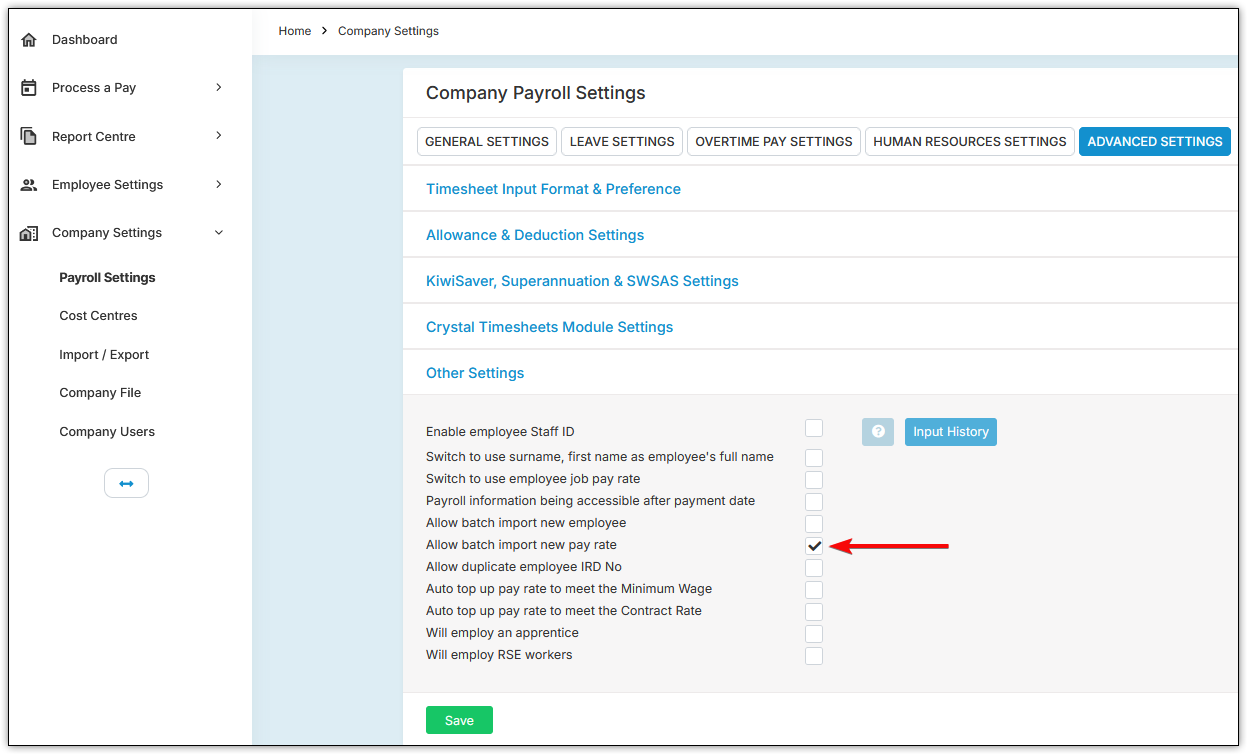
Next, head over to "Company Settings", and then "Payroll Settings".
Open "Advanced Settings".
Open "Other Settings".
Tick "Allow batch import new pay rate".
Hit "Save".
Carefully check all employee details and pay rates before importing. The system will not know if a rate entered is incorrect, so ensure the CSV values are accurate.
Once you have prepared the CSV template, you can upload the file.
To upload the file, head over to "Employee Settings", and then "Employee Details".
Select "Upload New Pay Rate" along the top of the page.
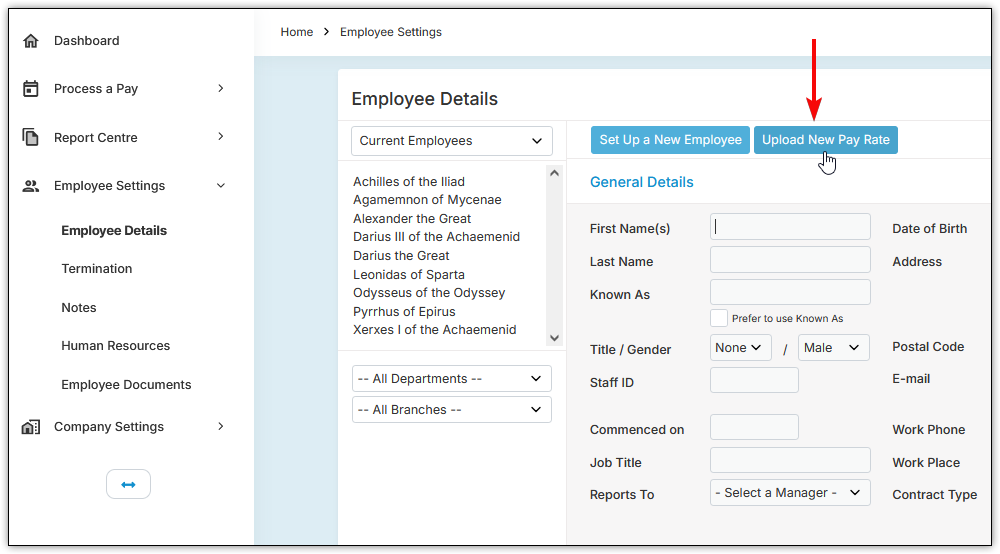
The system will highlight any obvious errors, but incorrect pay rates can still pass through. Make sure all rates are correct before importing. If successful, the new pay rate will appear under "Wage / Salary".
Was this article helpful?
That’s Great!
Thank you for your feedback
Sorry! We couldn't be helpful
Thank you for your feedback
Feedback sent
We appreciate your effort and will try to fix the article