Note: This guide goes over setting up a comprehensive integration between your Crystal Payroll and Xero accounts. In this guide, we explain every option that you can set up or use, which may be overwhelming if you're just wanting a straightforward integration between both systems. For a more basic guide, see our easy guide here instead: An Easy Guide for Integrating Crystal Payroll with Xero.
Crystal Payroll offers three integrations with Xero, two through an API and one through a CSV import. The integrations send data to three different places:
- Bills (API)
- Bank Payments (API)
- Journals (CSV)
Note: From March 2, 2026, the API options are charged at $10 per month + GST.
You will most likely want the payroll information flowing through to your Xero account as a bill or a journal.
- A bill will display the payroll information like an invoice, breaking down the payment information to reach the total payment figure, which would match what you paid out of your account.
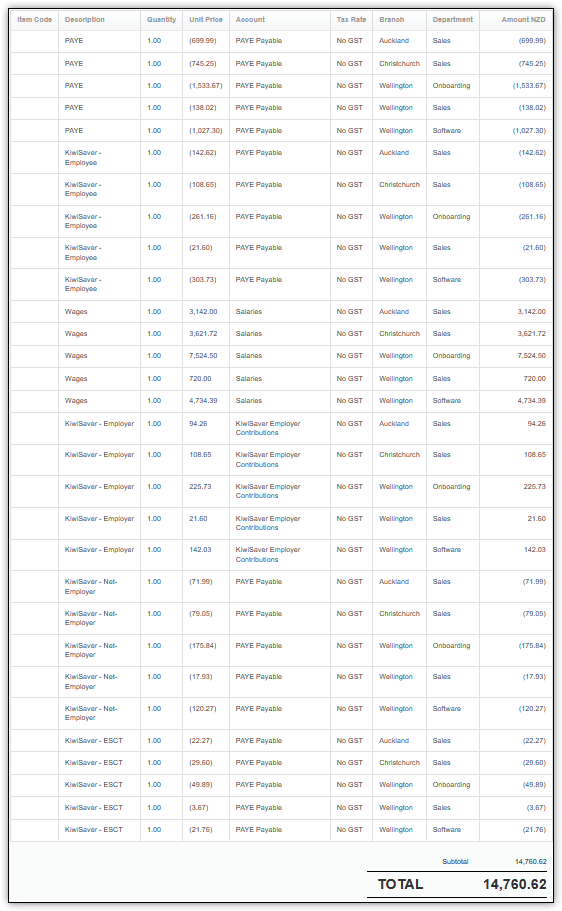
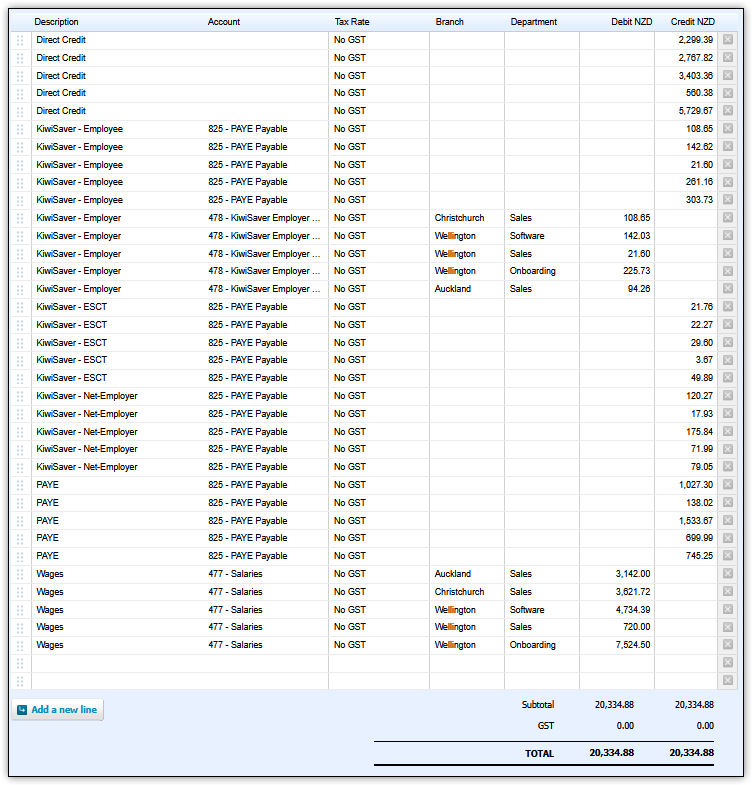
- A journal displays both the credit and debit lines of each transaction item, showing the two amounts ultimately balancing at the end.
- A bank payment shows the payroll as a bank account transaction, and is the only available integration that works with Xero Cashbook/Ledger, which is effectively a 'lite' version of Xero and won't be relevant to most users.
Set Up for All Options
Setting up your format
Head over to "Company Settings", and then "Import / Export".
Select "Xero" or "Xero Manual Journal" as the "Accounting System" on the left-hand side.
On the left-hand side, select the "General Ledger Format". You don't need to do this if you're using a journal.
- A draft invoice for whole company is probably what you're looking for. It sends a draft bill into Xero for the whole pay period, with the total amount matching the direct payment report in Crystal Payroll.
- A draft invoice for each employee will send over several draft bills into Xero for each employee. This is really only a good option if you have a small quantity of staff, otherwise as you might imagine you could end up with a lot of bills to reconcile.
- An approved invoice for whole company will send an approved bill into Xero for the whole pay period. It sounds good in theory, as it skips you having to approve a draft bill, but it can be difficult to work with if there are any errors with the bill, as if there are any errors, it most likely won't send anything to your Xero (as a draft it still does). It also means you'll have to void the bill if you find problems with it after it's sent rather than just delete it.
- An approved invoice for each employee will send over an approved bill for every employee into your Xero. You really shouldn't use this option unless you know this is exactly what you want, you know the setup is perfect, and you don't have too many employees to reconcile.
- A bank payment for whole company is generally used for Xero Cashbook/Ledger, and it means that the pay period will flow through into your Xero as an account transaction for the whole period.
- A bank payment for each employee is also generally used for Xero Cashbook/Ledger, and it means that each employees pay for the pay period will flow through into your Xero as a different transaction.
On the left-hand side, select either a "Net-pay amount" or "Gross Amount". You don't need to do this if you're using a journal.
- Net-pay amount is probably what you want. The bill will come through with the take home pay total.
- Gross amount will come through as the total for all payments that period, including IRD deductions. You'd only choose this option if:
- You're paying the IRD at the same time as the staff each pay-run.
- You're on our Basic Bureau or Full Bureau Service, since we deduct the gross each pay.
- You're only sending bills to your Xero once a month instead of each period.
You can generally ignore the "Job Code", "Job Name", and "Job Code & Name" section unless you're also integrating job costing with Xero as a Tracking Category, specifically using the Job Number option. It basically means the system will try and match the tracking category with just the code, just the name, or both. This is irrelevant to most clients.
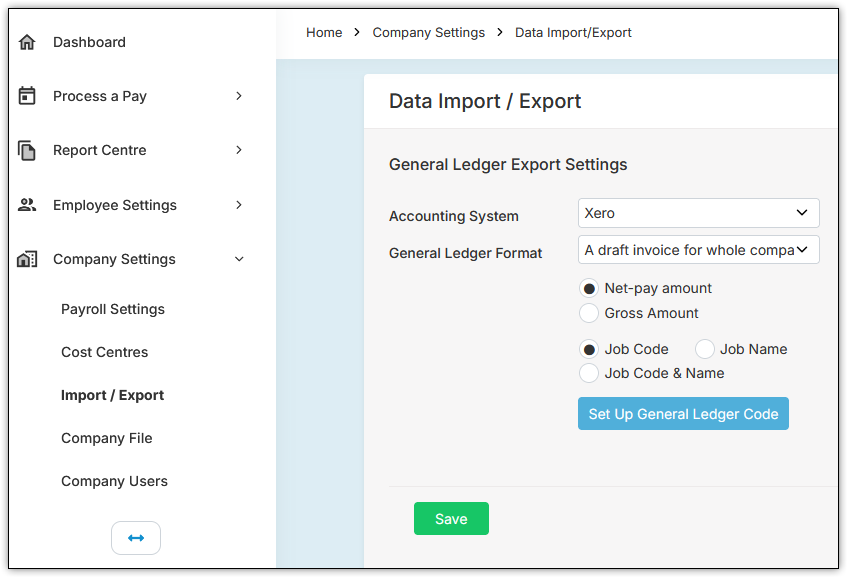
Select "Save" here, to save these settings.
Setting up your general account codes
Select "Set Up General Ledger Code".
Here you need to enter the codes to match with your Xero "Accounting", "Chart of Accounts" page. If you have tracking categories or assign account codes to cost centres, this is explained further on in the next section, as you don't set this up in this section.
You need to at least enter the top three lines, otherwise the Xero integration will not work at all.
Note: These codes must be three different codes. They should never be the same.
By default, the codes are:
- The code for "Gross Earnings" in Xero is called "Salaries" and is "477".
- The code for "IRD Deductions" in Xero is called "PAYE Payable" and is "825".
- If you are not using Xero Cashbook, the code for "Take Home Pay" in Xero is called "Wages Payable" and is "814".
- If you are using Xero Cashbook, the code for "Take Home Pay" must be the account code attached to your bank.
- The code for "KiwiSaver Employer" in Xero is called "KiwiSaver Employer Contributions" and is "478".
Please note that you can change any of these names and codes in Xero, so if they've been changed, you'll need to find them yourself. Try searching for keywords and synonyms in their search bar to find the correct code for your account.
Once you have populated at least the top three lines, then you can populate additional lines if you have them. You don't need to, as it entirely depends on how you have set up your Xero. If the code is the same as the code at the top, you don't need to enter it again. For example, you don't need to enter "477" as both "Gross Earnings" and "Salary", as since it's in "Gross Earnings" already it will already go to that code.
If you have quite a specific setup in your Xero, you can also click "Set Up GL Code for Items" to assign even more account codes to match with Xero, such as for annual leave, bonuses, or commissions.
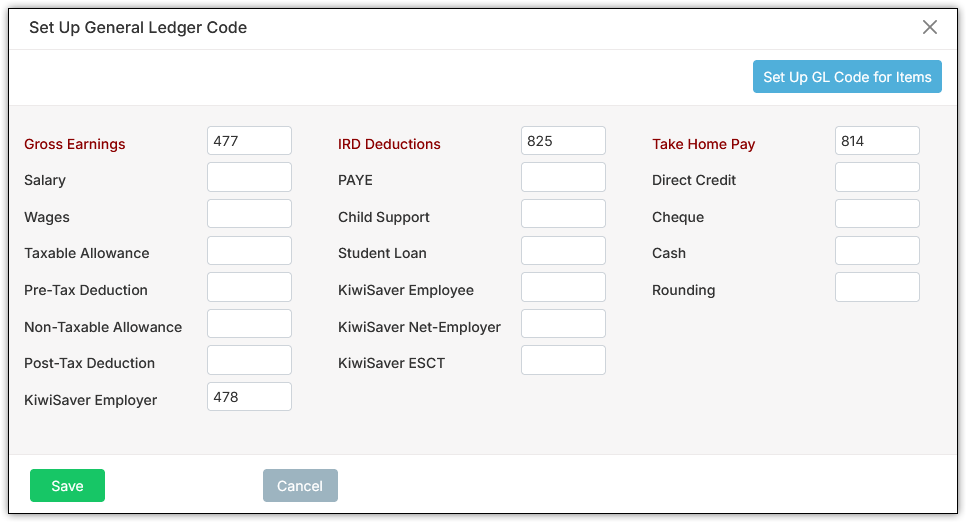
Note: If you are splitting up gross earnings through each cost centre, you still need to enter a gross earnings code like above, so that if there are any errors the values can still go somewhere. The integration will not work unless you assign a code to "Gross Earnings", so even if Gross Earnings is effectively redundant due to cost centres, still enter something, even if it just says "Error" or "123".
Setting up cost centres
This step is optional. You can set up Xero so that the earnings split by cost centres too. To do this, you'd either have different account codes for different cost centres in Xero, or you'd use different tracking categories for different cost centres, or even a mix of both. You have to have this set up already in Xero.
Head to "Company Settings", and then "Cost Centres".
With any of the cost centres, you can tick "Apply to KS Company" when adding or editing them, if you also want to see the KiwiSaver Company Contribution split.
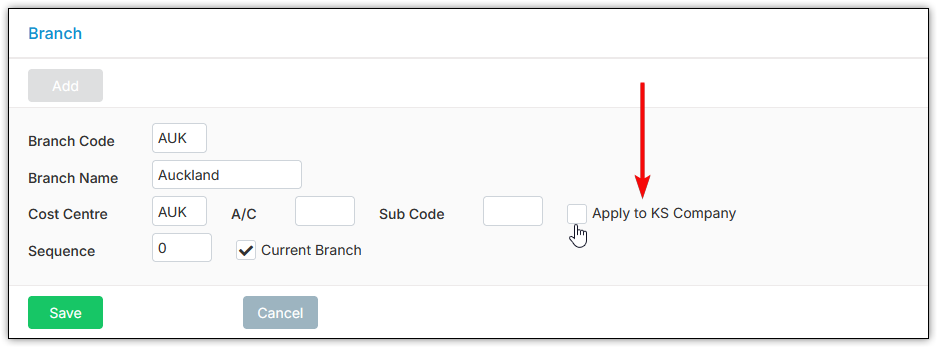
For matching with Chart of Accounts:
Set up your cost centres if you haven't already, or edit them, and either enter an "Account Code" for them that matches with Xero. You can also use "Sub Code" if you'd prefer. "Sub Code" will take the "Account Code" from something else and add the "Sub Code" on to match.
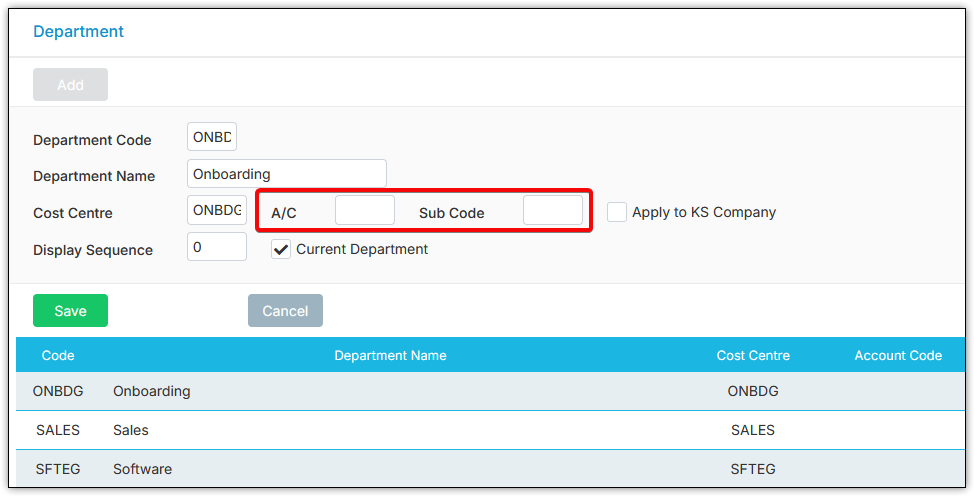
To further elaborate on what "Sub Code" is, here's an example. You could have branches with account codes, like 1000 for "Auckland", 2000 for Christchurch as your account codes, then you could just set up Department like "Onboarding" with a sub-code of "-10". Then, when you send the info to Xero, it will come through with a unique code.
Based on the below example, for instance:
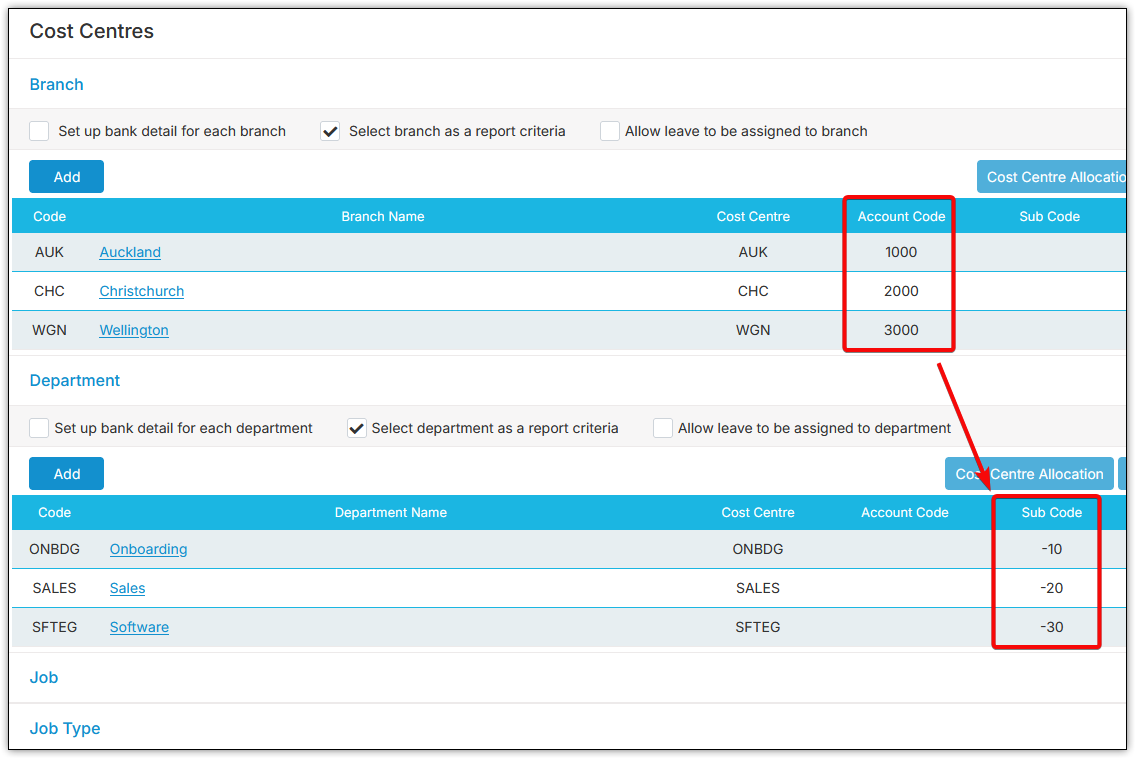
- Auckland Onboarding will come through as 1000-10
- Christchurch Onboarding will come through as 2000-10
- Auckland Sales will come through as 1000-20
- Wellington Sales will come through as 3000-20
See the logic? You could technically just not set up any of the above branches from my example and instead set up nine departments with an Account Code of (1000-10, 1000-20, etc.) ignoring Sub Code, but doing it this way saves you a little work. If you don't quite get the Sub-code aspect, don't worry, it's only for very specific setups regardless.
For matching with Tracking Categories:
Note: If you are using the Journal Integration, Tracking Categories are only limited to Branch and Department. You cannot have Jobs as a Tracking Category. If you are using the API Integration, you can use any of the three.
Make sure the "Name" of the Tracking Category must match the name of the Cost Centre category. For example, it needs to either say "Branch", "Department", or "Job".
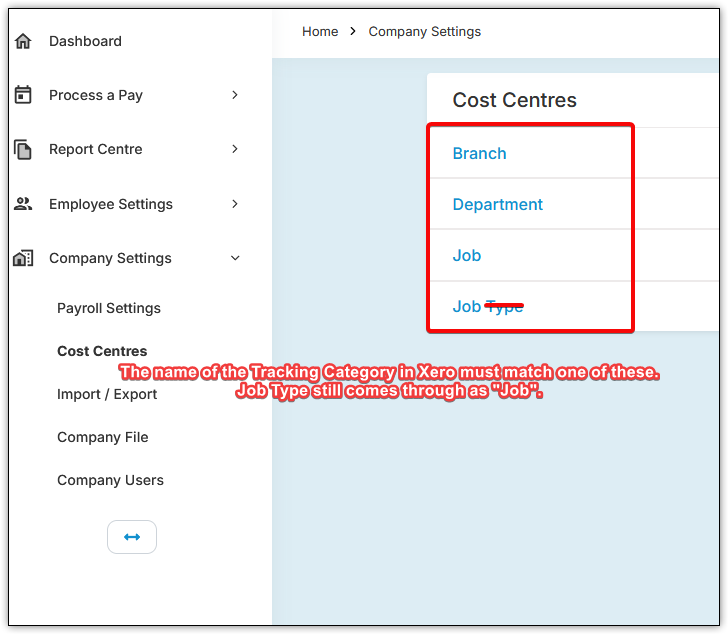
Set up your cost centres, or edit them and make sure that the "Name" matches exactly with the Tracking Category Option in Xero.
It needs to match letter for letter, and symbols don't work. There can't be any double-spaces or pluralisation where it's incorrect. For example, "Auckland" must be "Auckland" in Xero, and "Admin" must be "Admin" in Xero, not "Administration" in one but not the other.
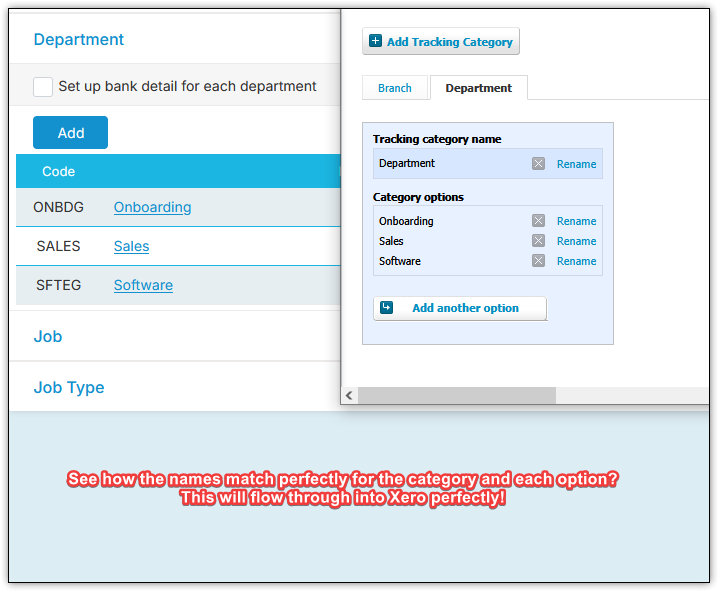
If all of the names match, this will flow through to Xero automatically from here.
Sending to Xero
Where to Send From
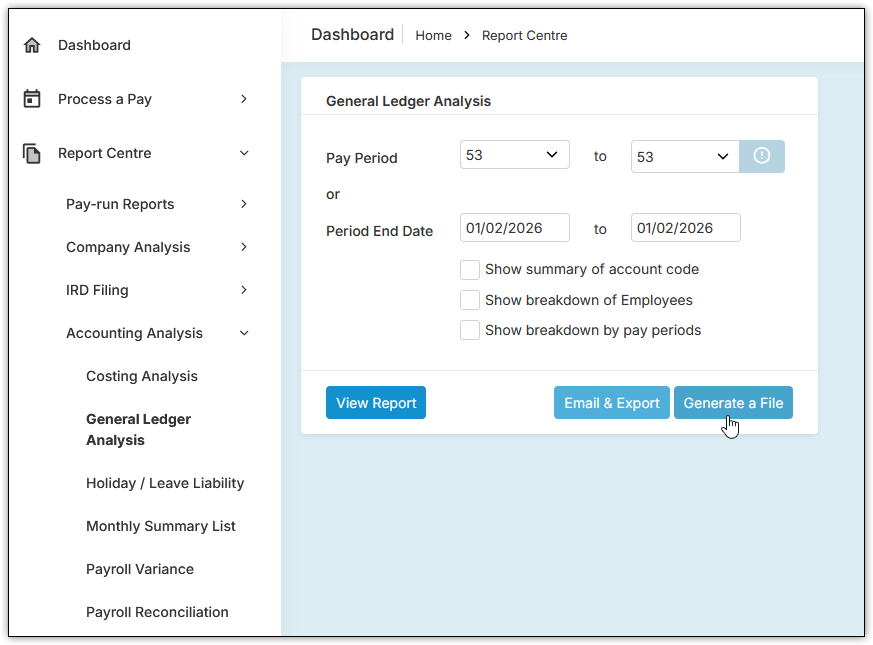
Head to "Report Centre", "Accounting Analysis", "General Ledger Analysis". You can also do this from the "Take Home Pay" page after running a pay by selecting General Ledger Analysis from the dropdown menu down the bottom of the page, which in turn is enabled from the information (i.) button.
You can choose your period. Make sure you choose a pay period that's actually been approved.
Most of the tickboxes affect only the actual GL Analysis report, but "Show breakdown by employees" will break down the employee transactions within the journal, bill for whole company, or bank payment for whole company. This is redundant if you are sending a bill or bank payment for each employee as it is already broken down.
When you're ready, you can either hit "Send to Xero" for an API integration with bills and bank payments, or "Generate a File" for a journal integration.
"Send to Xero" for an API integration with bills and bank payments:
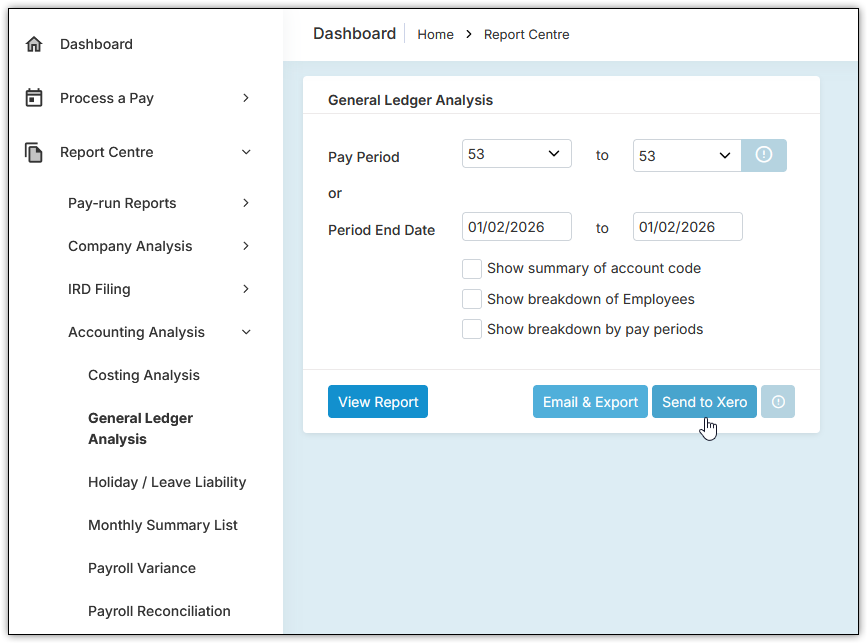
or "Generate a File" for a journal integration:
Once this is done, here's what happens next.
For an integration with Bills:
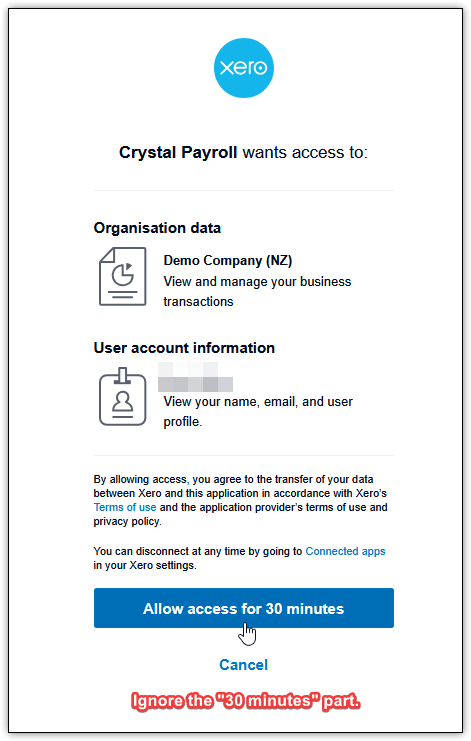
The first time you hit "Send to Xero" it will ask you to login and authorise.
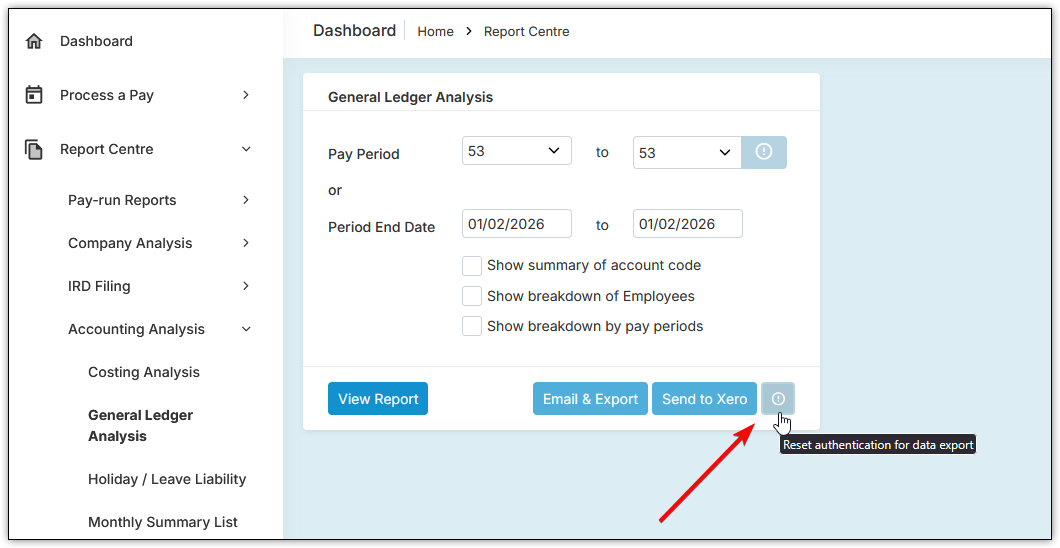
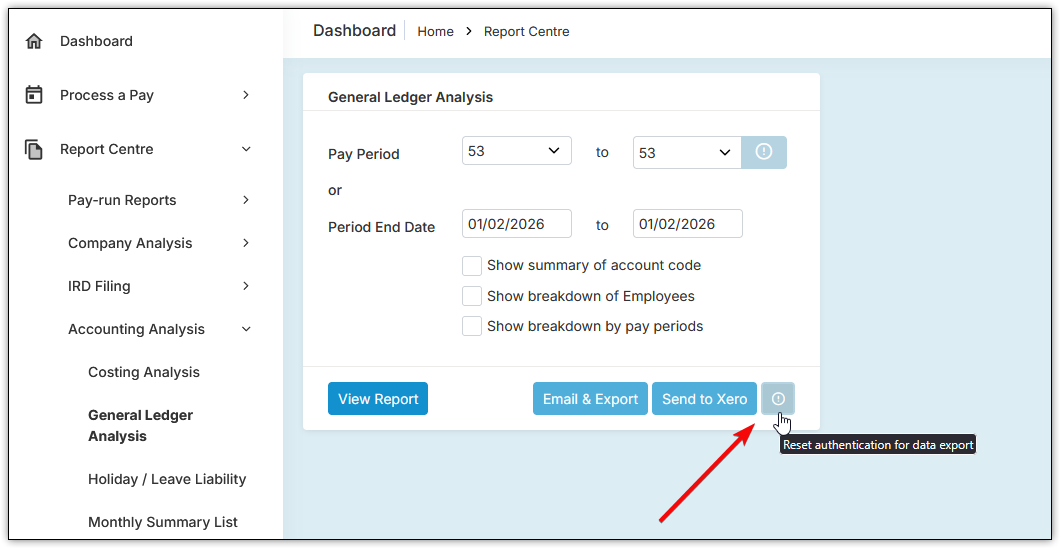
If you ever have issues with Xero, the first step to try and fix is to hit the exclamation mark next to "Send to Xero" which will reset authentication.
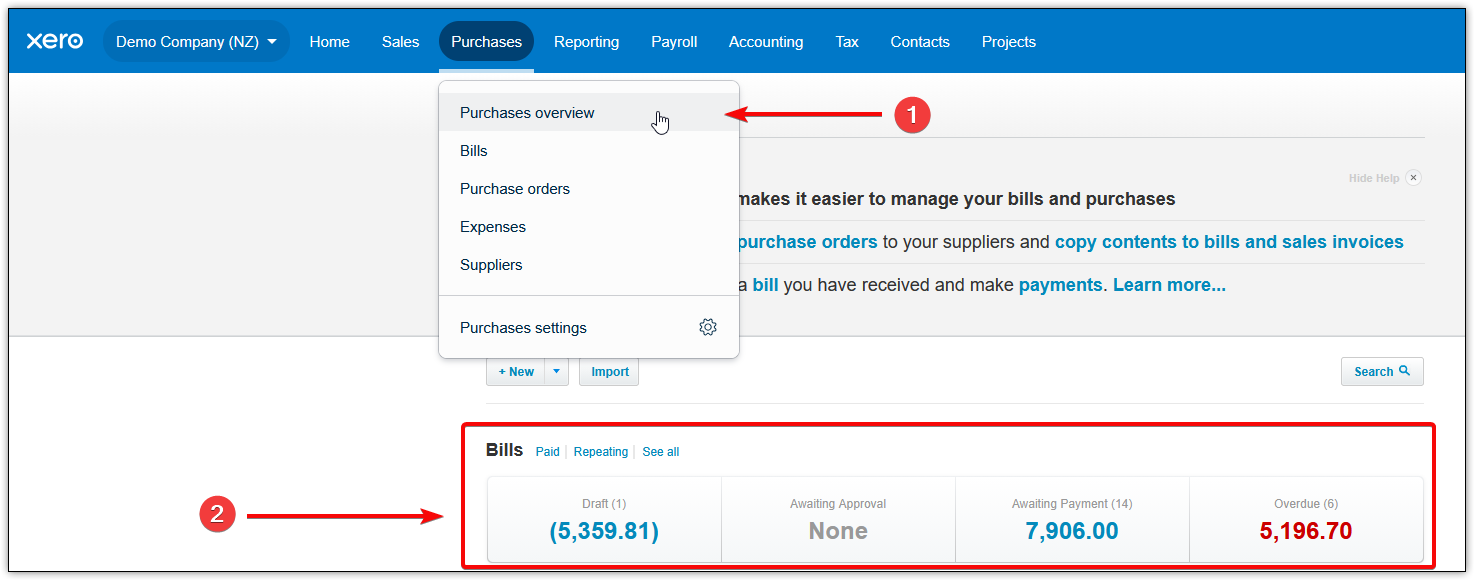
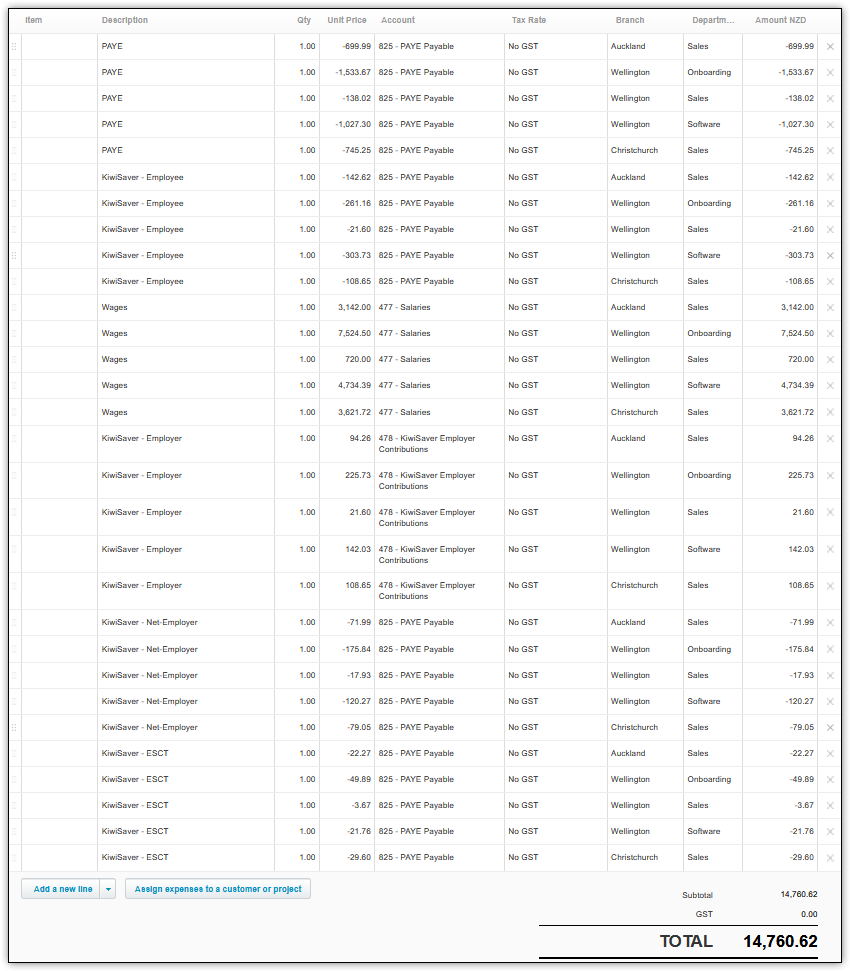
Once you have authorised with Xero, the bill will flow through into your bills section of Xero, which can easily be accessed from "Business", "Purchase Overview".
Here's a sample bill:
For an integration with Bank payments:
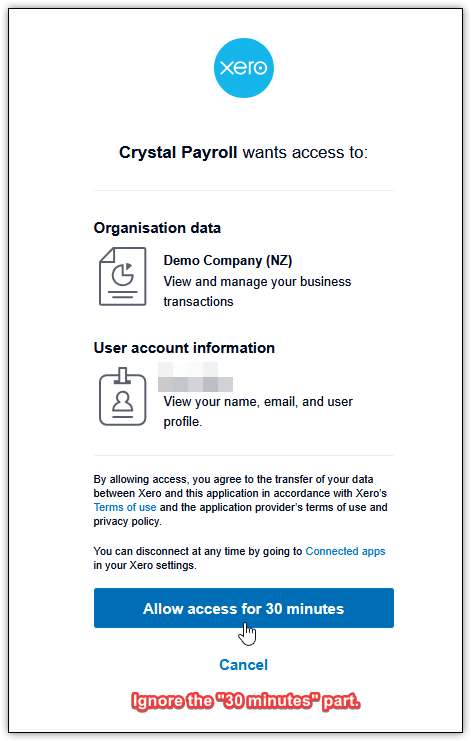
The first time you hit "Send to Xero" it will ask you to login and authorise.
If you ever have issues with Xero, the first step to try and fix is to hit the exclamation mark next to "Send to Xero" which will reset authentication.
Once you have authorised with Xero, the bill will flow through into your "Account Transactions" section of your bank account in Xero. This can be accessed from "Accounting", "Bank Accounts".
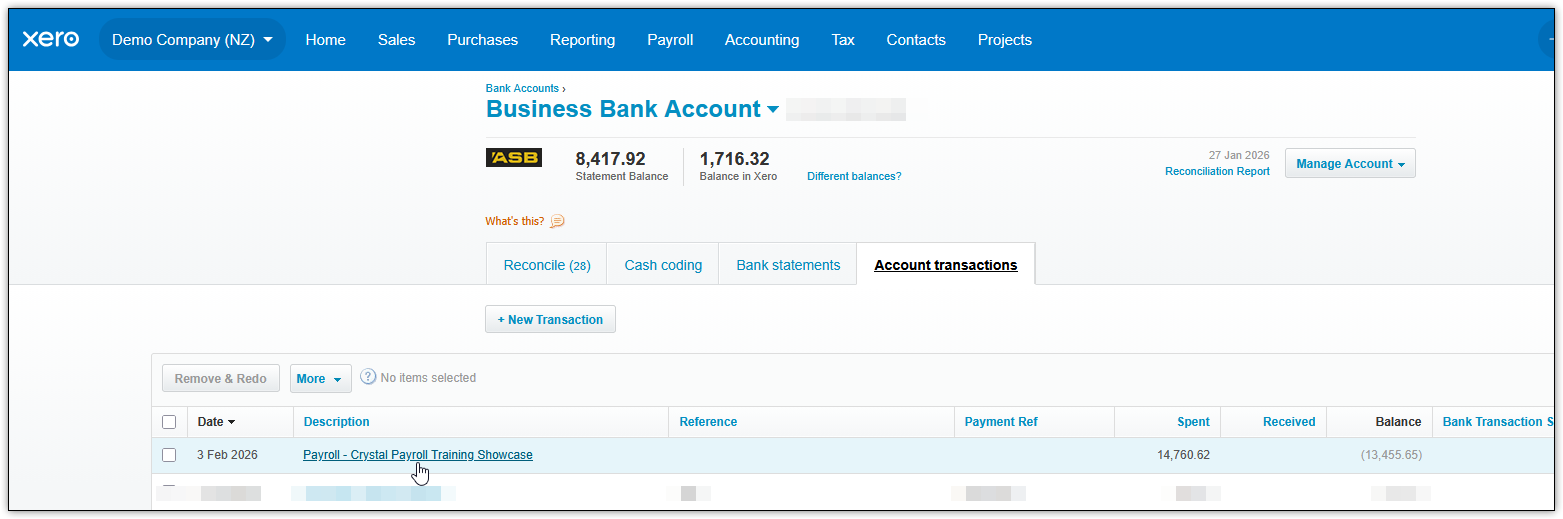
Here's a sample bank payment:
For an integration with Journals:
When you hit "Generate a File", it downloads the Journal .CSV file.
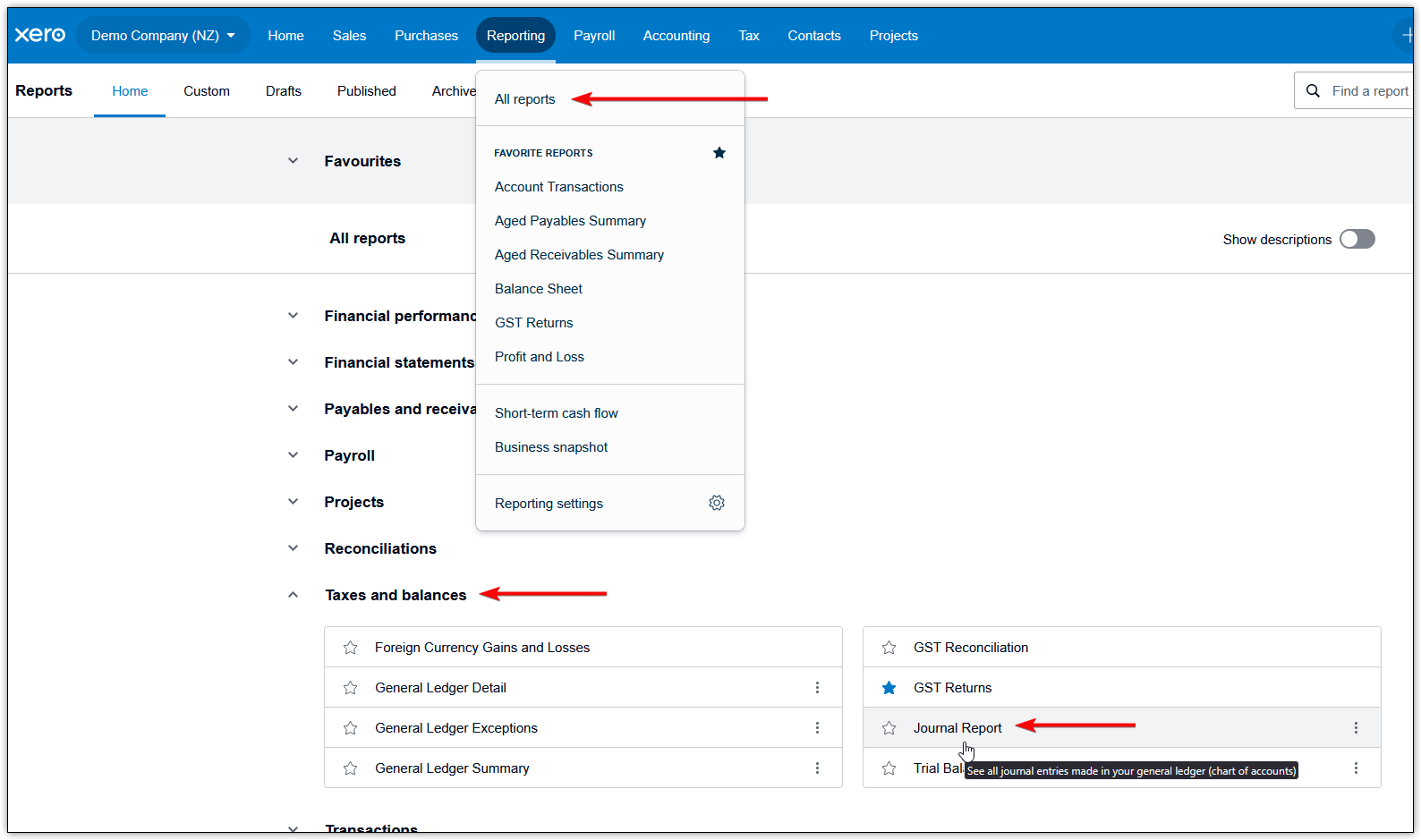
In Xero, head to "Reports", "All reports".
You can search for "Journal Report" in the top right, or find it under "Taxes and balances".
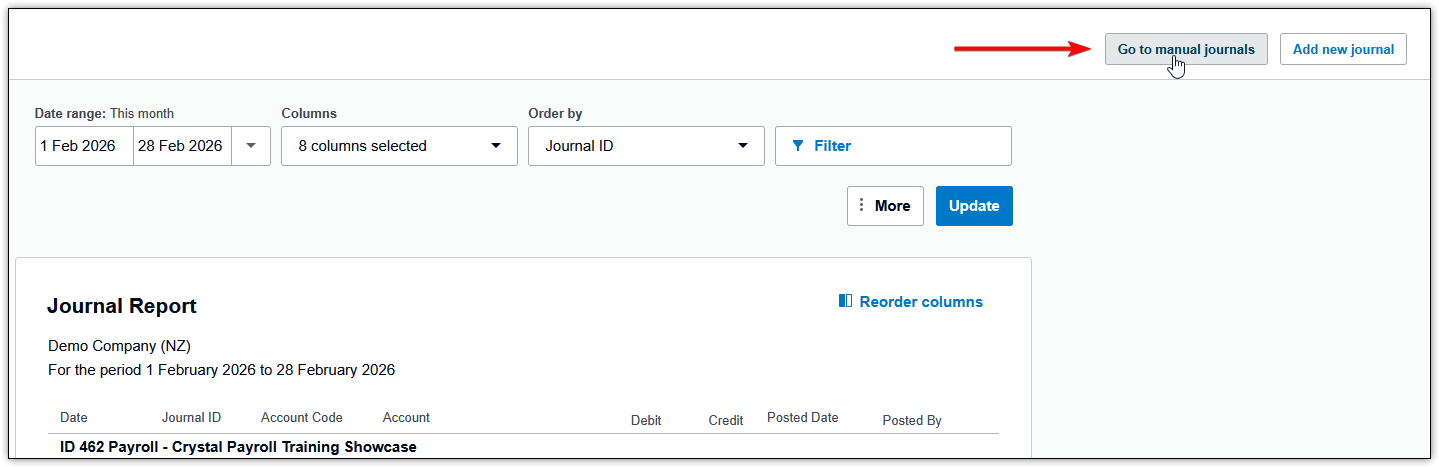
Select "Go to manual journals" in the top right-hand corner.
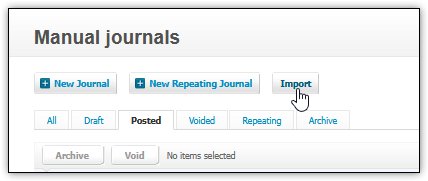
Click "Import".
Choose the file, and import.
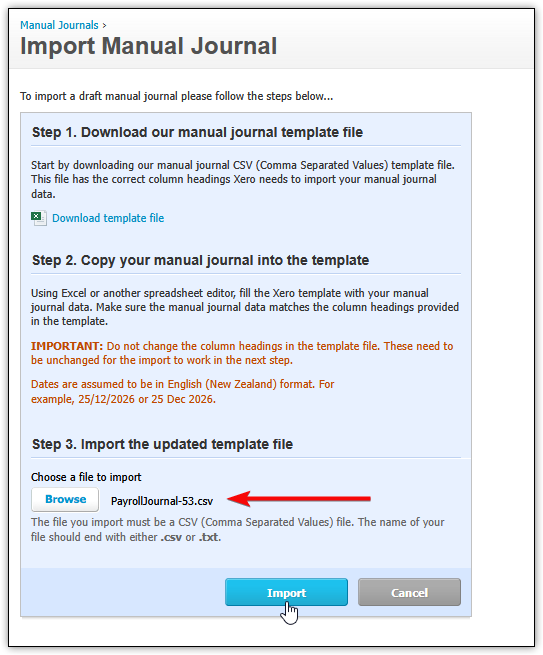
It will then flow through for you. Here's a sample journal:
Was this article helpful?
That’s Great!
Thank you for your feedback
Sorry! We couldn't be helpful
Thank you for your feedback
Feedback sent
We appreciate your effort and will try to fix the article