Note: This guide goes over setting up a straightforward integration between your Crystal Payroll and Xero accounts. If you have any further requirements, such as more account codes that need setting up, please see our comprehensive guide here instead: A Comprehensive Guide for Integrating Crystal Payroll with Xero.
Crystal Payroll can be set up to send wages information to your Xero account so you can reconcile staff payments quickly and easily. This basic integration involves creating a manual .CSV journal file and uploading it to your Xero account to post.
Setting Up
You only need to set up your integration with Xero once, and it will continue working from then onward.
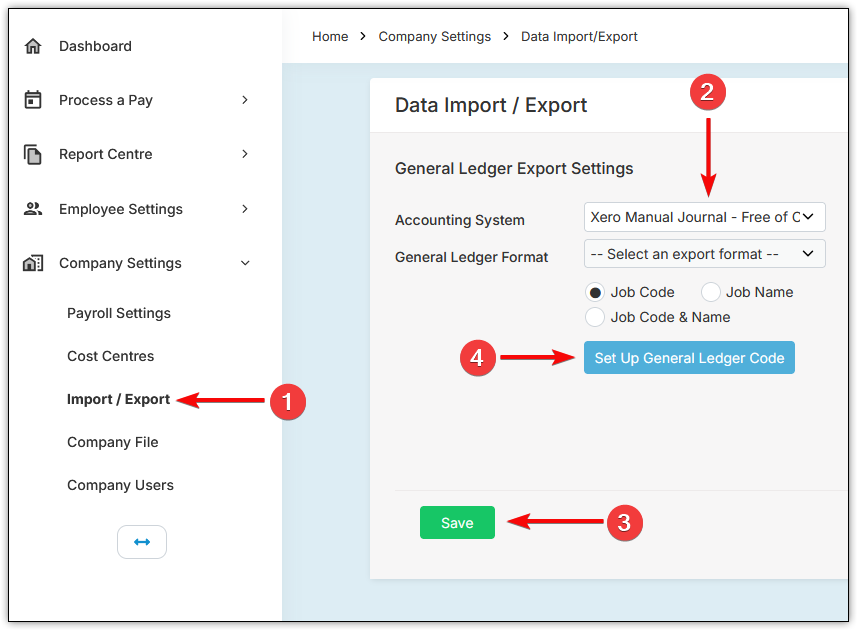
1. Head to "Company Settings", then "Import / Export".
2. Select "Xero Manual Journal" on the left-hand side under "Accounting System".
3. Select "Save".
4. Open "Set Up General Ledger Code" on the left-hand side.
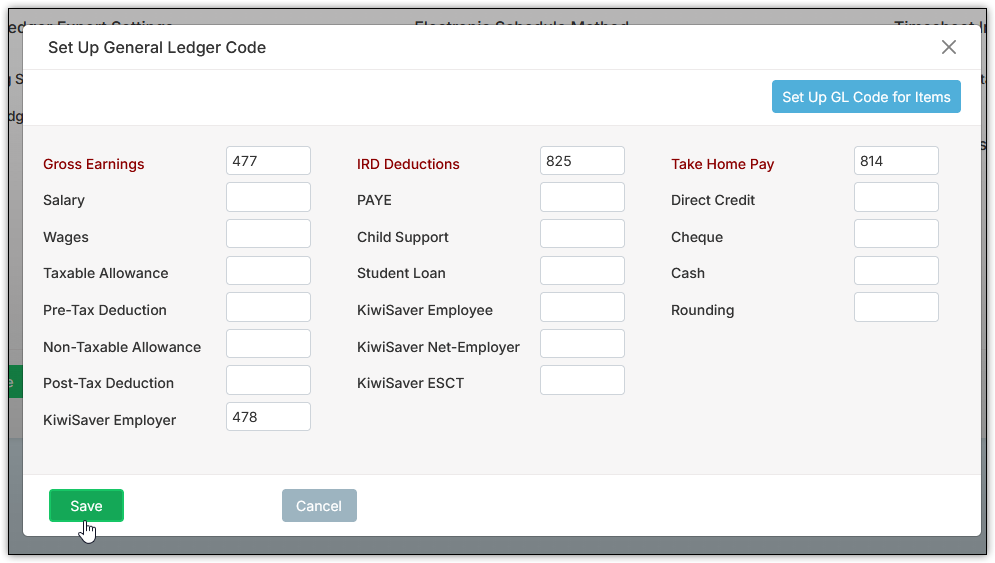
5. Enter the following:
- In "Gross Earnings" enter "477".
- In "IRD Deductions" enter "825".
- In "Wages Payable" enter "814".
- In "KiwiSaver Employer" enter "478".
You may have changed these codes in Xero. If so, enter your updated codes instead. If not, these defaults will work.
6. Select "Save".
Exporting and Importing a Xero Manual Journal
After you have run a pay, follow the steps below to create a journal file.
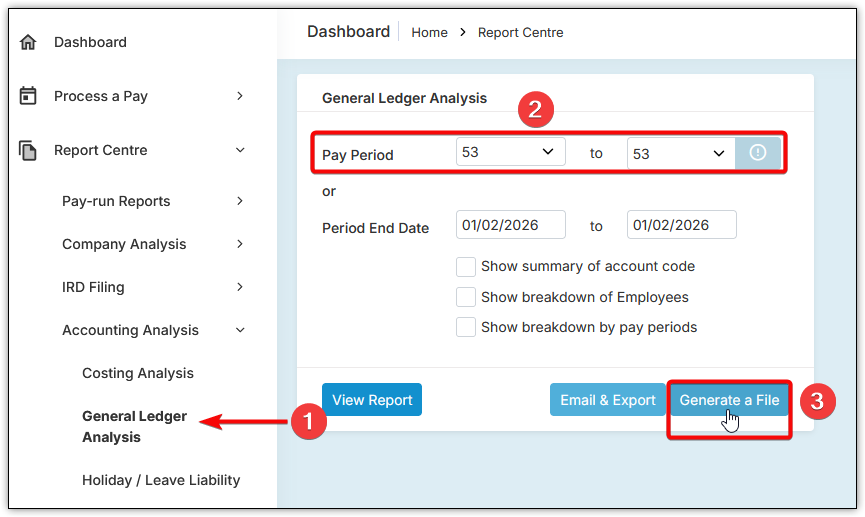
1. Head to "Report Centre", "Accounting Analysis", "General Ledger Analysis".
2. Choose the "Pay Period" you want to export.
3. Select "Generate a File" to download a CSV file. Do not open the file unless you know what you are doing.
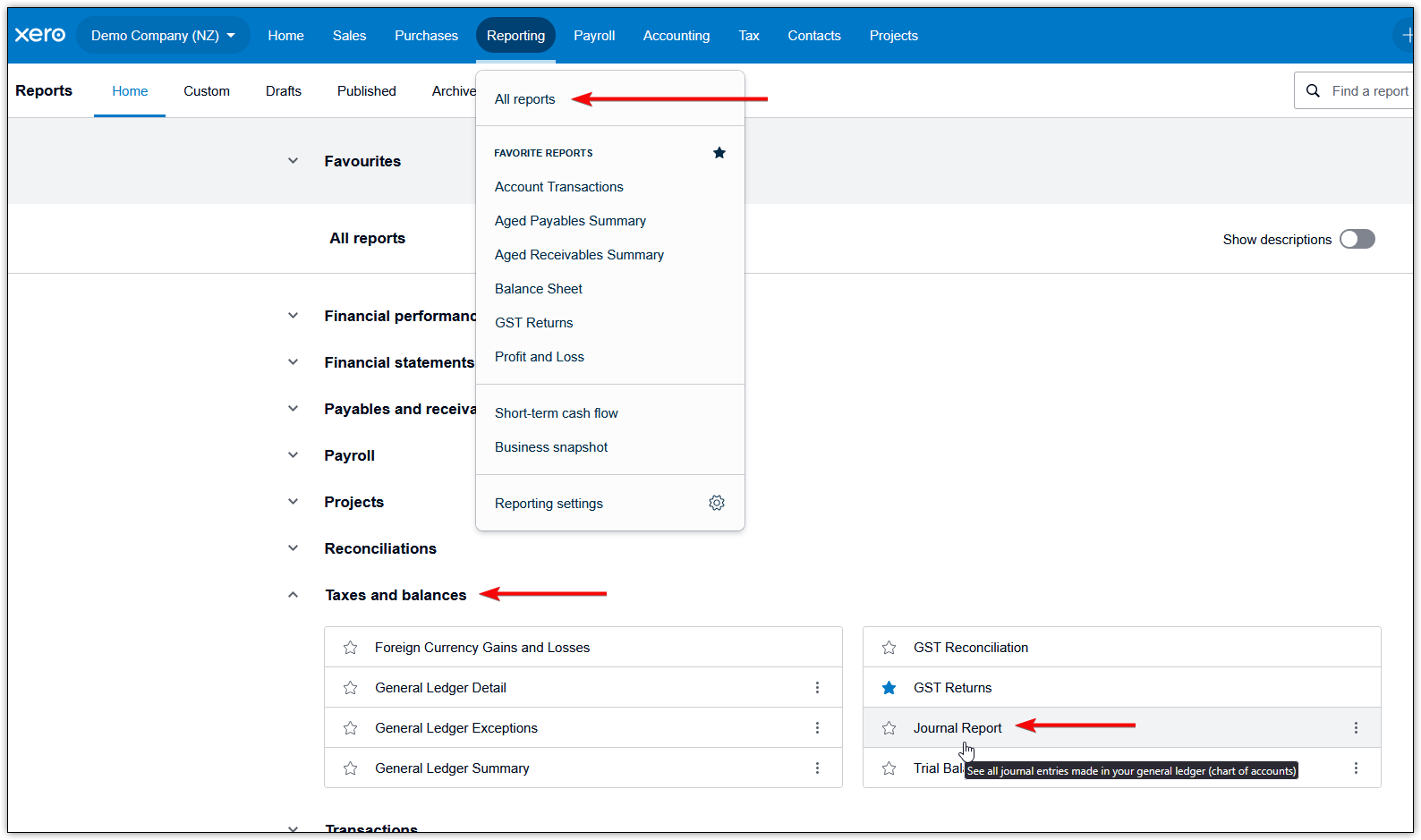
4. In Xero, head to "Reports", "All reports".
5. You can search for "Journal Report" in the top right, or find it under "Taxes and balances".
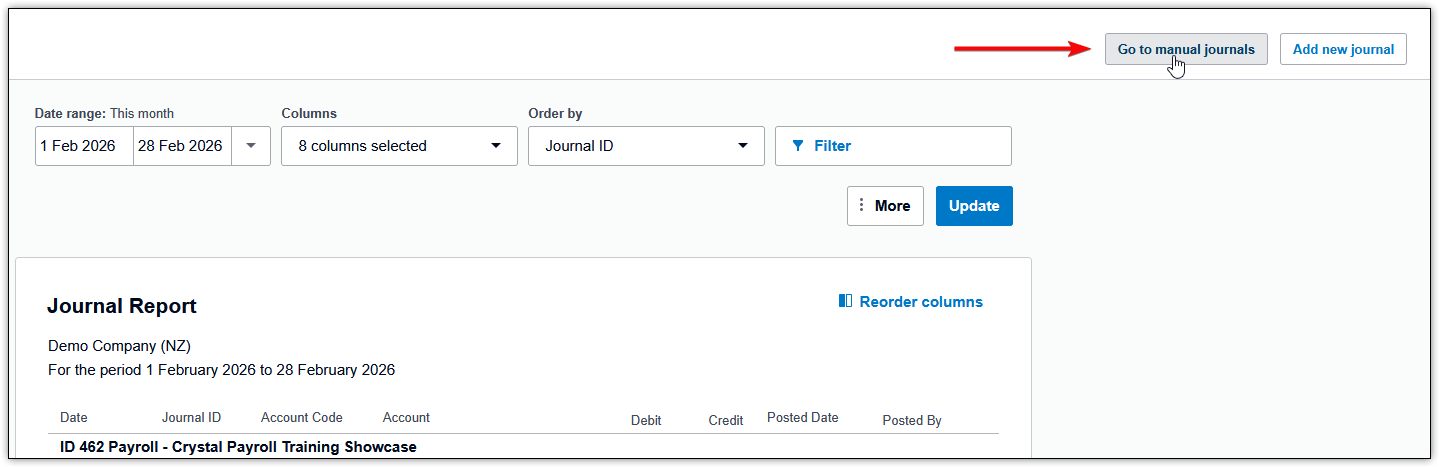
6. Select "Go to manual journals" in the top right-hand corner.
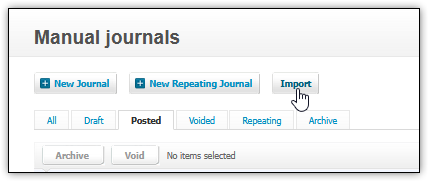
6. Click "Import".
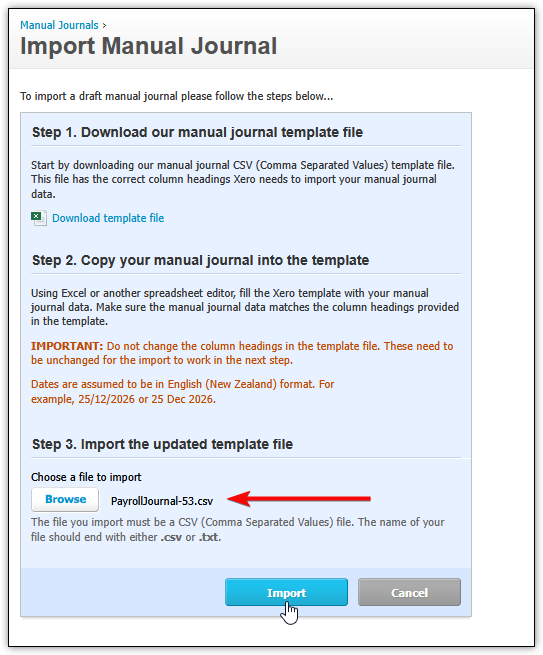
7. Under "Step 3", choose the file you generated from Crystal Payroll and select "Import".
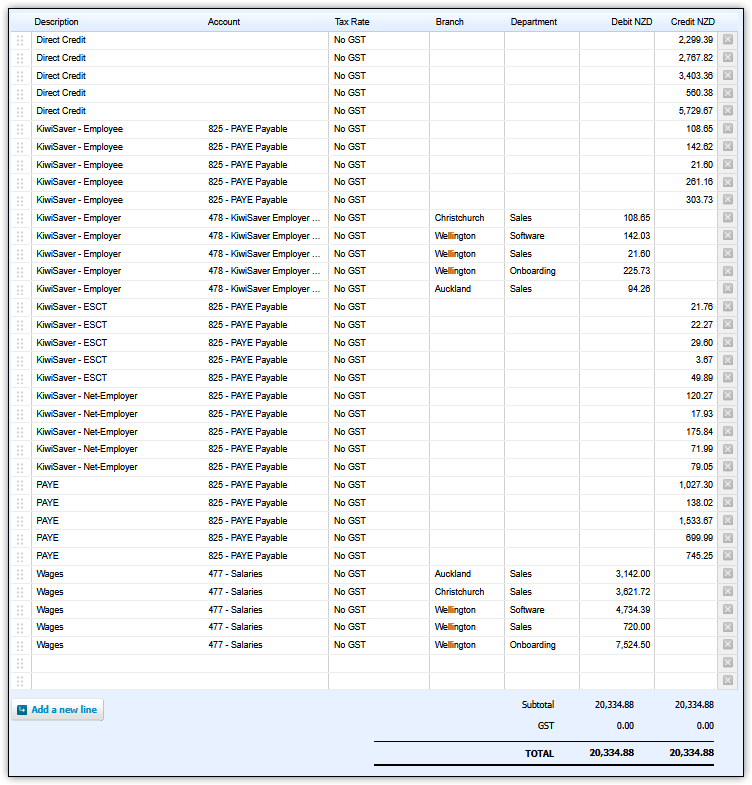
It will then flow through ready for you to post. Here is a sample journal:
Was this article helpful?
That’s Great!
Thank you for your feedback
Sorry! We couldn't be helpful
Thank you for your feedback
Feedback sent
We appreciate your effort and will try to fix the article