Setting Up Long Service Leave
Long Service Leave is an additional paid type of leave that you can set up in Crystal Payroll.
To set this up, navigate to:
- "Company Settings".
- Then "Payroll Settings".
- Select "Leave Settings" along the top of the page.
- Open the "Other Leave Entitlement".
- Enable the "Eligible for Long Service Leave Entitlement" box.
- Then "Save".
From there, you will need to enter the default rules for the Long Service Leave.
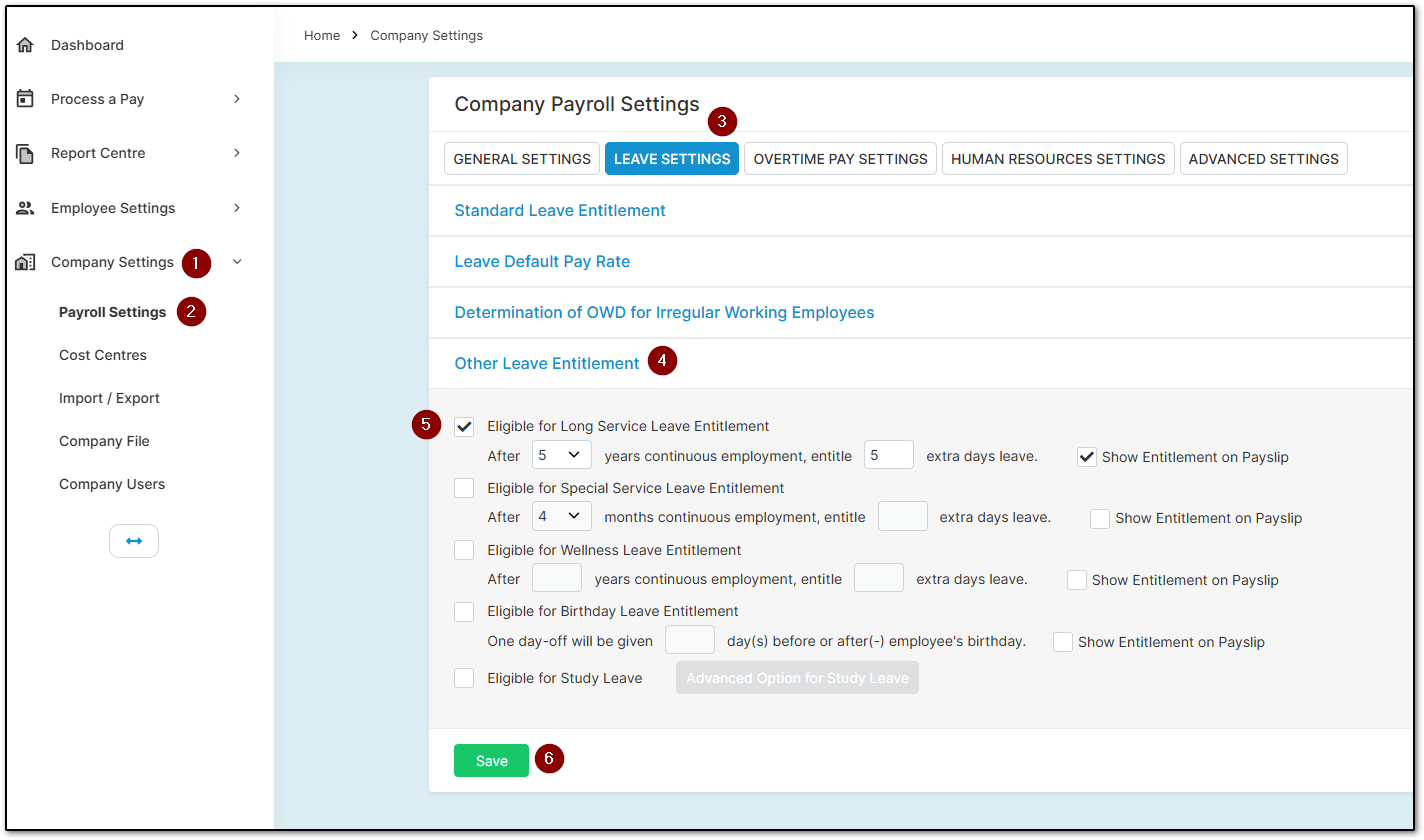
This will set up Long Service Leave to apply automatically to all future employees according to the configured rule.
However, if you want to adjust the specific date on which they receive their Long Service Leave, you can configure this by navigating to the "Default Entitlement" section in the employee's "Employee Details" page.
From there, enter the "Date" for when you want the employee to receive the "Long Service Leave", and specify how many days they will receive and how often they will receive it.
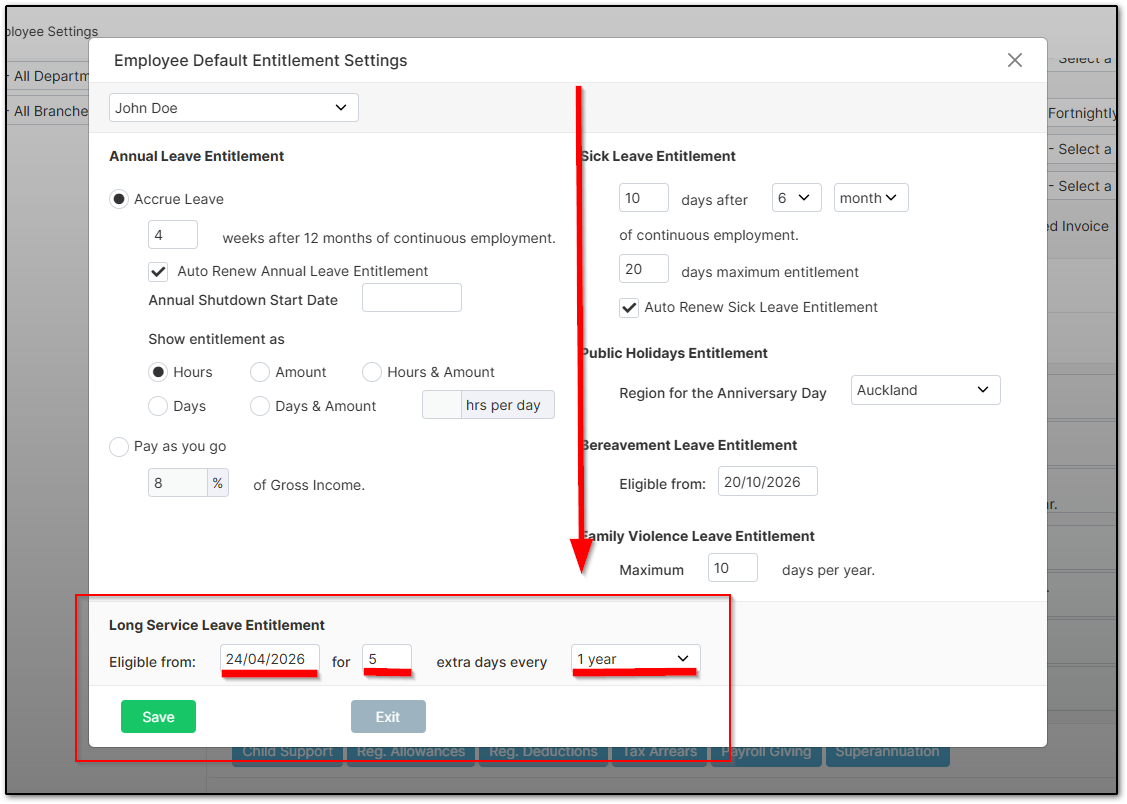
Once the period has been processed that includes the date listed in the "Default Entitlement" section, the employee will receive the "Long Service Leave".
How to Input Long Service Leave Leave
Using "Long Service Leave" works the same way as entering sick leave. When entering the details into the timesheet on the "Time & Income" page, select the date you want to apply the "Long Service Leave" to, then click the "Action" menu and choose "Long Service Leave" to apply it to the entry.
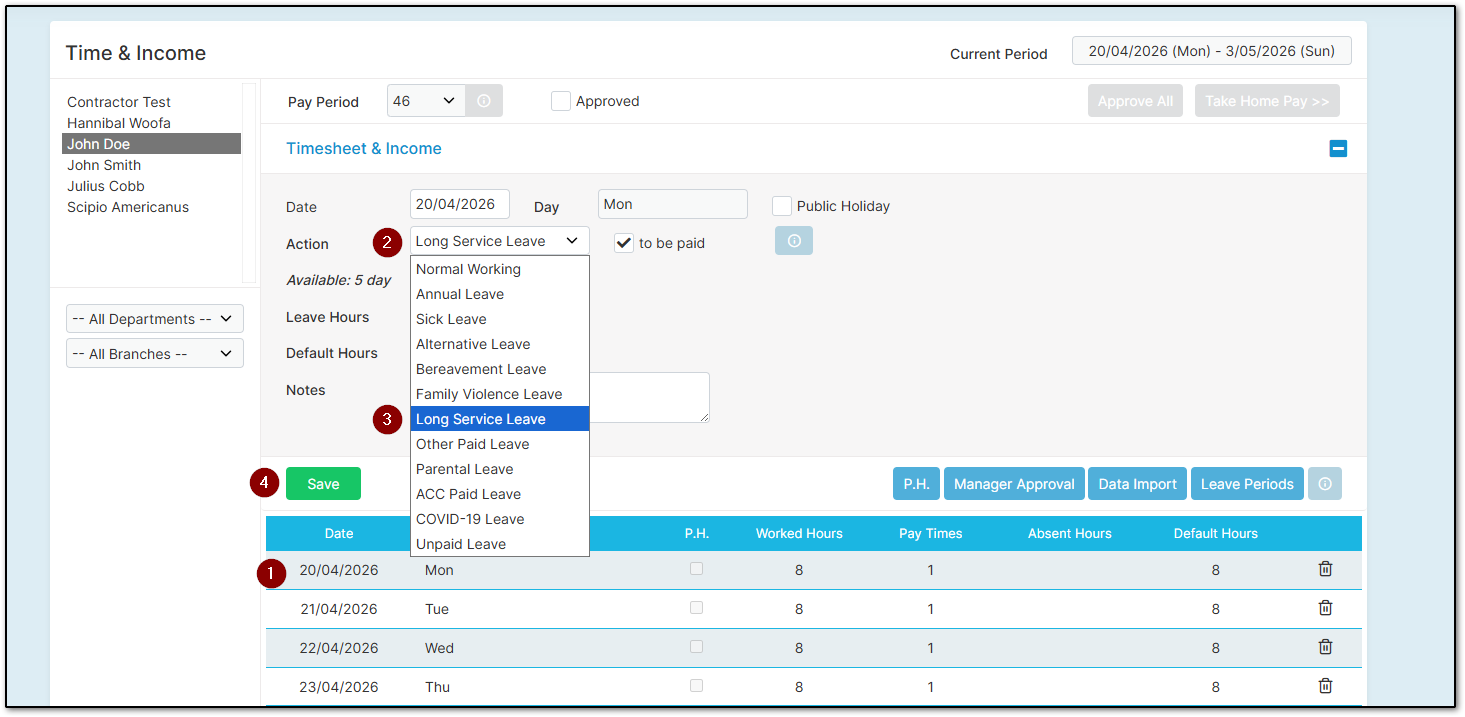
From there, enter how many hours the employee was away and confirm their default hours, then click "Save". You can then process the pay run as usual and the system will record the day off as "Long Service Leave".
Was this article helpful?
That’s Great!
Thank you for your feedback
Sorry! We couldn't be helpful
Thank you for your feedback
Feedback sent
We appreciate your effort and will try to fix the article