How to Set Up
When an employee is set to work a two-week working pattern, for example, Monday to Friday in the first week and Monday to Thursday in the second week, you can now set this up in Crystal Payroll.
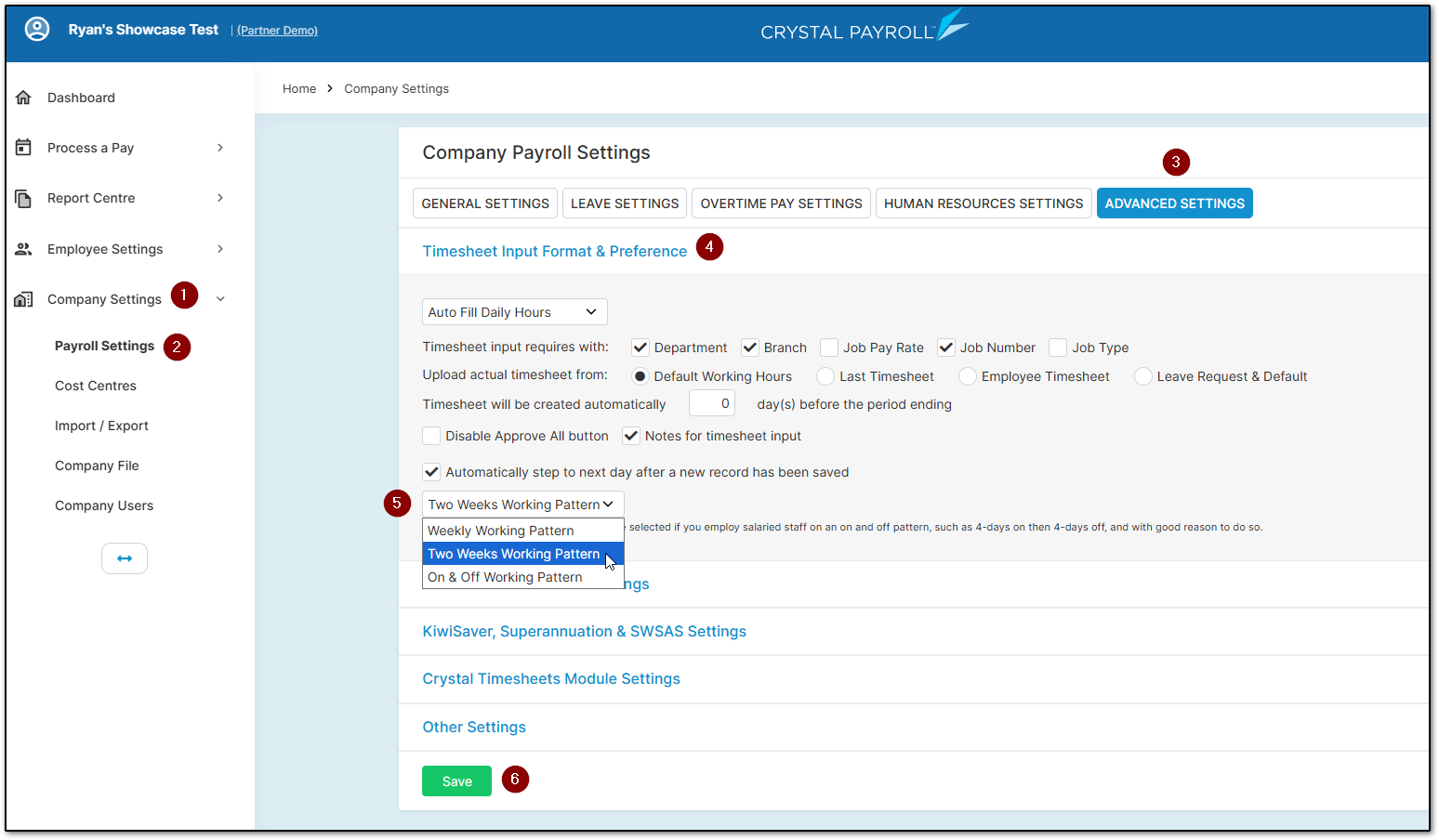
Navigate to "Company Settings", then "Payroll Settings", select "Advanced Settings" along the top of the page, expand the "Timesheet Input Format & Preference" section, and select the option "Two Weeks Working Pattern". Then click "Save" to confirm your changes.
Once this has been enabled, navigate back to "Employee Settings", then "Employee Details". Select the relevant employee from the left-hand side, then select "Default Hours" under "Other Details".
From there, click on the date for the relevant set of default hours. You will now see a grey "+" button.
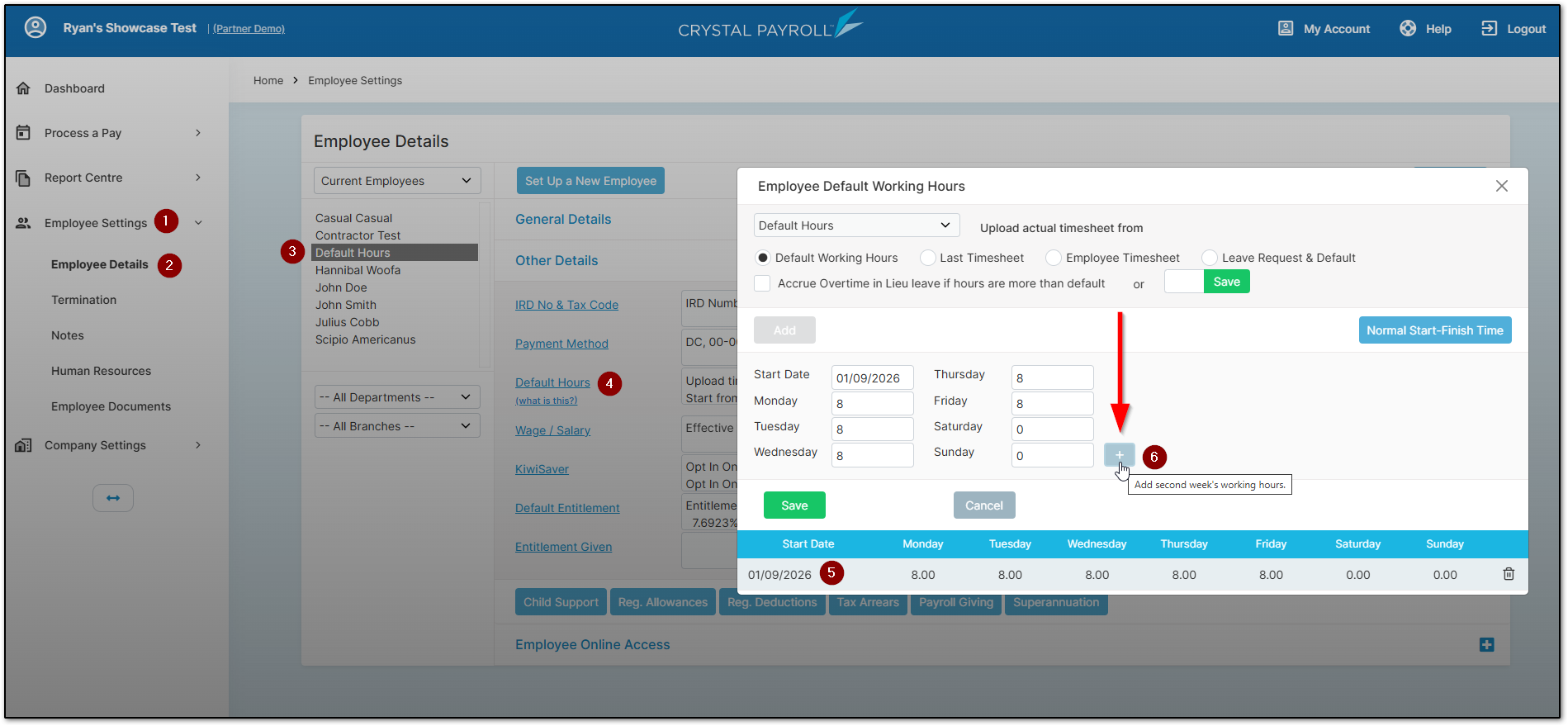
Clicking this button allows you to add a separate working pattern for the second week of the employee's default hours.
Click "Save" to confirm that you have finished entering the employee's default hours for the second week.
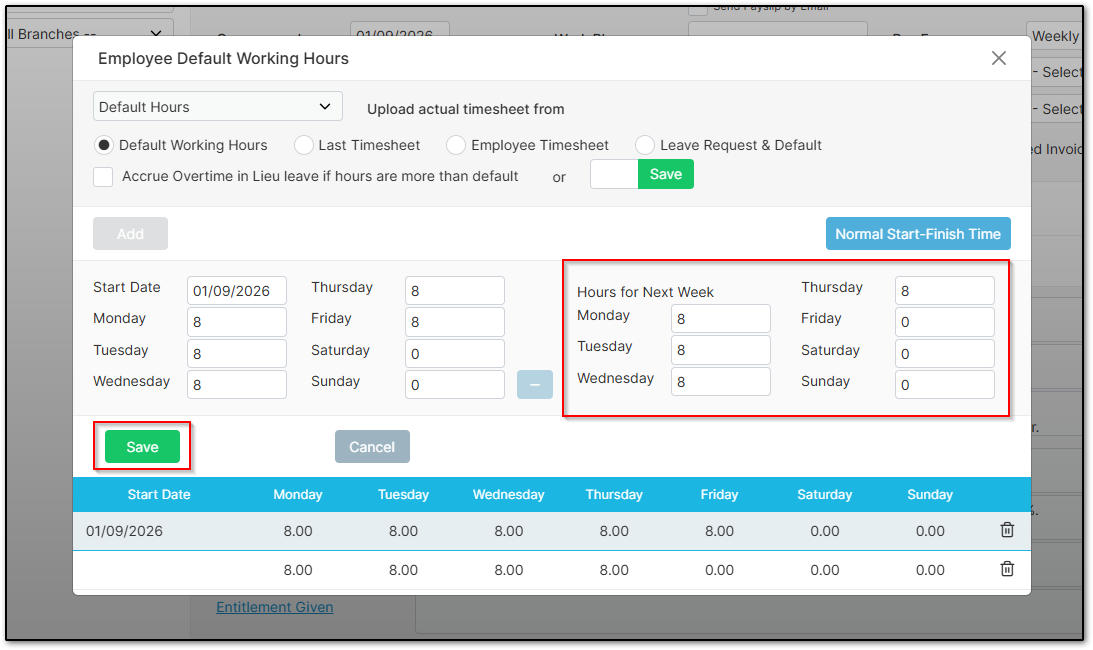
This can be used with any pay frequency, whether weekly, fortnightly, or monthly. The system will automatically recognise which set of default hours applies to each week, regardless of the pay frequency.
If you have saved the second week of default hours but no longer wish to use a two-week working pattern, simply reset all hours for the second week to "0" and click "Save". This will remove the second week and revert your changes.
Leave Accrual
The system will still accrue leave as expected with the additional set of default hours. For example, using the scenario above where an employee works one day less in the second week and works 8-hour days, we would expect the employee to accrue 144 hours of annual leave.
This is because if we average the two weeks of default hours, (40 + 32) ÷ 2, we get 36 hours.
If we then multiply 36 hours by 4, representing the four weeks of annual leave per year, we get 144 hours of annual leave.
The system calculates this 144-hour entitlement by performing two separate calculations, one for each week's default hours, 40 hours and 32 hours.
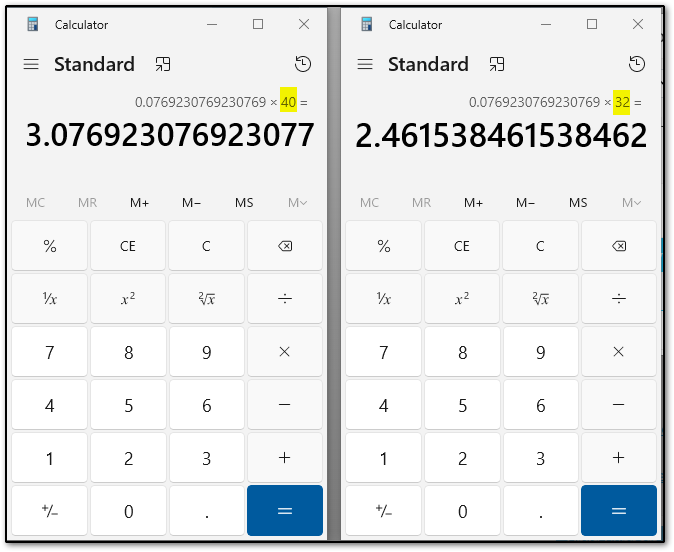
The system then adds these two figures together to calculate how much annual leave should accrue each fortnight. If we multiply this figure by 26, representing the number of fortnights in a year, we can see how the system arrives at the 144-hour annual leave entitlement.
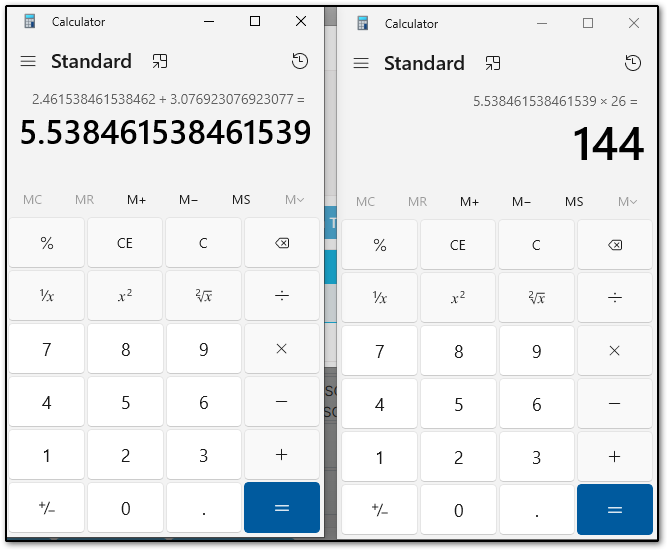
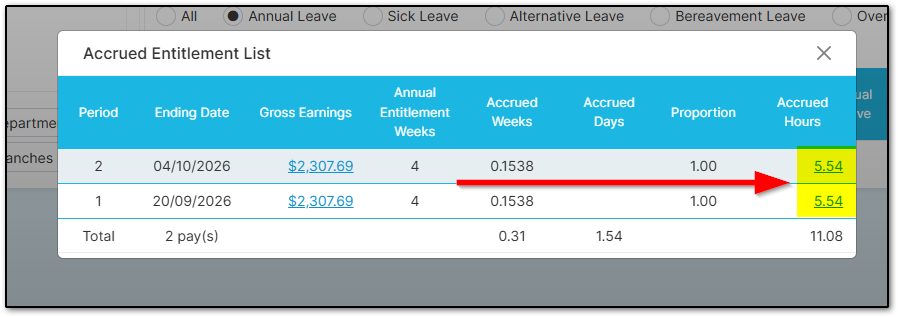
The leave accrual calculated in the example below is also consistent with the figure calculated using the calculator above.
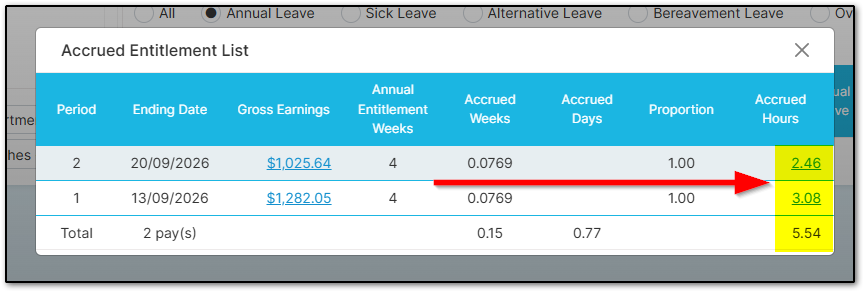
If the employee is on a weekly pay frequency, the system will accrue a different amount each week depending on which set of default hours applies. However, the same 144-hour annual leave entitlement will still be reached over the course of the year.
Was this article helpful?
That’s Great!
Thank you for your feedback
Sorry! We couldn't be helpful
Thank you for your feedback
Feedback sent
We appreciate your effort and will try to fix the article