What is the BambooHR Integration add-on?
Crystal Payroll offers a comprehensive integration with BambooHR, a global HR management software platform used by over 30,000 companies of all sizes. This integration allows you to retrieve employee information, update pay rates, and synchronise leave balances between the two systems with just a few clicks.
Please contact sales@crystalpayroll.co.nz for pricing.
Who is the BambooHR Integration add-on for?
The BambooHR integration is designed for businesses already using BambooHR that want to connect their HR and payroll systems. By integrating BambooHR with Crystal Payroll, you can transfer employee information between the two platforms, reduce manual data entry, and streamline your HR and payroll processes.
Setting Up BambooHR
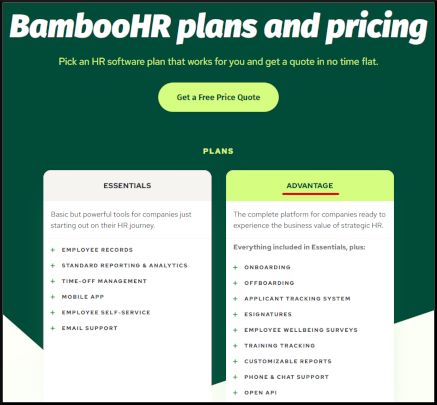
First, ensure you have purchased the Advantage package of BambooHR, as the Essentials package does not include the Open API support required for integration with Crystal Payroll. You can view their packages here: BambooHR plans and pricing.
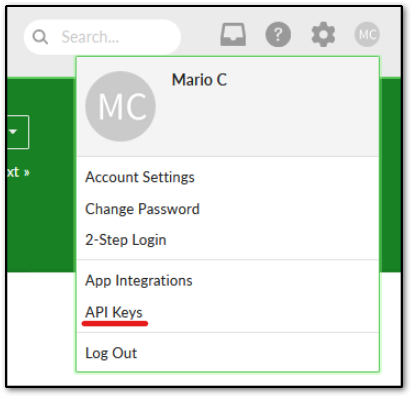
Log in to BambooHR. Click your name or profile photo in the top-right corner, then select "API Keys".
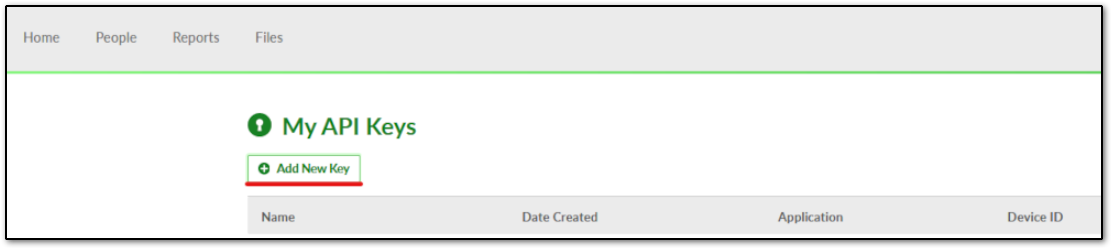
Click "Add New Key".
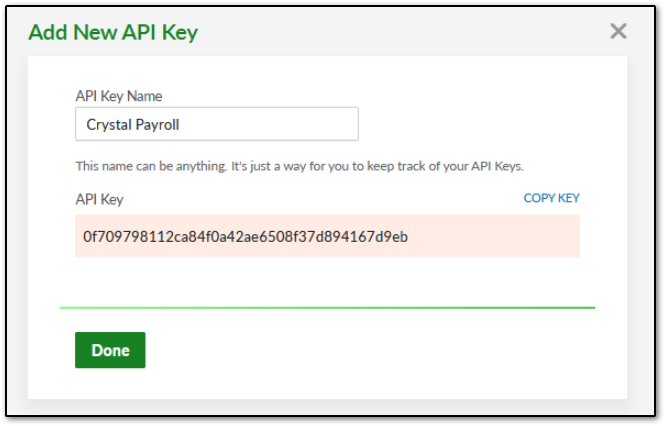
Enter a name in the "API Key Name" field, such as "Crystal Payroll".
Click "Generate Key".
Click "Copy Key" and save the API key somewhere secure, as you will need it when configuring the integration in Crystal Payroll. If you lose the key, you can repeat this process to generate a new one.
Click "Done".
Configuring Leave Categories in BambooHR
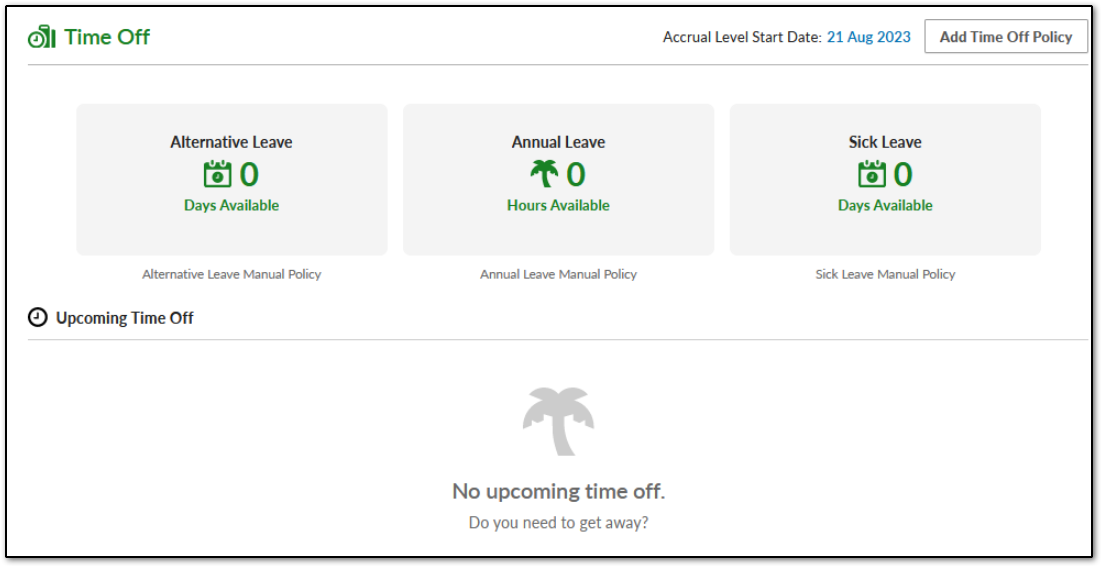
Next, check that the "Time Off" categories in BambooHR match the corresponding leave categories in Crystal Payroll. The category names must match exactly, including spelling, spacing, characters, and units of measurement.
Configure the following leave categories:
- "Annual Leave" – Measured in hours. By default, this category may be named "Vacation Leave" in BambooHR. If so, you will need to rename the existing category or create a new one.
- "Sick Leave" – Measured in days.
- "Alternative Leave" – Measured in days.
The easiest way to manage these categories in BambooHR is to configure them all using a "Manual Policy". This allows Crystal Payroll to handle leave accruals and entitlements while BambooHR receives the updated balances through the integration.
Creating the Required Custom Fields in BambooHR
The next step requires assistance from the BambooHR support team, based in the United States. This step must be completed between Tuesday and Saturday, before 12:00 p.m. New Zealand time, when BambooHR's support chat is available for this process.
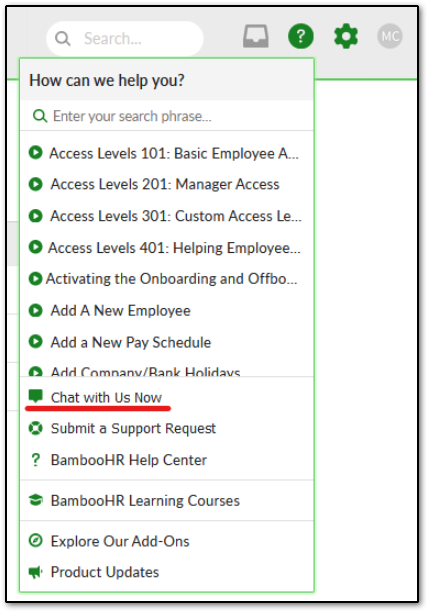
Click the "Question Mark" icon in the top-right corner of the BambooHR screen.
Select "Chat with us now".
Important: Do not attempt to create these fields yourself. They require specific background IDs to function correctly with the Crystal Payroll integration.
Once the chat opens and a BambooHR support representative becomes available, copy and paste the following message exactly as provided. Do not modify any wording, field names, symbols, or background IDs, as these are required for the integration to function correctly.
Dear BambooHR,
I am setting up an integration with my payroll system and have been provided the following letter for you.
Please add the following tab and fields under the "People" dashboard:
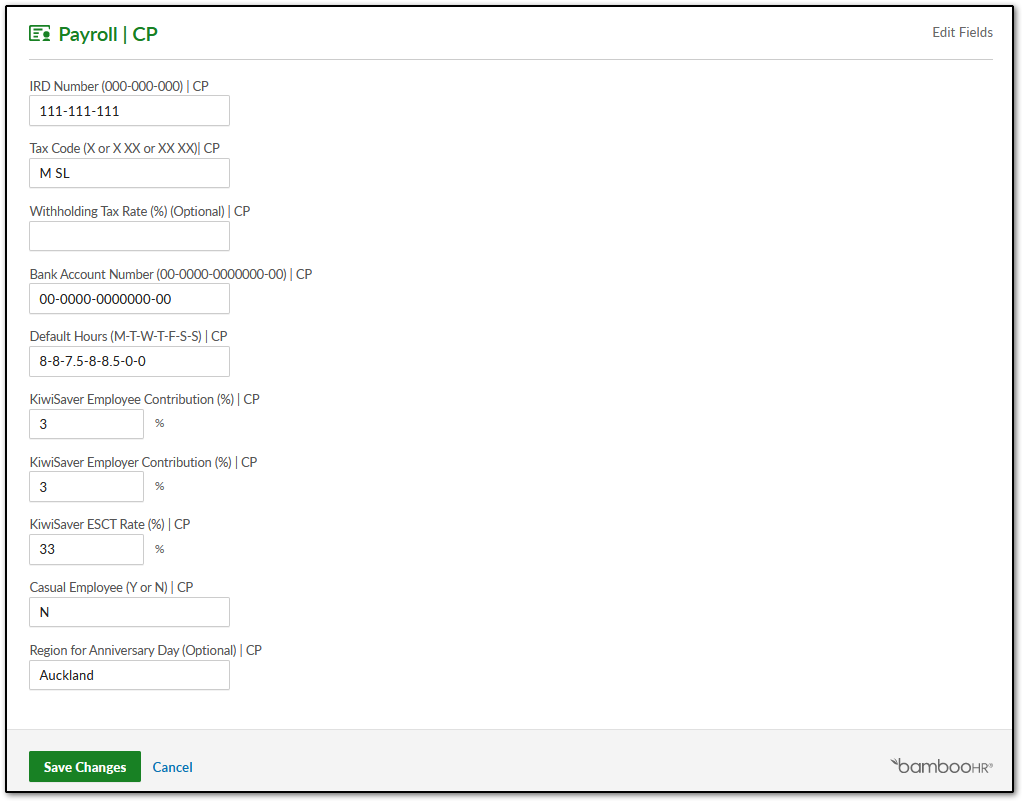
New custom tab: "Payroll | CP".
New custom text field: "IRD Number (000-000-000) | CP", background ID: customIRDNumberCP
New custom text field: "Tax Code (X or X XX or XX XX) | CP", background ID: customTaxCodeCP
New custom text field: "Withholding Tax Rate (%) (Optional) | CP", background ID: customWithholdingTaxRateCP
New custom text field: "Bank Account Number (00-0000-0000000-00) | CP", background ID: customBankAccountNumberCP
New custom text field: "Default Hours (M-T-W-T-F-S-S) | CP", background ID: customDefaultHoursCP
New custom text field: "KiwiSaver Employee Contribution (%) | CP", background ID: customKiwiSaverEmployeeContributionCP
New custom text field: "KiwiSaver Employer Contribution (%) | CP", background ID: customKiwiSaverEmployerContributionCP
New custom text field: "KiwiSaver ESCT Rate (%) | CP", background ID: customKiwiSaverESCTRateCP
New custom text field: "Casual Employee (Y or N) | CP", background ID: customCasualEmployeeCP
New custom text field: "Region for Anniversary Day (Optional) | CP", background ID: customRegionforAnniversaryDayCP
All fields must be optional, use text field type, and include all brackets and symbols as shown.
Warm regards
Once the BambooHR support representative has completed the setup, a new tab and the required custom fields will appear under each employee's profile, as shown below.
Setting Up Crystal Payroll
Once BambooHR has been configured, you can connect it to Crystal Payroll.
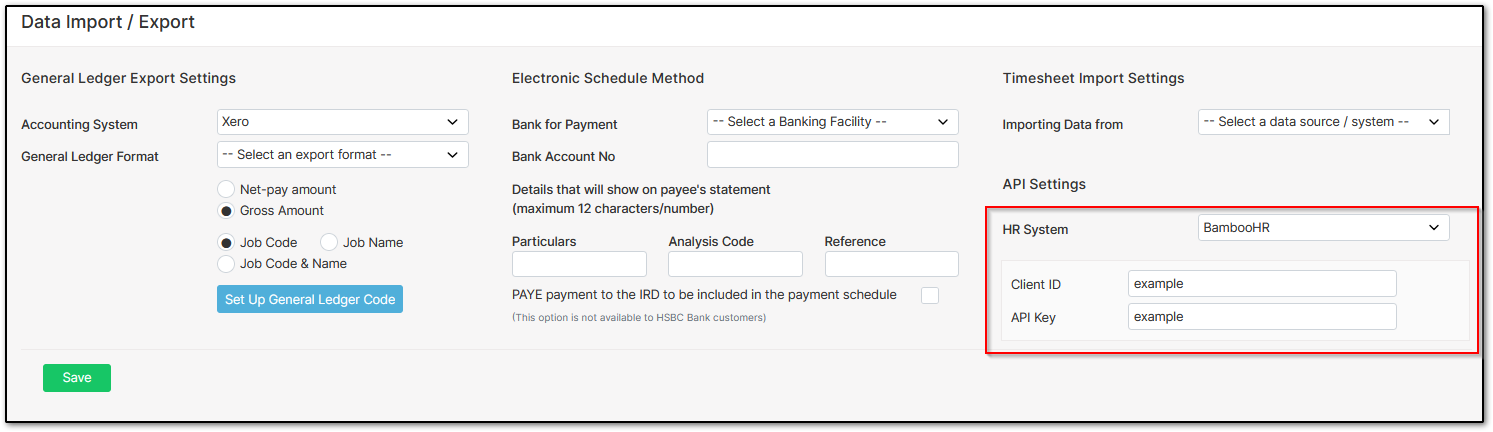
In Crystal Payroll, navigate to "Company Settings", then select "Import/Export".
Under "API Settings", select "BambooHR" from the "HR System" dropdown menu, then click "Save".
Next, enter your "Client ID". This is usually the first part of your BambooHR domain name. If you are unsure, check the address bar when logged in to BambooHR. Your Client ID is the portion of the website address that appears before ".bamboohr.com".

Enter the "API Key" that you generated and saved earlier during the BambooHR setup process.
Click "Save" to complete the configuration.
Using the BambooHR Integration
Once the integration has been configured, you can begin transferring employee information between BambooHR and Crystal Payroll.
In Crystal Payroll, navigate to "Employee Settings", then select "Employee Details".
Click "BambooHR" in the top-right corner of the page.
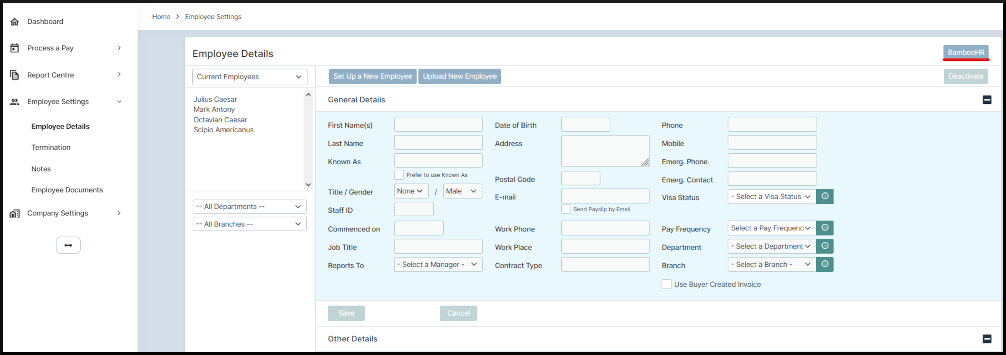
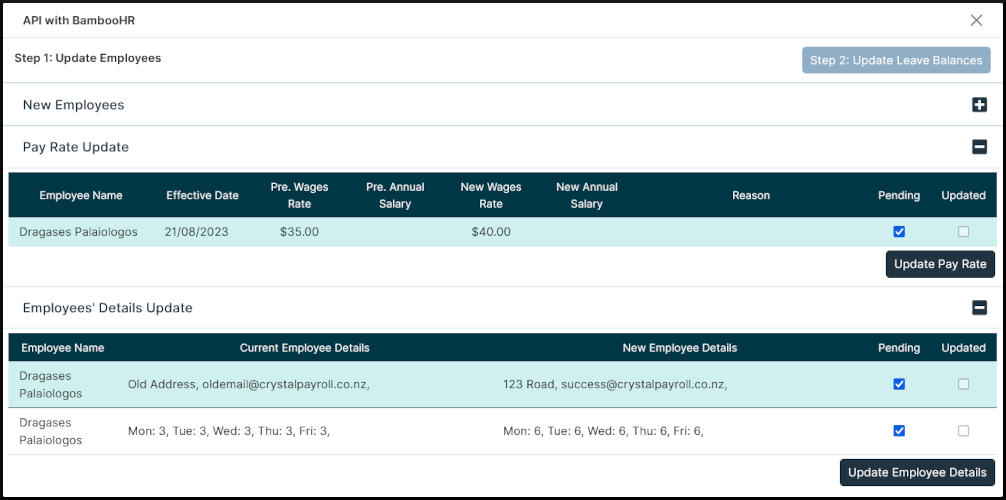
You will see three available options:
- Import new employees from BambooHR – Import employee records from BambooHR into Crystal Payroll.
- Update an employee's pay rate from BambooHR – Retrieve and update an existing employee's pay rate using the information stored in BambooHR.
- Update an employee's details from BambooHR – Synchronise an existing employee's information with the details recorded in BambooHR.
All employee information, except for leave balances, is pulled from BambooHR into Crystal Payroll. This allows you to manage employee records in BambooHR and synchronise the information with Crystal Payroll whenever required, reducing the need to maintain the same details in both systems.
Updating Leave Balances in BambooHR
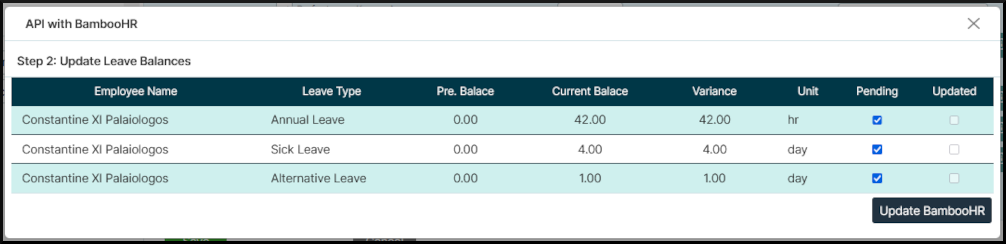
Unlike employee information, leave balances are transferred from Crystal Payroll to BambooHR.
When an employee takes leave or their leave entitlements are updated in Crystal Payroll, you can synchronise these changes with BambooHR to keep the employee's leave balances up to date across both systems.
To do this, click "Step 2: Update Leave Balances" in the top-right corner of the integration screen.
With the BambooHR integration configured, you can simplify employee administration, reduce duplicate data entry, and keep your HR and payroll information aligned. By managing employee details in BambooHR and leave entitlements in Crystal Payroll, your business can benefit from a more streamlined and efficient workflow.
We hope you found this guide helpful!
Was this article helpful?
That’s Great!
Thank you for your feedback
Sorry! We couldn't be helpful
Thank you for your feedback
Feedback sent
We appreciate your effort and will try to fix the article