Crystal Payroll can support setting up multiple jobs and allocating hours across those jobs so that you can report on the earnings and hours spent at each costing.
Please note: If you want to set up Departments and Branches for costing, please see the Cost Centres guide instead. If you want to set up multiple pay rates, such as secondary pay rates per employee, then please see the How to Set Up Job Pay Rates guide instead.
There are two types of Job Costing that Crystal Payroll can handle. Select the option below to jump to the relevant setup instructions.
- Option #1: Job Type – Allows you to set up job categories and allocate hours worked under each job.
- Option #2: Job Number – Allows you to set up specific jobs with job numbers and customers.
Option #1: Job Type
This option allows you to create job categories and allocate hours worked under each job. It also allows you to set a universal pay rate and attach account codes and tracking categories for accounting integrations.
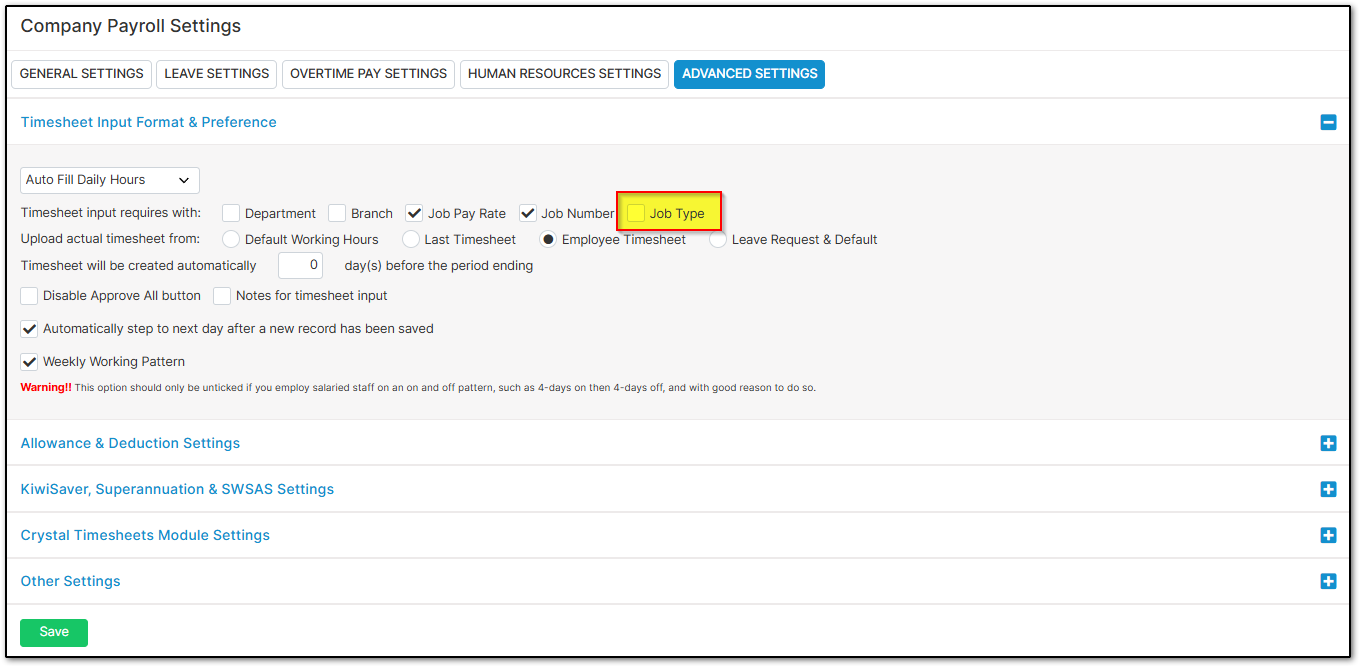
Navigate over to "Company Settings", "Payroll Settings". Open "Advanced Settings". Under "Timesheet Input & Preference" enable "Job Type". Select "Save".
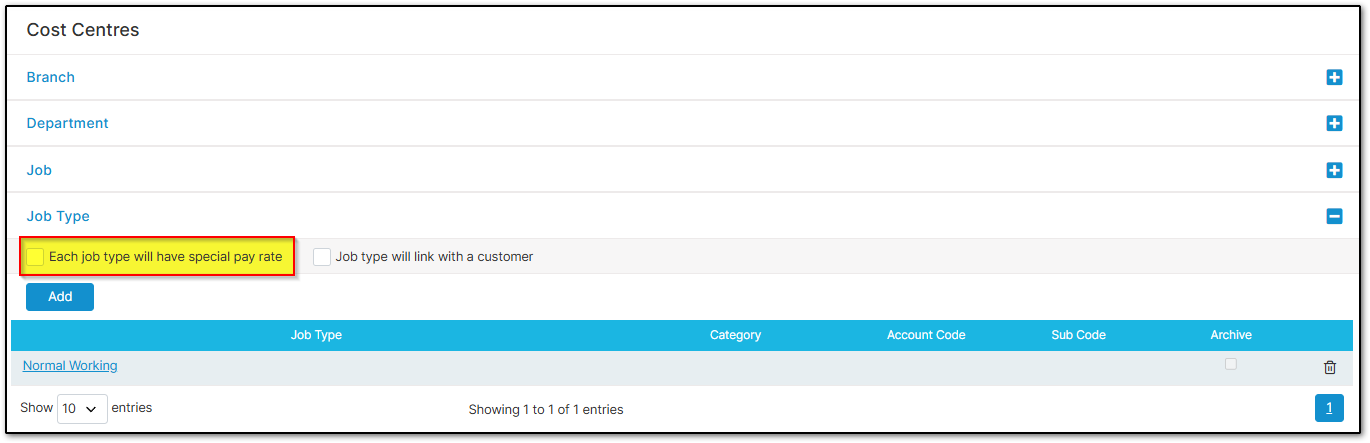
Navigate over to "Company Settings", "Cost Centres". Open "Job Type". If you would like to set up a specific pay rate for the job, you can enable "Each job type will have special pay rate".
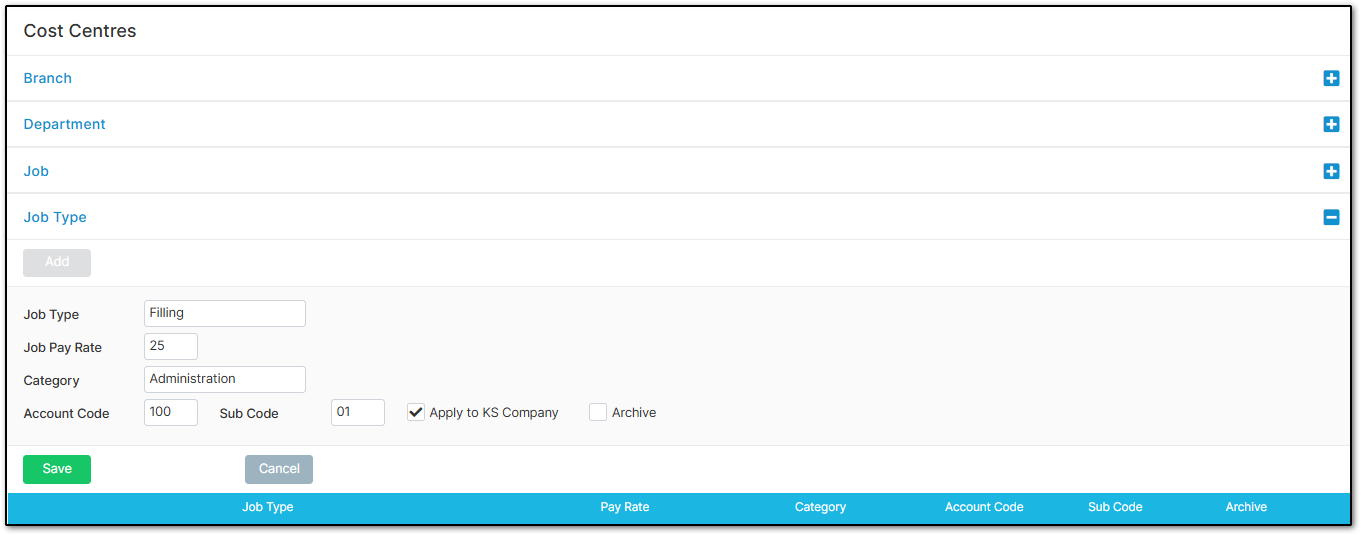
Select "Add". Enter the "Job Name" and the "Job Pay Rate" if relevant. If you have "tracking categories" set up in your accounting system, enter the name of the "Category".
You can also set up an "Account Code" and a "Sub Code" for your accounting integration. Enable "Apply to KS Company" if you want KiwiSaver split up via Jobs. If a job type is no longer required within your company select "Archive". Select "Save" once you are finished.
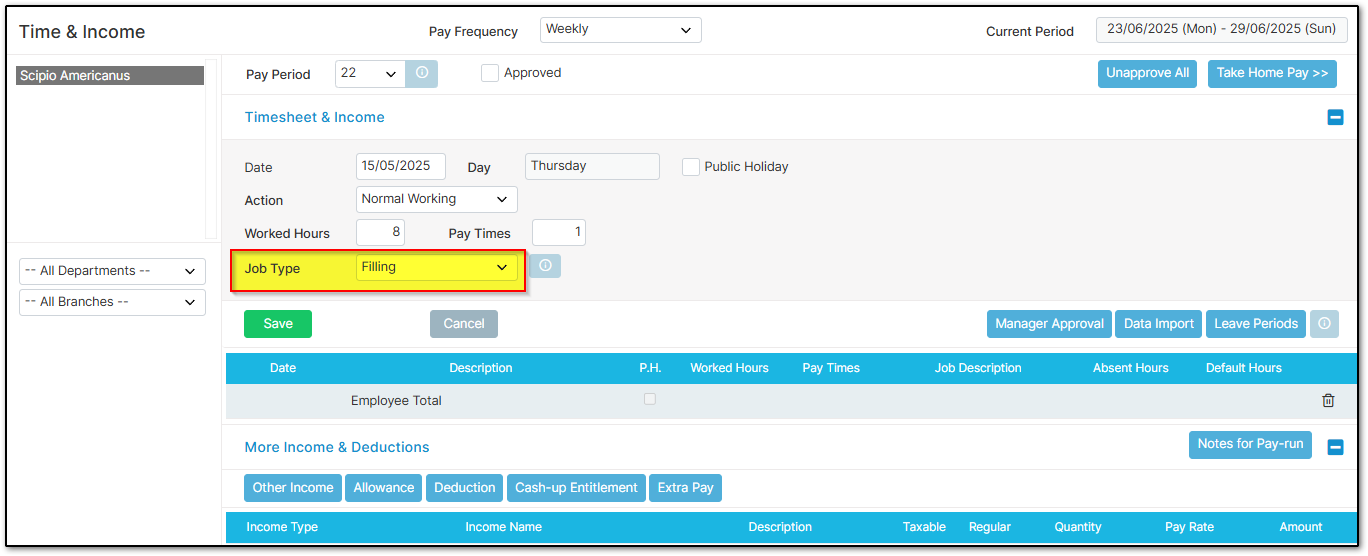
Once configured, you will be able to enter "Job Types" into employees' timesheets.
Option #2: Job Number
This option allows you to create individual jobs using job numbers. Jobs can also be linked to customers and used for more detailed job costing and reporting.
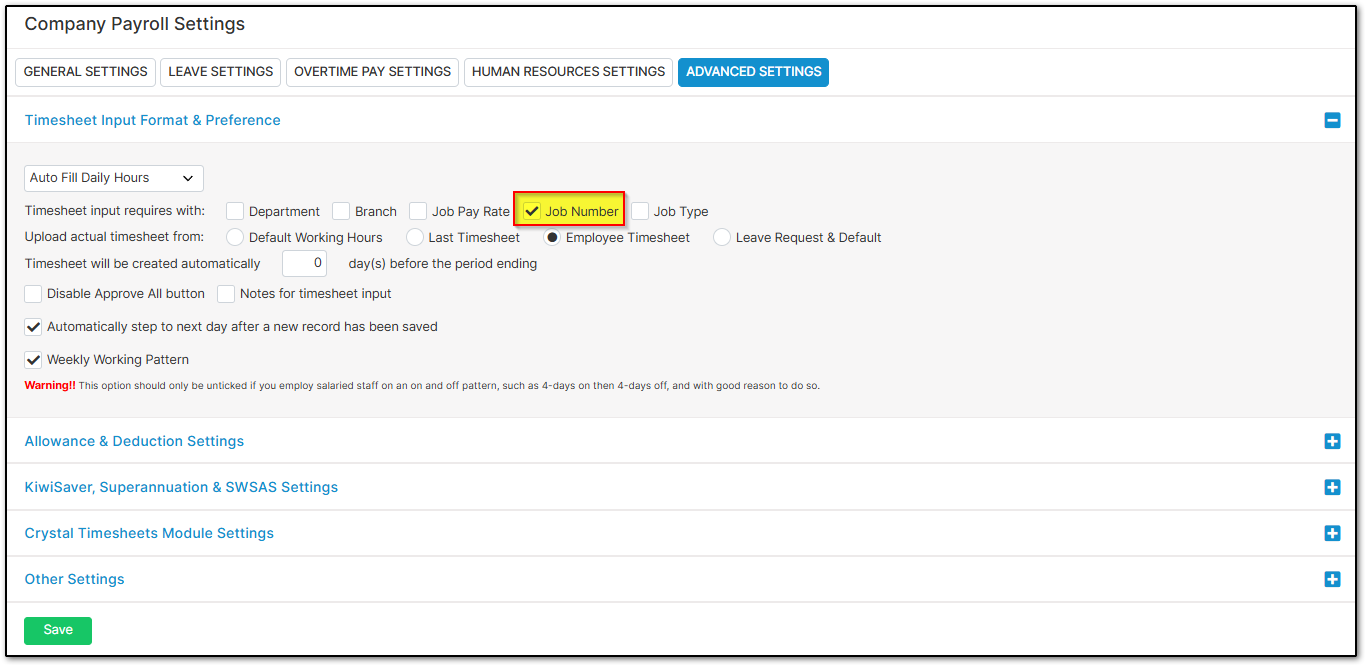
Navigate over to "Company Settings", "Payroll Settings". Open "Advanced Settings". Under "Timesheet Input & Preference" enable "Job Number". Select "Save".
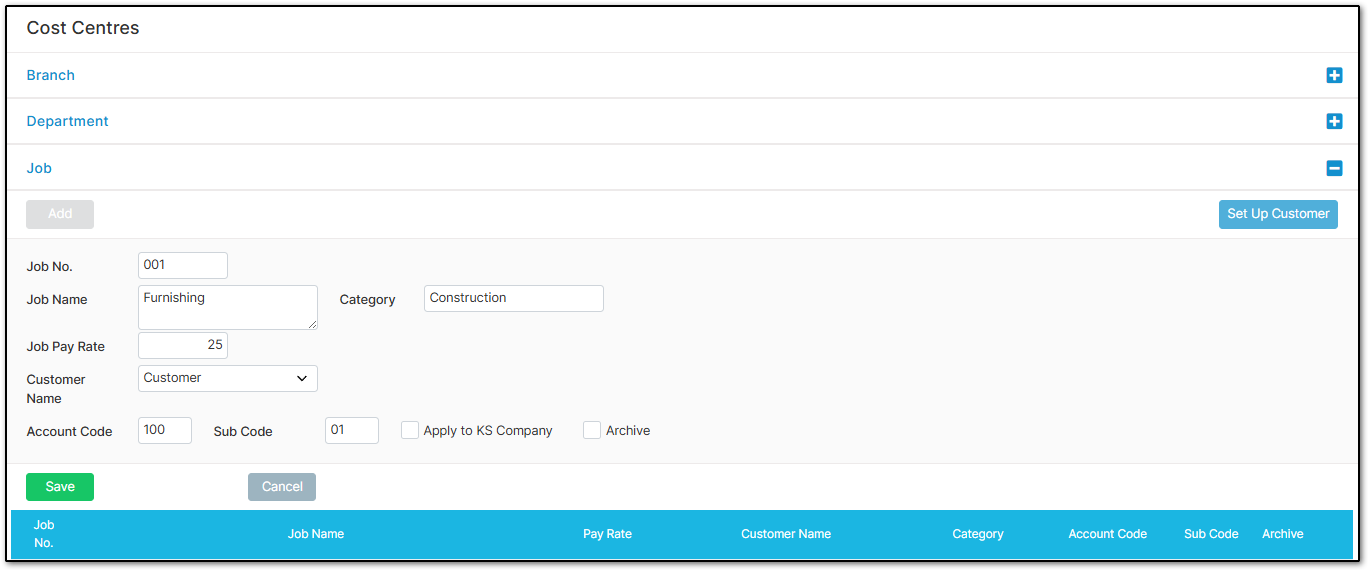
Navigate over to "Company Settings", "Cost Centres". Open "Job". If you would like to set up a specific pay rate for the job, you can enable "Each job type will have special pay rate".
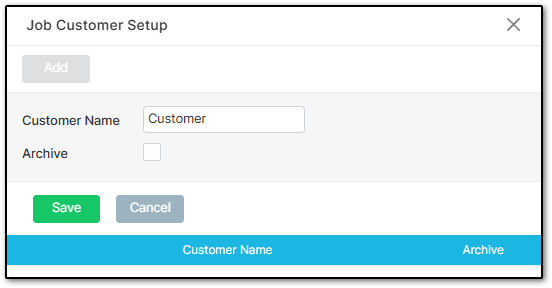
If you would like to set up a customer, select "Set up Customer" on the right-hand side. Select "Add" and enter a name for the customer before selecting "Save".
Close this menu. To add a job, select "Add". Enter the "Job Name", "Job Number", "Job Pay Rate", and "Customer Name" if relevant. If you have "tracking categories" set up in your accounting system, enter the name of the "Category".
You can also set up an "Account Code" and a "Sub Code" for your accounting integration. Enable "Apply to KS Company" if you want KiwiSaver split up via Jobs. If a job is no longer required within your company select "Archive". Select "Save" once you are finished.
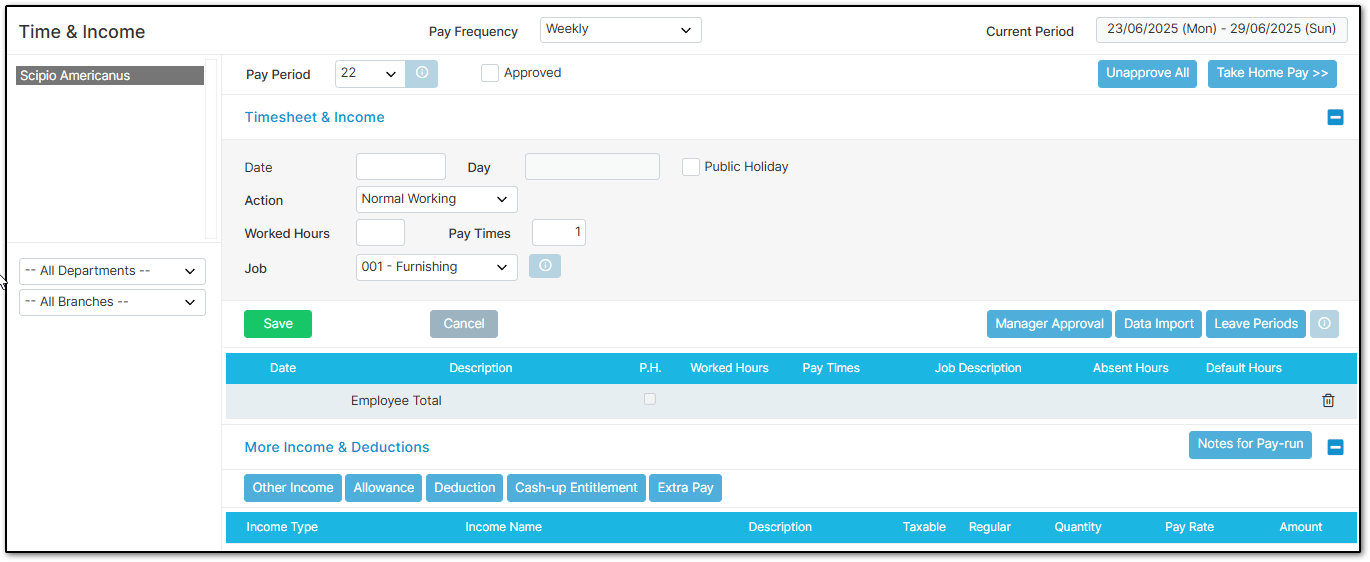
Once configured, you will be able to enter "Jobs" and "Customers" into employees' timesheets.
Was this article helpful?
That’s Great!
Thank you for your feedback
Sorry! We couldn't be helpful
Thank you for your feedback
Feedback sent
We appreciate your effort and will try to fix the article