Aside from having a wage or salary set up in Crystal Payroll, you can set up additional job pay rates per employee or for the whole company. This can be useful if you have employees with a secondary job pay rate, or if you have a separate role that anyone can perform which is paid at a different pay rate.
Please Note: This is not for Job Costing. Job Costing is a separate process. This is specifically for setting up additional pay rates. If you want to know how to set up Job Costing instead, see our guide How to Set Up Job Costing instead.
There are two types of job pay rates you can set up.
- Option #1: Company Job Pay Rate – Allows you to set up jobs and apply a universal pay rate.
- Option #2: Employee Job Pay Rate – Allows you to set up jobs and assign individual pay rates.
Option #1: Company Job Pay Rate
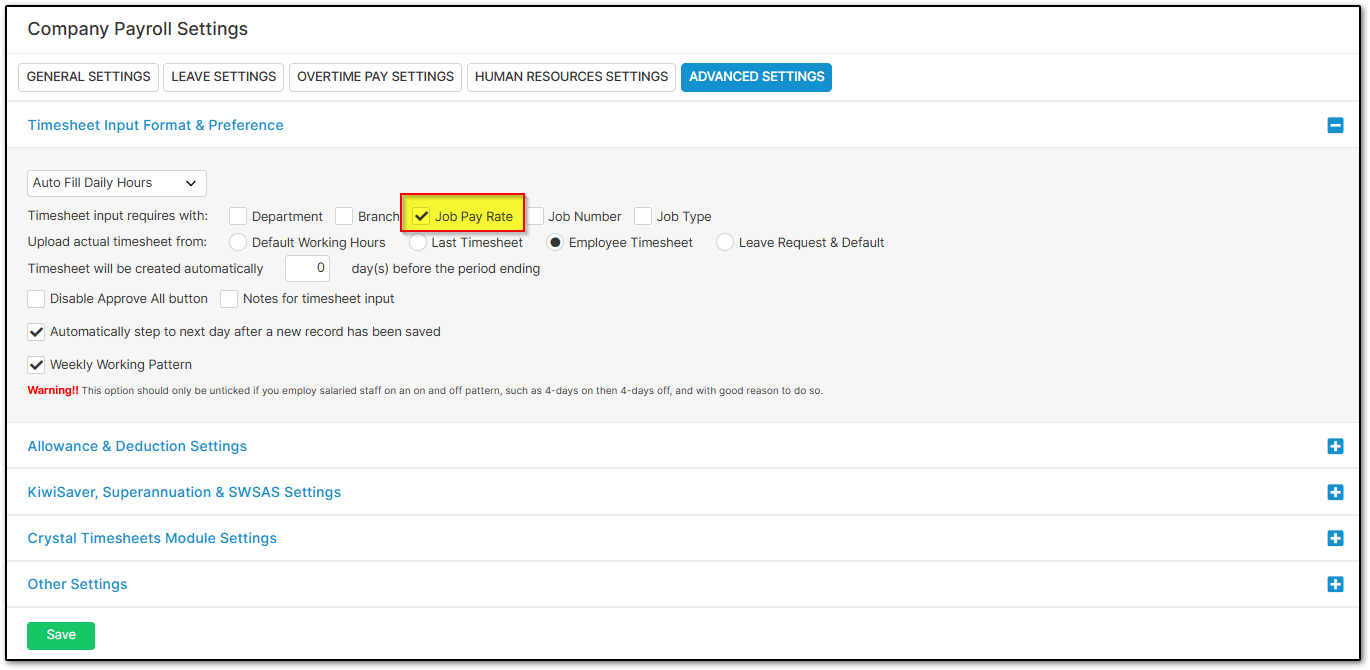
Navigate over to "Company Settings", "Payroll Settings". Open "Advanced Settings". Under "Timesheet Input & Preference" enable "Job Pay Rate". Select "Save".
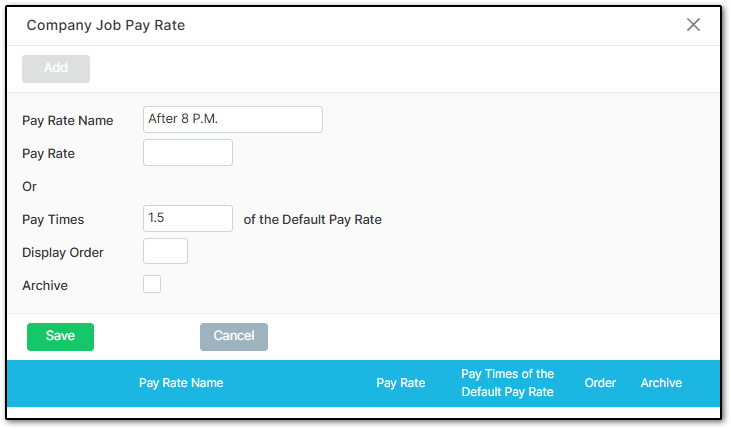
Navigate over to "Employee Settings", "Employee Details". Select an employee from the left-hand side and then open "Job Pay Rate" under "Other Details".
Select "Add".
Enter the "Pay Rate Name".
Set up either the "Pay Rate" if it is a specific rate or "Pay Times" if it is a specific multiplier such as time and a half.
Set up the "Display Order" if relevant.
If a job type is no longer required within your company select "Archive".
Select "Save" once you are finished.
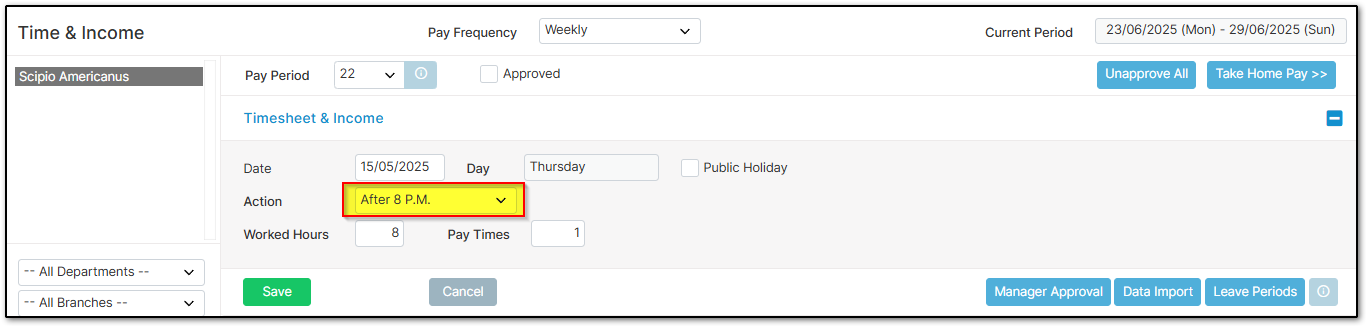
You will now be able to select the job from the "Action" dropdown menu in the employees' timesheets.
Option #2: Employee Job Pay Rate
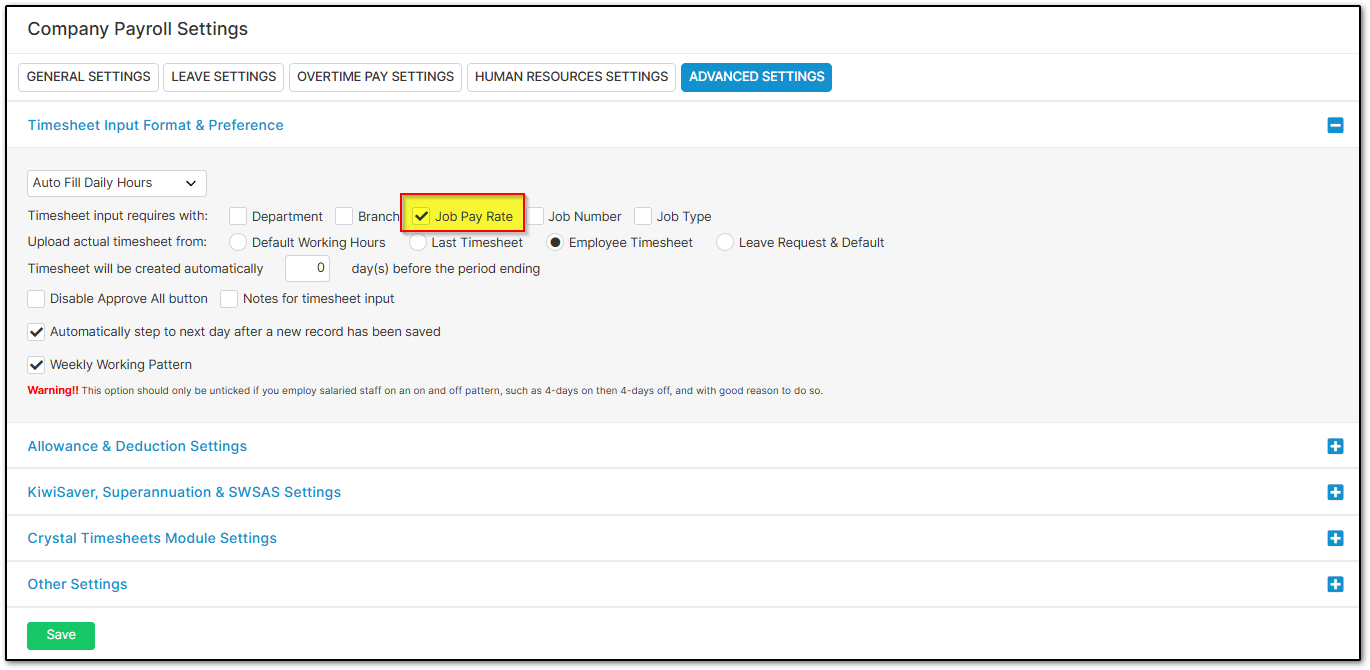
Navigate over to "Company Settings", "Payroll Settings". Open "Advanced Settings". Under "Timesheet Input & Preference" enable "Job Pay Rate".
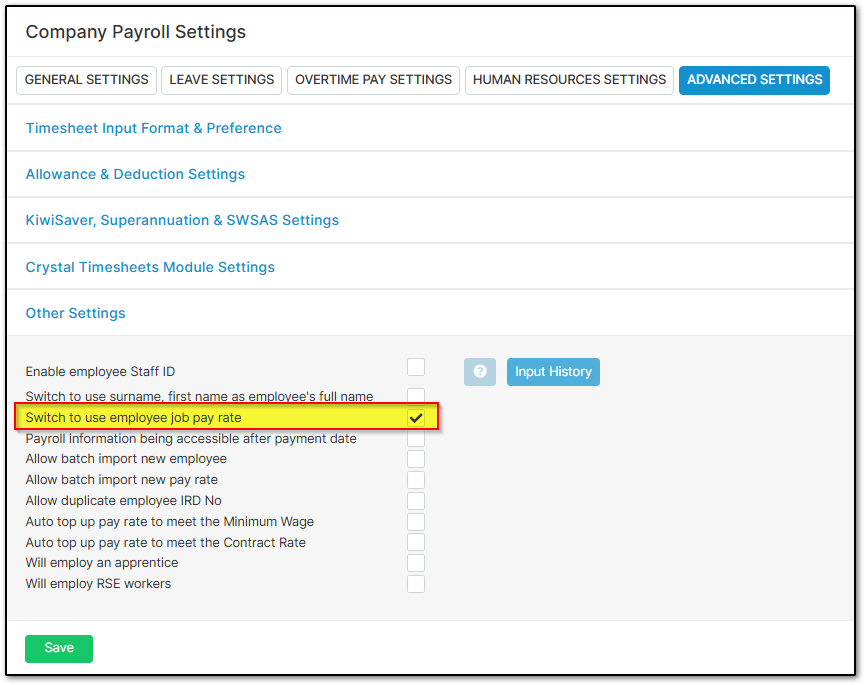
Under "Other Settings", also enable "Switch to use employee job pay rate". Select "Save".
Navigate over to "Employee Settings", "Employee Details". Select an employee from the left-hand side and then open "Job Pay Rate" under "Other Details".
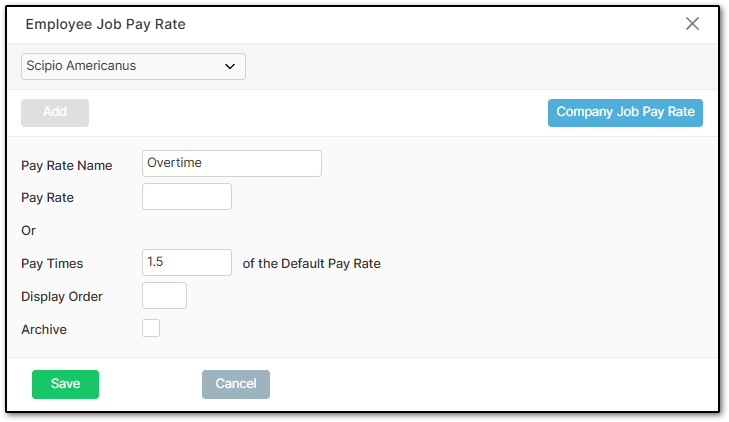
Select "Add".
Enter the "Pay Rate Name".
Set up either the "Pay Rate" if it is a specific rate or "Pay Times" if it is a specific multiplier such as time and a half.
Set up the "Display Order" if relevant.
If a job type is no longer required within your company select "Archive".
Select "Save" once you are finished.
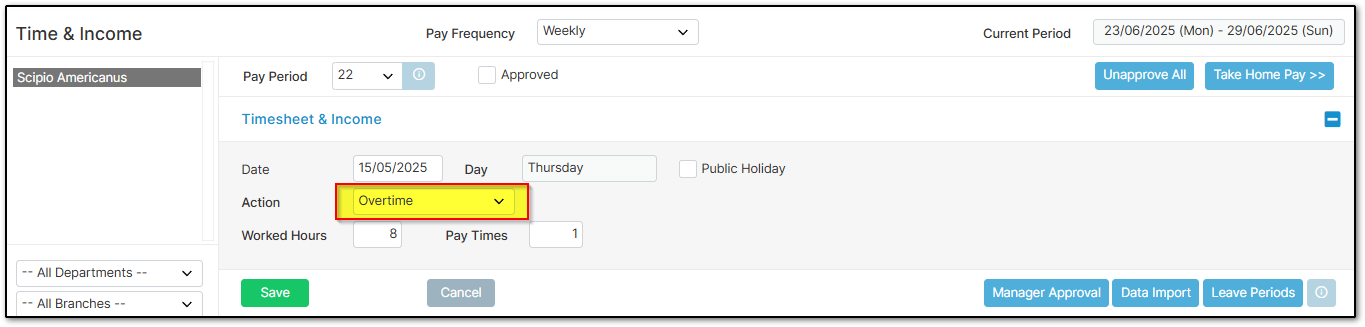
You will now be able to select the job from the "Action" dropdown menu in the employees' timesheets.
Was this article helpful?
That’s Great!
Thank you for your feedback
Sorry! We couldn't be helpful
Thank you for your feedback
Feedback sent
We appreciate your effort and will try to fix the article