The Staff ID feature allows each employee to be assigned a unique identification number or code. This can help keep employee records organized and make employees easier to identify across reports, imports, and other payroll records.
This guide explains how to enable or disable the Staff ID feature in Crystal Payroll, assign a Staff ID to an employee, and understand how Staff IDs are sorted and displayed.
Enable Staff IDs
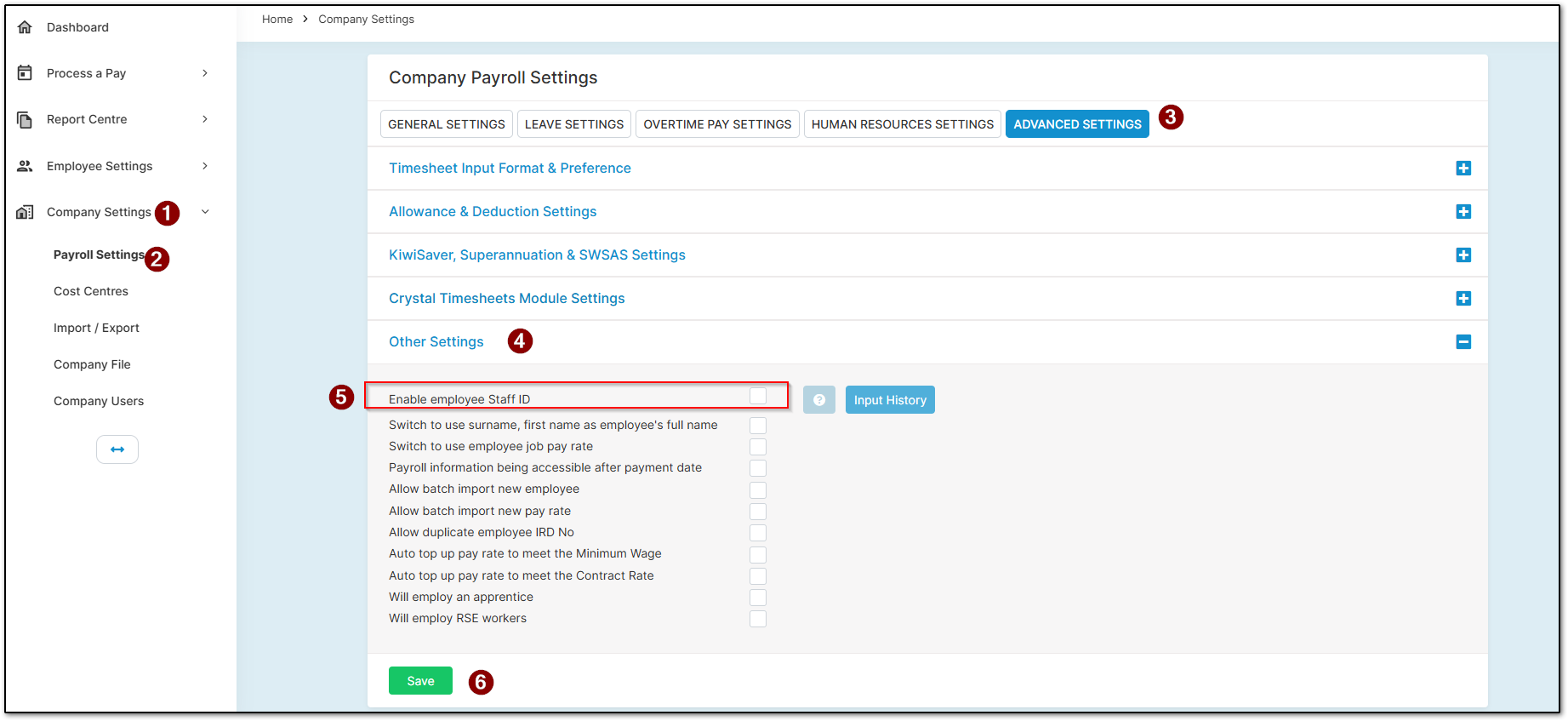
To enable the Staff ID feature, go to “Company Settings”, “Payroll Settings”, and then “Advanced Settings”.
Under “Other Settings”, locate the Staff ID option and enable or disable it depending on your company’s requirements.
Once the feature has been enabled, a Staff ID can be entered under each employee’s details. If your company does not use Staff IDs, the feature can be disabled so the Staff ID field is no longer displayed.
Assign a Staff ID to an Employee
Once the Staff ID feature has been enabled, go to “Employee Settings” and then “Employee Details”.
An additional section called “Staff ID” will be displayed. Enter the employee’s unique identification number or code into this field.
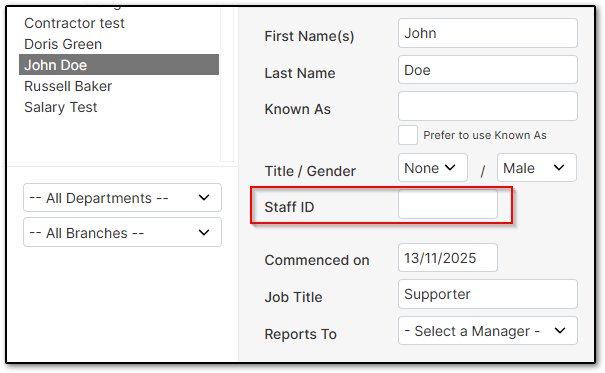
The Staff ID can contain either:
- Numbers
- Letters
We DO NOT recommend using any special characters, as these are not supported by reports, imports, or the system.
Once the Staff ID has been entered, click “Save” to apply the changes.
Staff ID Sorting
The format used for the Staff ID will affect how employees are sorted and displayed.
If letters are used, the Staff IDs will be sorted alphabetically.
If numbers are used, the Staff IDs will be sorted numerically from the lowest number to the highest.
For this reason, it is recommended that your company uses the same Staff ID format for all employees.
Was this article helpful?
That’s Great!
Thank you for your feedback
Sorry! We couldn't be helpful
Thank you for your feedback
Feedback sent
We appreciate your effort and will try to fix the article