The standard Crystal Payroll setup includes a day-by-day breakdown for entering Time & Income. This is designed to help employers meet their record-keeping obligations under Section 130 of the Employment Relations Act 2000.
Some employers prefer to process payroll using only the total hours and total days paid for each pay period. While this can make payroll processing simpler, it means that if a Wages and Time Record is required later, the day-by-day breakdown would need to be reconstructed from other records. In some cases, this may not be possible if those records are no longer available.
If you would prefer Crystal Payroll to be configured so that you only need to enter total hours and days paid for each pay period, you can follow the instructions below.
Table of Contents
Setting Up
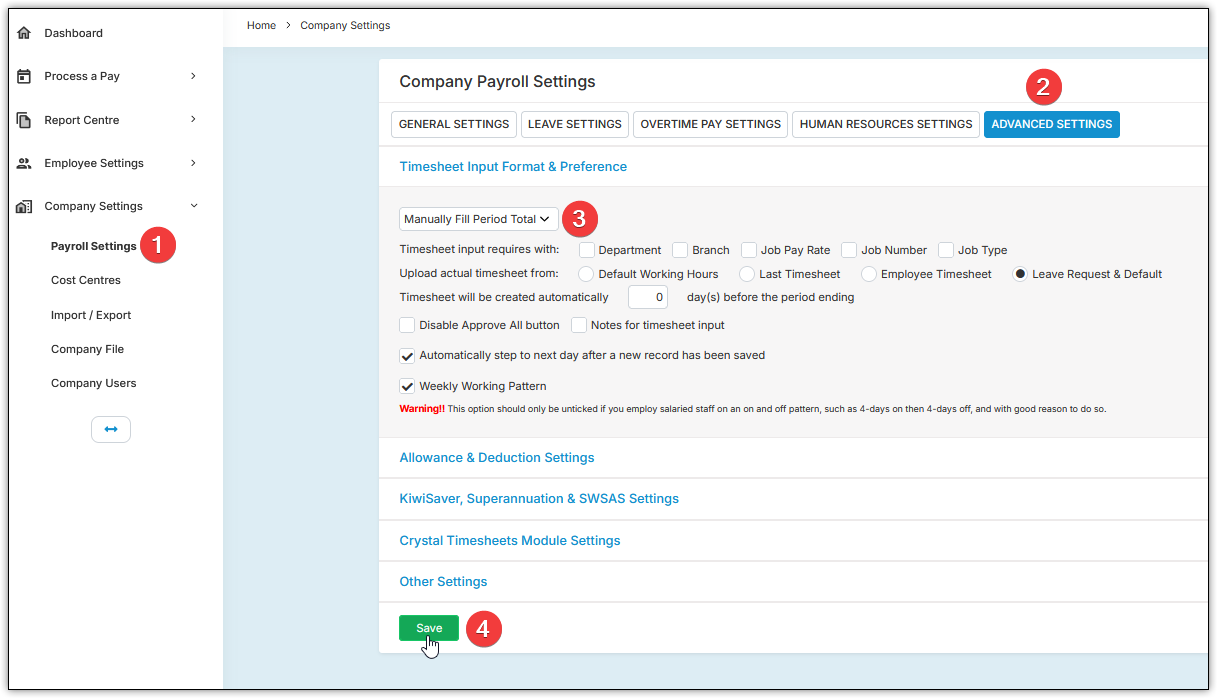
Please head to "Company Settings" and then "Payroll Settings".
Open "Advanced Settings".
Under "Timesheet Input Format & Preference", change the dropdown menu to either "Auto Fill Period Total" or "Manually Fill Period Total".
The difference between the two options is that "Auto Fill Period Total" will automatically populate the period totals based on the employee's default hours per period, whereas "Manually Fill Period Total" requires these values to be entered manually.
Select "Save".
Processing
Please head to "Process a Pay" and then "Time & Income".
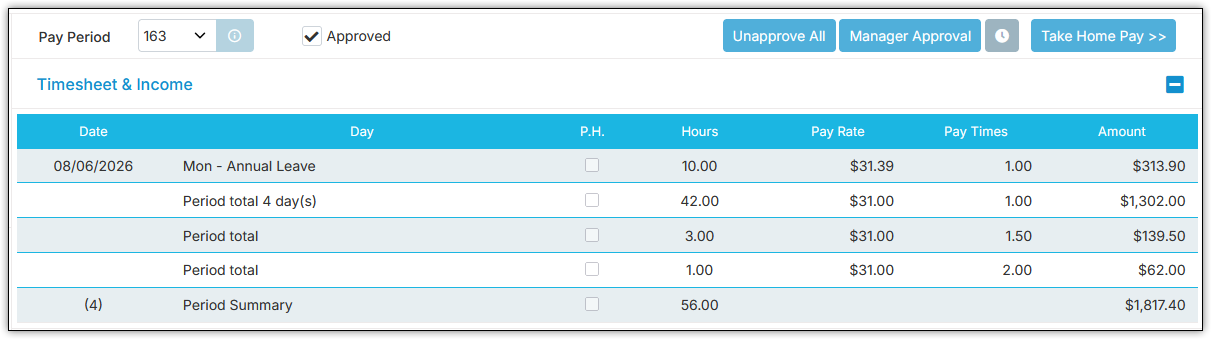
The Timesheets & Income section will now look slightly different. Unless the Action is changed from "Normal Working" to a leave type, there will no longer be a date field. Instead, you simply enter the Total Worked Hours and Total Days. If applicable, you can also specify the Pay Times, Branch, Department, and Job.
The Total Days field needs to be completed, as it is used by the system when calculating certain leave entitlements and payments.
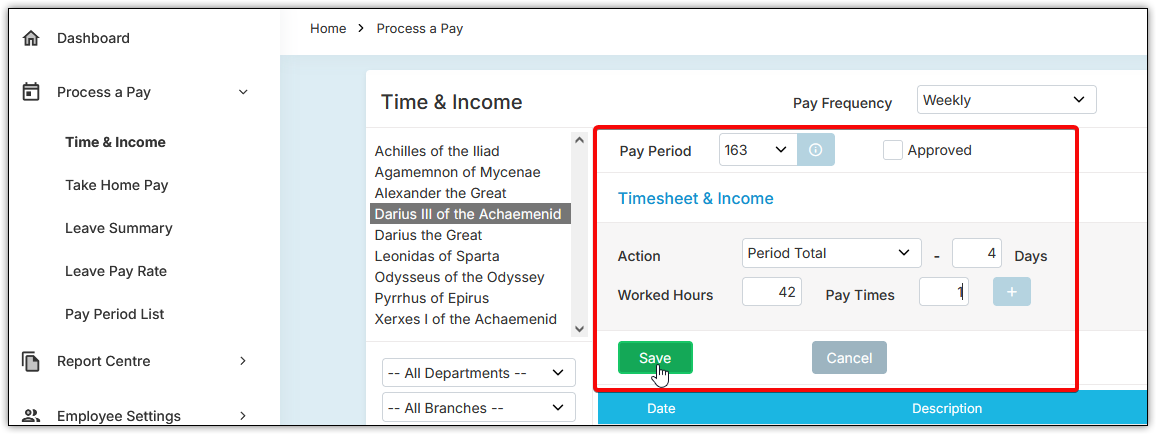
If there are multiple entries for that period, such as multiple pay rates, different pay times, overtime, or different branches, departments, and jobs that need to be recorded, you can hit the "+" button to add those additional entries.
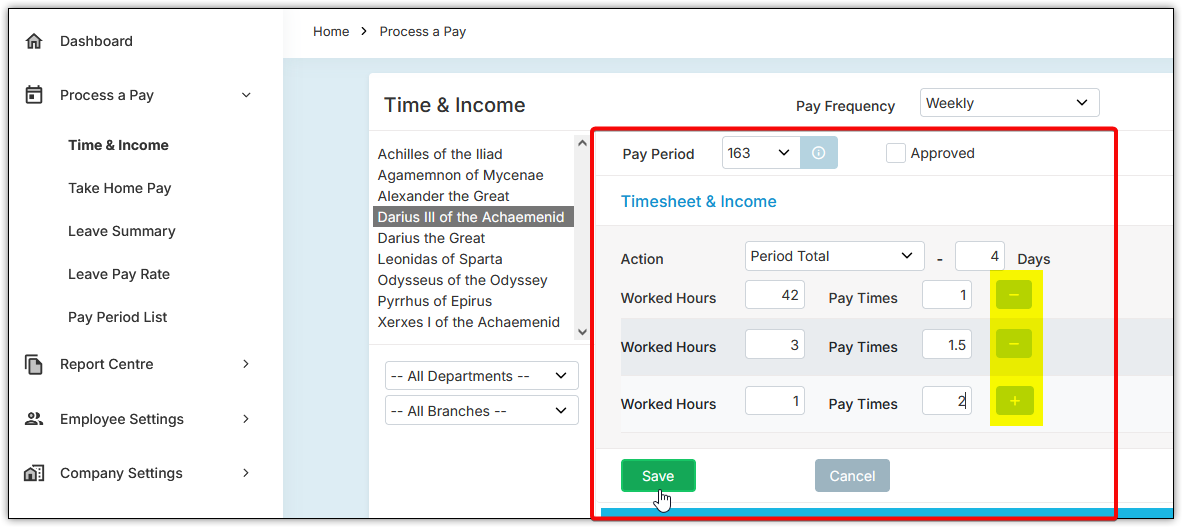
If you hit the "-" button, it will remove the entry. Please note that you can only remove an entry if the worked hours are empty.
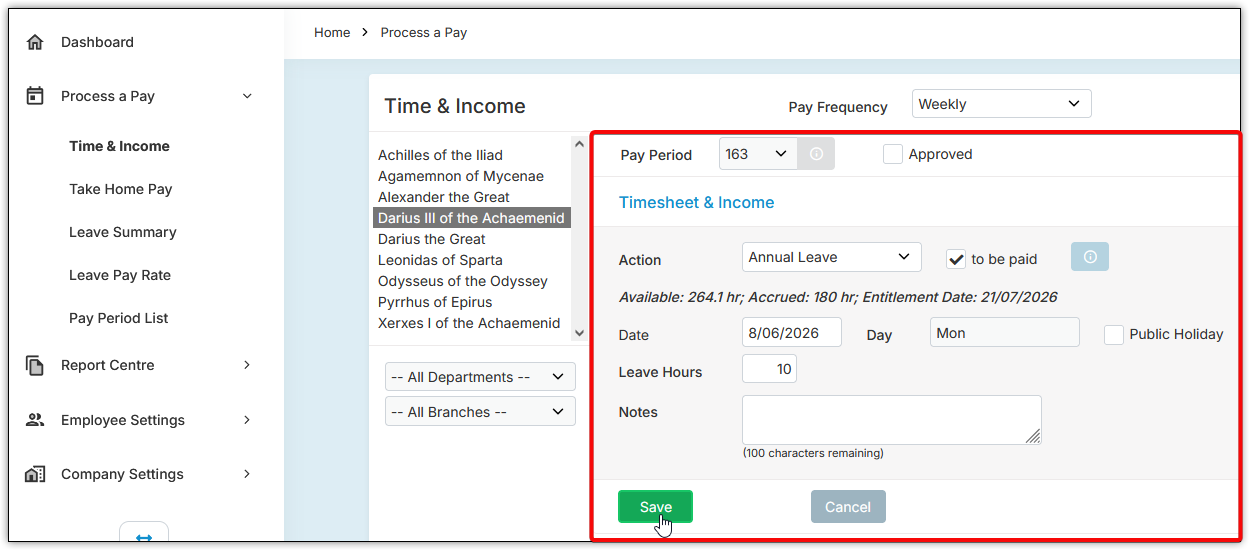
You can still change the Action to a leave type, including Public Holidays, and specify the relevant date and hours. This process functions much the same as the standard day-by-day setup.
Below is an example of a weekly payslip generated using this setup, where the employee both worked and took leave during the pay period.
Reporting
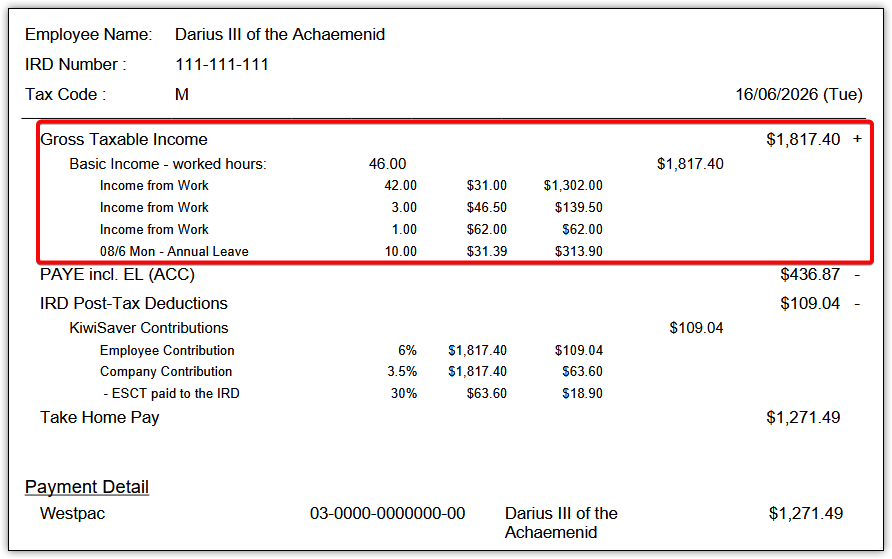
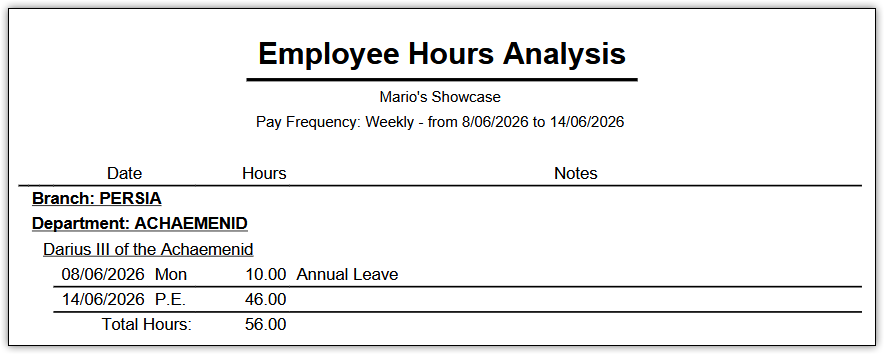
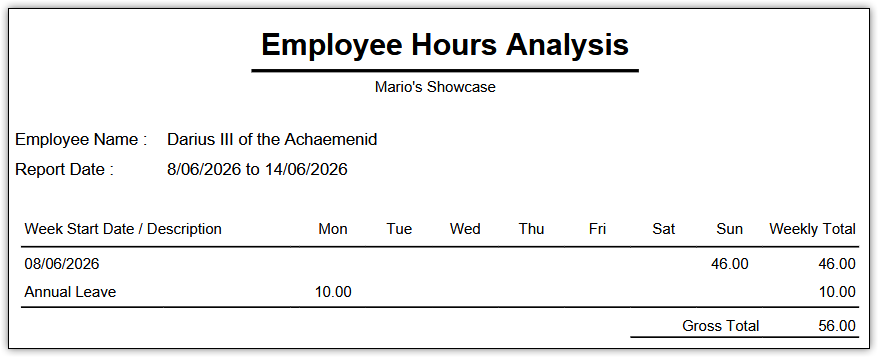
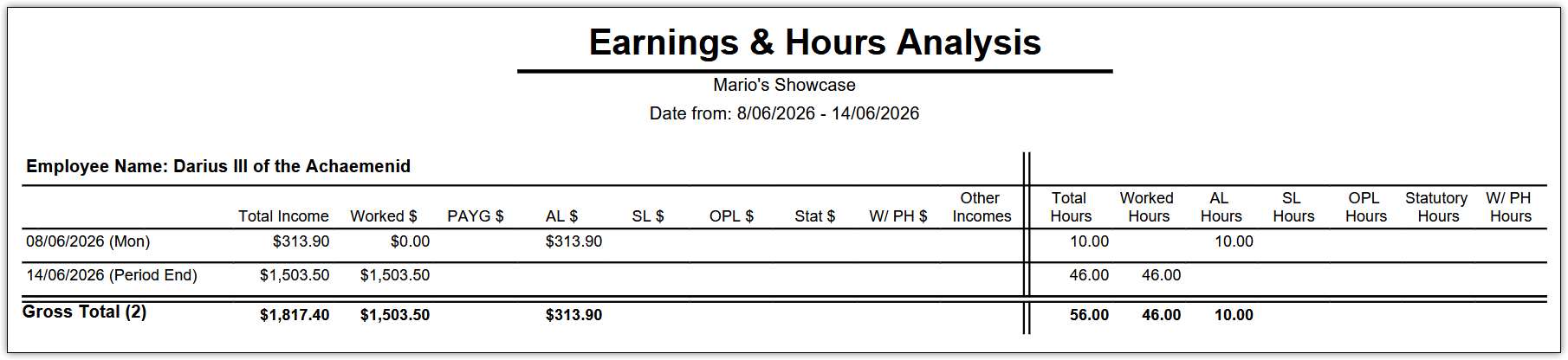
All of the reports referencing daily hours are also updated to take into account this change. You can find some sample reports below so you know how this will appear.
Payslip, if using the Daily Hours option:
Hours Worked Analysis - List, where P.E. means Period Ending:
Hours Worked Analysis - Table:
Earnings & Hours Analysis - Employee-specific:
Was this article helpful?
That’s Great!
Thank you for your feedback
Sorry! We couldn't be helpful
Thank you for your feedback
Feedback sent
We appreciate your effort and will try to fix the article