Crystal Payroll can be set up to send wages information to your Prosaic account so you can reconcile staff payments quickly and easily. This basic integration involves creating a manual CSV journal file and uploading it to your Prosaic account to post.
Setting Up
You only need to set up your integration with Prosaic once, and it will continue working from then onward.
To do so, follow the steps below:
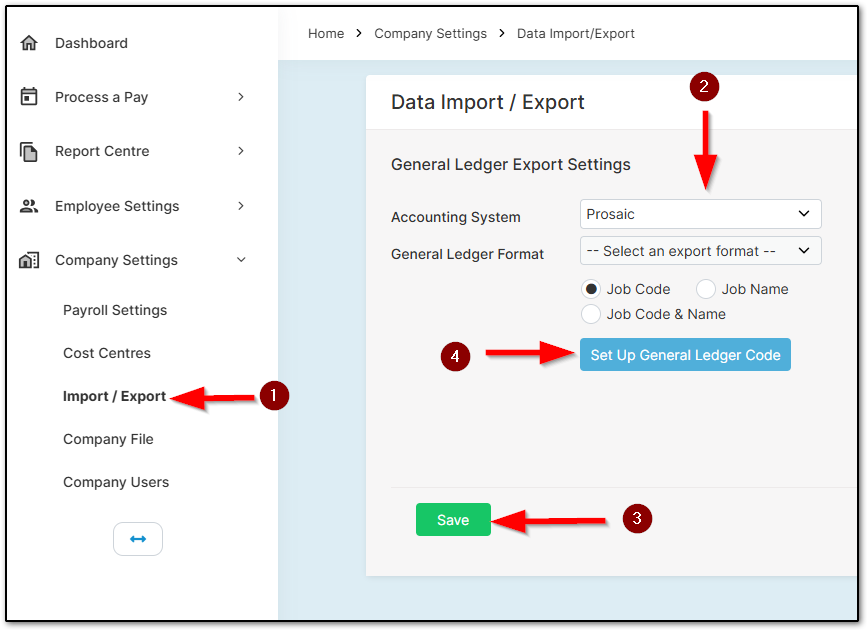
1. Navigate to "Company Settings", then "Import/Export".
2. Select "Prosaic" on the left-hand side under "Accounting System".
3. Select "Save".
4. Open "Set Up General Ledger Code" on the left-hand side.
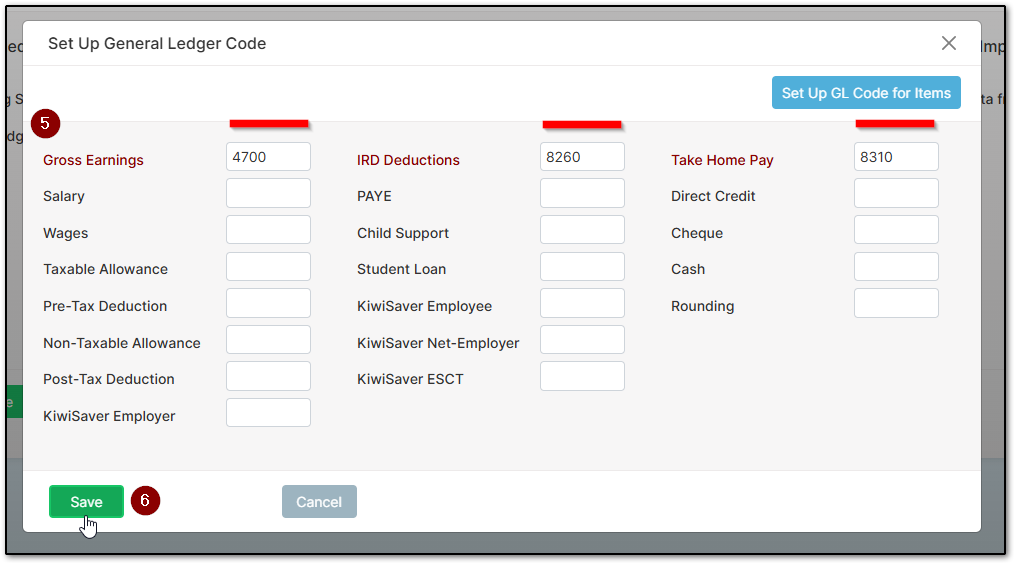
5. Enter the following:
- In "Gross Earnings", enter "4700".
- In "IRD Deductions", enter "8260".
- In "Take Home Pay", enter "8310".
6. Select "Save".
Exporting and Importing a Prosaic Manual Journal
After you have run a pay in Crystal Payroll, follow the steps below to create a journal file.
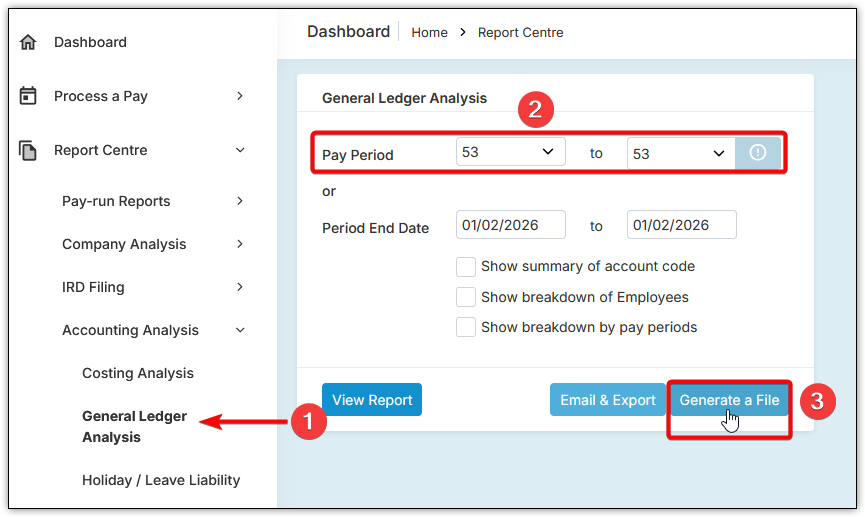
1. Navigate to "Report Centre", "Accounting Analysis", then "General Ledger Analysis".
2. Choose the "Pay Period" you want to export.
3. Select "Generate a File" to download a CSV file. Do not open the file unless you know what you are doing.
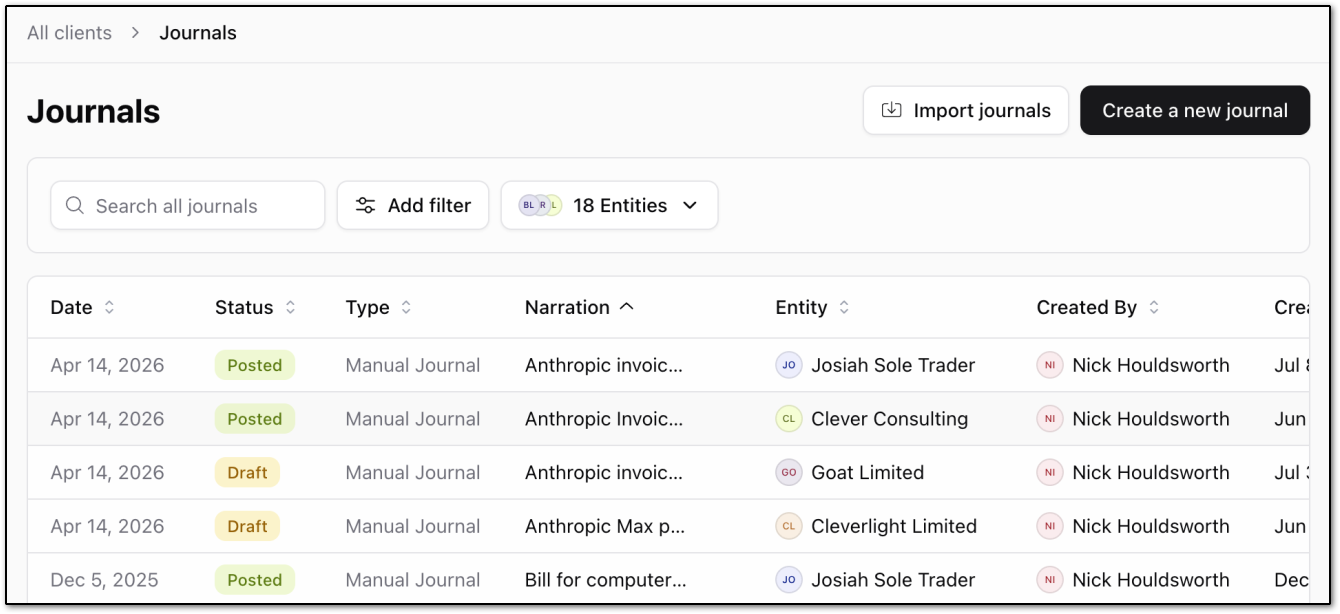
4. In Prosaic, navigate to "Journals" and select "Import journals".
5. Upload the CSV file by clicking the "Choose CSV File" button.
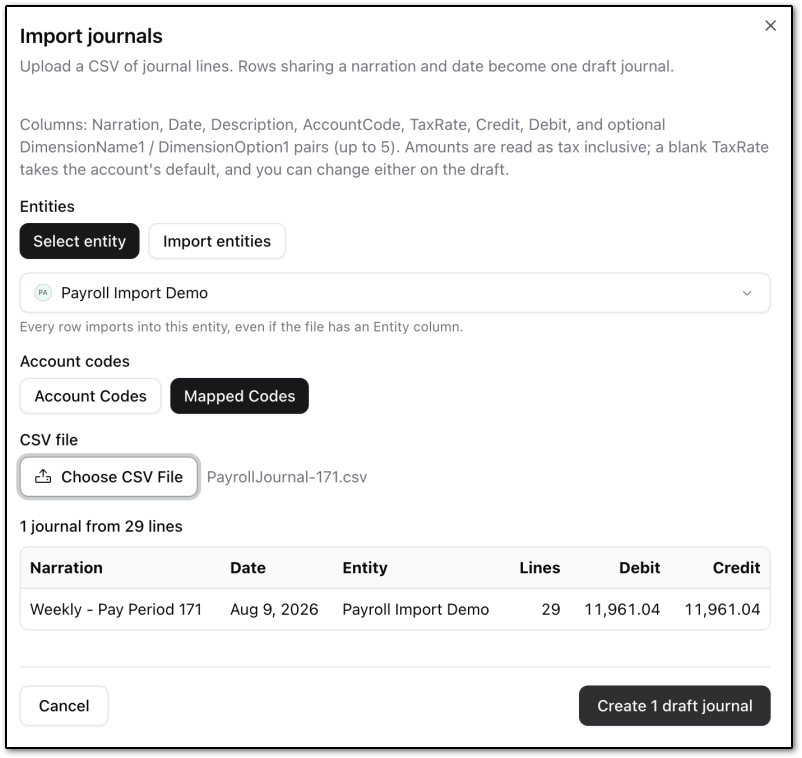
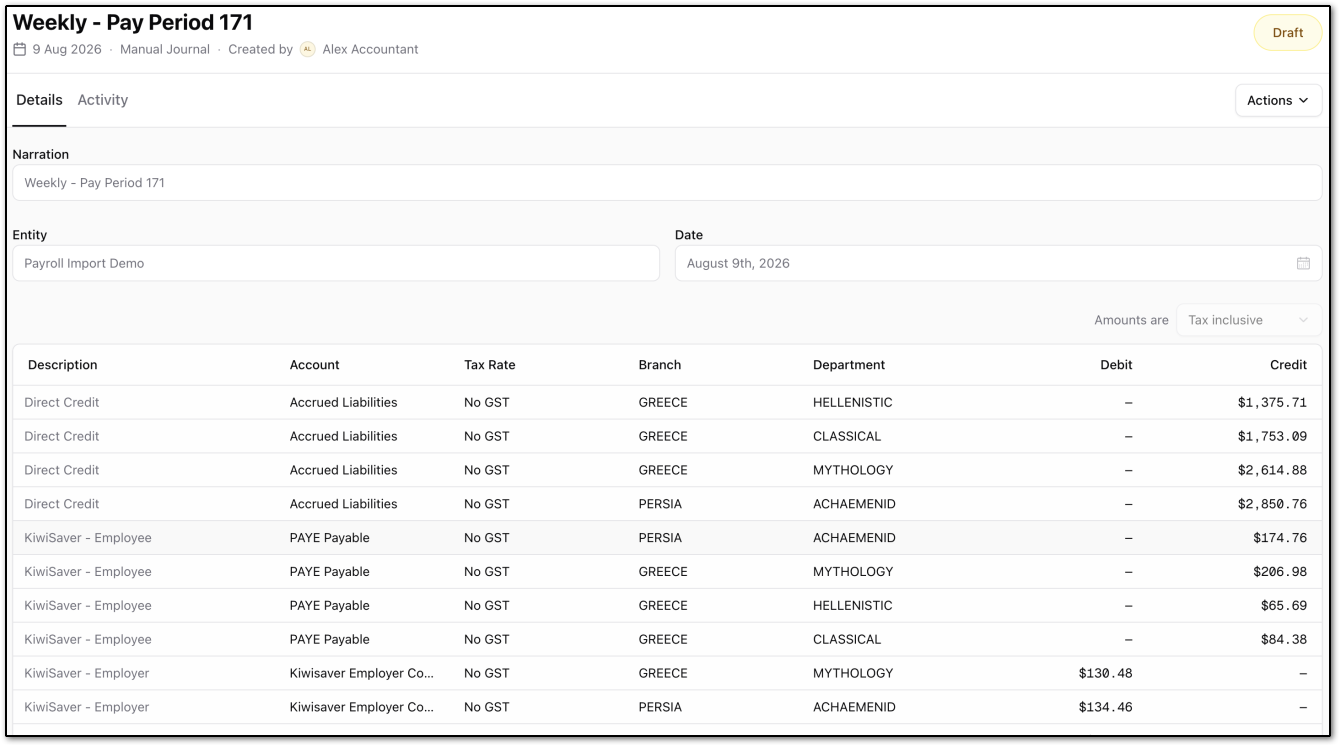
From there, you should be able to view the manual journal you have uploaded. Here is an example:
Was this article helpful?
That’s Great!
Thank you for your feedback
Sorry! We couldn't be helpful
Thank you for your feedback
Feedback sent
We appreciate your effort and will try to fix the article