What is the Audit Trail?
The basic Audit Trail shows you a chronological record of crucial changes that were made to the system.
NOTE: The paid Audit Trail Add-On will show ALL changes made within the system. For pricing information, please email Sales: sales@crystalpayroll.co.nz
The Audit Trail Add-On provides ALL changes made within the payroll system, helping you track who made changes, what was changed, and when the changes occurred. This provides more detailed insight into activity within the system, helping maintain clear visibility over payroll activities and historical changes.
Free Version vs Paid Version
The free Audit Trail would only show crucial information and important changes made to the system.
This would include:
- When the “Take Home Pay” for a pay period was approved or unapproved, who performed the action, and which pay period was affected.
- When Payday Filing authentication was turned on, disabled, or re-authenticated within the system.
- If a member of our Support team made an alteration within the system, including changes or adjustments made on the account.
- If IRD deductions or leave pay rates were manually changed, helping show when important payroll-related values have been adjusted within the system.
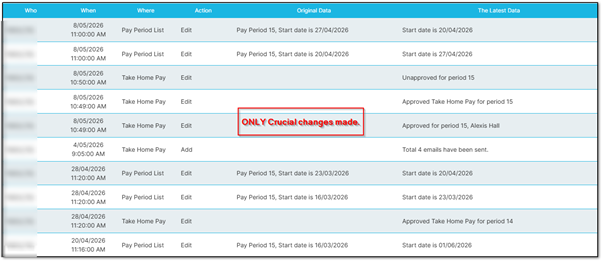
On the other hand, the paid version of the Audit Trail will show ALL changes that were done within the system, providing a much more detailed history of activity, adjustments, and actions performed throughout the payroll system.
How to use Audit Trail and Export Report
The use of both the free and paid versions of the Audit Trail is the same.
To view the Audit Trail, you would first need to navigate to “Company Settings”, then “Company File”.
From there, click on the “Audit Trail” button.
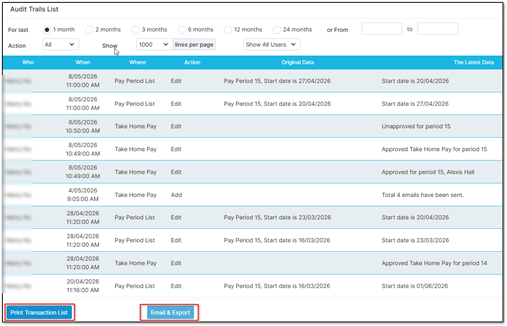
You will then be able to see the below menu.
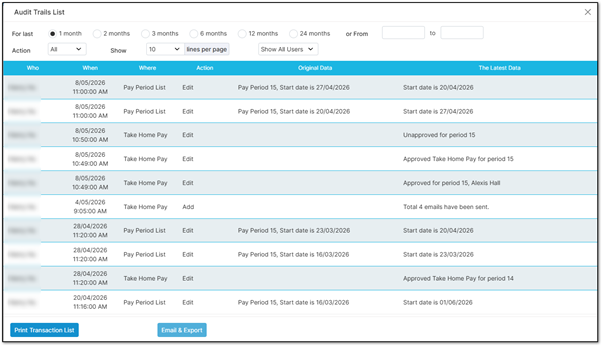
The first section allows you to select the date range for when you would like the Audit Trail to show information, for example the past 1 month, 2 months, etc. You can also produce the Audit Trail based on specific date ranges by manually selecting the dates.
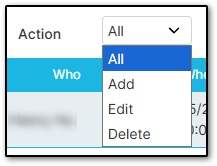
Under the “Action” drop-down list, it will allow you to filter the Audit Trail by selecting the specific type of action that was performed, such as actions that were added, edited, or deleted within the system.
The next option allows you to choose how many lines are shown per page, helping avoid the need to flip through multiple pages of entries.
By increasing the number of lines shown per page, you can also make it easier to search for specific entries by using “Ctrl + F” on your keyboard.
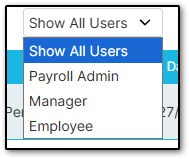
Under the “Show all user” drop-down list, it allows you to filter entries based on who made those changes. This can include Admins, Managers, or even Employees.
Finally, for the Audit Trail, at the bottom of the page there are two options you can select, depending on whether you would like to “Print” the information or “Export” it into a specific format.
When clicking into these entries, the preview will only show one page worth of information. However, if you continue through the export or print process, it will contain all of the information included within the selected Audit Trail results.
Was this article helpful?
That’s Great!
Thank you for your feedback
Sorry! We couldn't be helpful
Thank you for your feedback
Feedback sent
We appreciate your effort and will try to fix the article